
 TrustView Documentation
5. ADFS Services
5.1. The ADFS service object
Go to ADFS Services in the left menu and click Add to start monitoring an ADFS federation service. Only the service’s URL is
required to create it; the 10 available custom fields and a comment can optionally be filled in as well.
Note
ADFS services can also appear automatically, without adding them manually: TrustView will recognize an existing SSL endpoint as an ADFS service, and it can also discover ADFS services while scanning a domain.
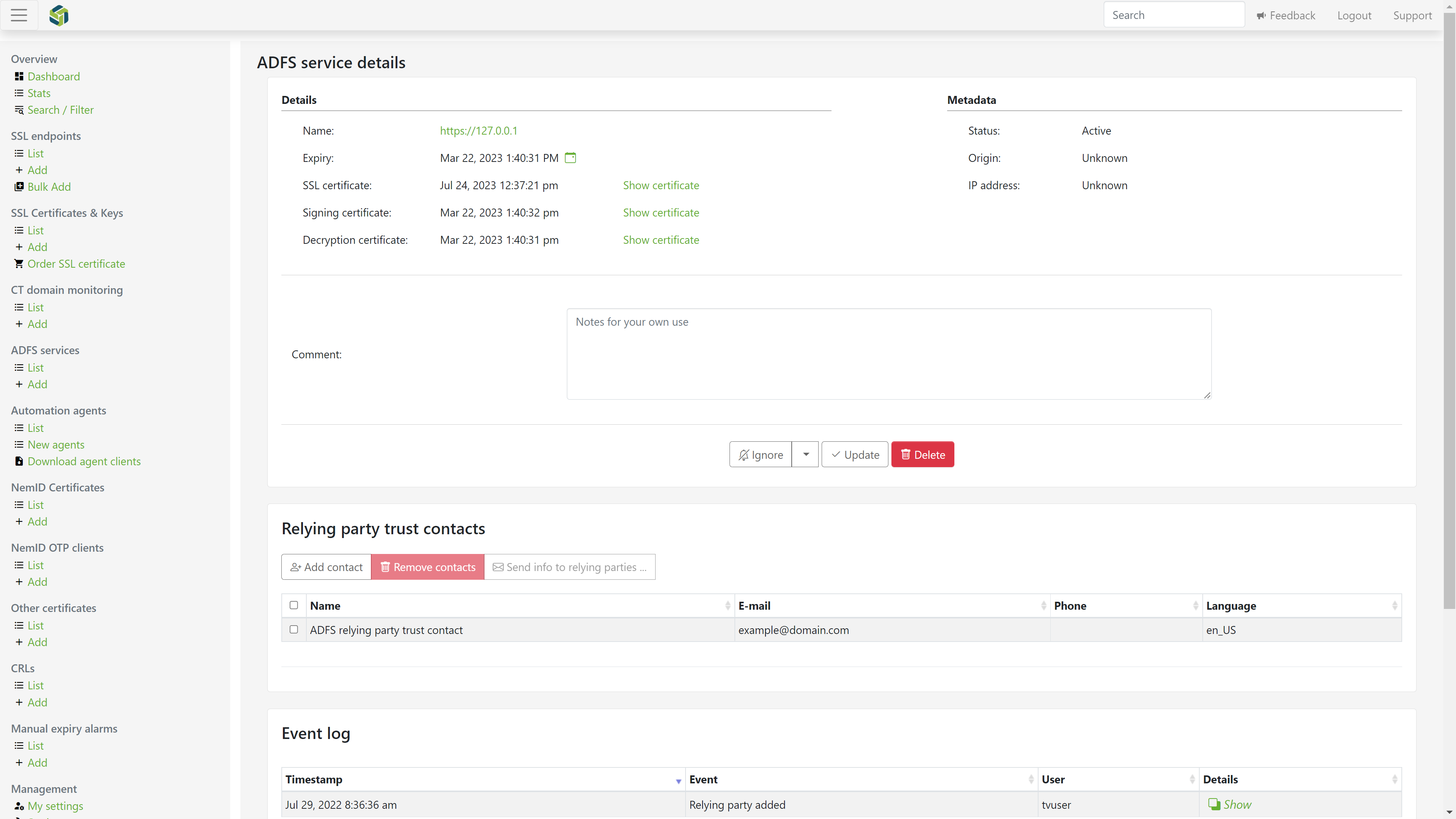
Once created, TrustView periodically fetches the service’s federationmetadata.xml and uses it to automatically discover and link three related monitored
objects, each shown on the ADFS service’s detail page with a link to jump straight to it:
the SSL endpoint for the service’s URL
the token-signing certificate
the token-decrypting (encryption) certificate
These three are not selected manually - they are (re)created and updated by TrustView whenever the federation metadata changes, and disabled automatically if the ADFS service itself is later disabled.
Note
Unlike most other monitored object types, an ADFS service does not support a custom, per-object notification threshold. The Normal and Escalated
day thresholds shown on its detail page always follow the module-wide default; entering a different value there is not effective for this object type.
5.2. Relying party trust
From TrustView, it’s possible to set up contacts for your relying party trusts and send them the newest federationmetadata.xml file.
Under the detail page of an ADFS service, press Add contact and select the contacts of your choice. If no contacts are available, a new contact can be created under
Users and contacts in the side menu. Click New contact in the External contacts section to create a contact that can be selected as a relying party trust contact.
To remove contacts again, tick the checkbox next to one or more contacts in the relying party list and click Remove contacts - contacts are removed in bulk this way;
there is no single-contact remove action.
Once at least one contact has been added and selected on the ADFS services page, the e-mail can be configured and sent by pressing Send info to relying parties.
The content of the e-mail subject and body can be customized to fit your needs.
Note
TrustView will automatically attach the newest federationmetadata.xml file available to the e-mail sent to the contacts.