
 TrustView Documentation
1. ServiceNow
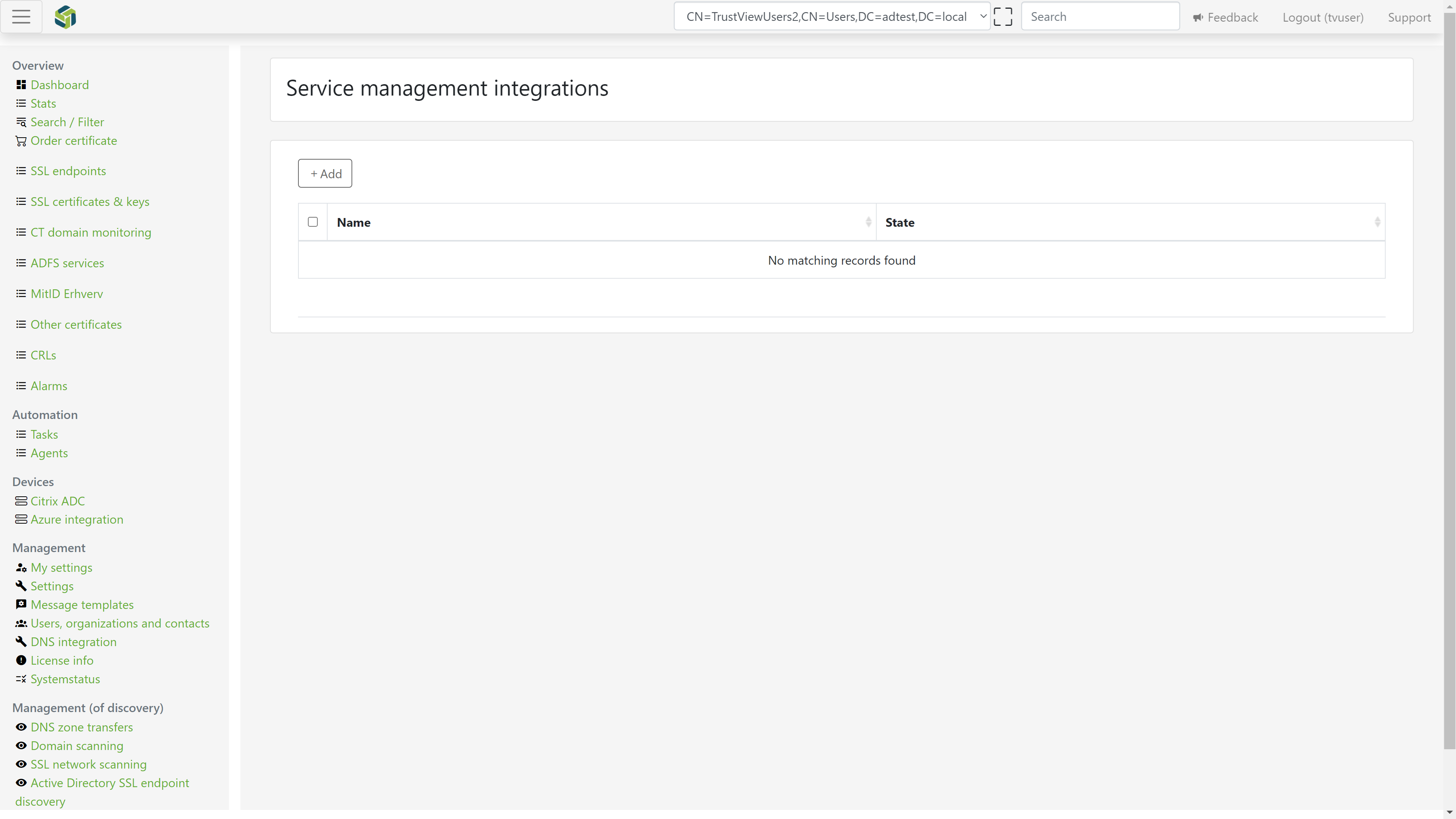
TrustView has a native integration with ServiceNow and can be accessed by going to Settings Service management integrations.
Once set up, this integration allows TrustView to automatically create a task, incident or Request (depending on the default task type selected for the instance - this can be changed later, not only at setup),
when a certificate or monitored object is close to expiry.
Note
Reaching Settings Service management integrations requires the TrustView Administrator permission on your role.
1.1. Set up ServiceNow integration
To connect to your ServiceNow instance, click Add and fill out the required information for each ServiceNow instance that you wish to use with TrustView:
Name - a name for the integration (Required)
Type - Select ServiceNow (Required)
Instance link - The link to the ServiceNow instance (Required)
Client id - Id of the ServiceNow client (Required)
Client secret - Secret for the ServiceNow client (Required)
Username - The username for your ServiceNow client (Required)
Password - The password for your ServiceNow client (Required)
Default task type - Choose which type of task TrustView should create (Required)
Note
The connection fields above (Instance link, Client id, Client secret, Username and Password) are only required if no other ServiceNow instance has already been marked as the global instance. If one has, the Add form instead shows a Use global instance connection checkbox that lets you skip these fields and reuse that instance’s connection - see Global instance below.
Important
The user that is referred to is the instance user that is associated with the ServiceNow client you are trying to connect to.
The user details can be found here https://developer.servicenow.com/ My instance Manage instance password.
The connection to the ServiceNow account is based on OAuth 2.0 and Basic Authentication is not supported.
Tip
If you are in doubt about where to find the information, you can check out the ServiceNow documentation.
After the initial setup of the ServiceNow integration, perform the following tasks:
Test the connection - Click
Test connectionSynchronize the groups - Click
Sync assignment groupsSelect a default assignment group - Choose
Assignment groupfrom dropdownCreate a test task or incident - Click
Add test incident(this also counts for creating a test task)
Important
Selecting a default assignment group is not optional. The integration cannot be enabled, and no test incident or task can be created, until a default Assignment group has been selected - both actions fail with a “No assignment group set” error until then.
Note
Synchronization of groups does not trigger automatically and has to be triggered manually.
1.2. Per monitored object selection of ServiceNow assignment group
It is possible to assign assignment groups to each individual object, such as SSL Endpoints or SSL Certificates etc.
To enable this, you must first activate the ServiceNow integration in TrustView. Once that has been done and a default Assignment group
has been selected (after successfully being synchronized with your ServiceNow instance), you can select an Assignment group
that you wish to attach Incidents or Tasks to on the edit page, to the right just below Notifications.
1.3. Default task types
Choose one of the default task types globally, for the ServiceNow integration:
INCIDENT
TASK
REQUEST
Currently, the task types above are available.
1.4. Group types
Here you can choose between the available group types and import the ones chosen.
Tip
You can select as many or as few group types as needed.
1.5. Enable incidents
It is possible to enable ServiceNow incidents for Normal and Escalated incident types, or both.
By default they will both be disabled, so you need to enable them for the type of notification you want (normal and/or escalated).
Important
If this is not enabled for at least one type, no incidents or tasks will be created on your ServiceNow instance at all.
Note
This is separate from the Enable/Disable button at the bottom of the integration’s edit page, which switches the whole integration between
the Active and Disabled state (Enable only appears once a default Assignment group has been selected). Both gates must allow it -
the integration must be Active, and at least one of the Normal/Escalated checkboxes above must be checked - before any incident or
task is created.
1.6. Automatically fill out required ServiceNow fields
ServiceNow instances have a range of fields that are required to be filled out. Instead of doing it manually, it can be done automatically during or after the initial ServiceNow instance configuration in TrustView.
Go to Settings Service management integrations click your ServiceNow instance, then scroll down to the ServiceNow extra fields section on that same edit page.
The field on the left must match the field’s internal/element name as used by your ServiceNow instance’s REST Table API - not necessarily the on-screen field label, since those can differ - and the right field is the value that the field should be filled out with. You can add as many extra fields as you want, just make sure they match the field names in ServiceNow.
Example:
Property Name | Property Value1.7. Global instance
You can use the ServiceNow integration as a global instance, if enabled. To enable it, click Use as global instance.
This copies the connection settings only - instance link, client id, client secret, username and password - from the ServiceNow instance designated as global to every other ServiceNow instance. Description templates, extra fields, the assignment group, notification thresholds and the default task type are not shared, and stay configured per instance.
Note
Marking or unmarking an instance as the global instance requires the Global administrator role specifically - a stricter requirement than the rest of this page. The Use as global instance button is hidden for TrustView administrators who aren’t also Global administrators.
Tip
This may not be relevant if you only have a single ServiceNow instance.
1.8. Event log
Each ServiceNow instance has its own event log, further down on the same edit page. It records changes to the integration itself -
creation, Enable/Disable, and global-instance changes (marked, unmarked or synced as the global instance) - and the result of
group synchronization (a group or group type becoming available or unavailable, and newly imported group types).
Note
Test connection and Add test incident only show a success or failure message on the page itself; neither is recorded in this
event log. A real incident or task created for an expiring certificate is logged on that certificate’s own event log instead, not here.
1.9. Object matching filters
By using the TVQL (TrustView Query Language), it is possible to build a search query to match your needs, using the available query parameters.
Use the input field Object matching filter to enter your desired TVQL search query.
Important
If an object matching filter is set, a notification is only sent when an object matches the query. So if you do not want to limit the notifications with an object matching filter, leave the input field empty.
The common TVQL syntax looks like this:
field = value
field != value
field IS EMPTY
field IS NOT EMPTY
Supported operators:
= , AND , OR , IS EMPTY , NOT()
1.9.1. TVQL examples
NOT(OrderId IS EMPTY)
certificationauthority=DIGICERT OR certificationauthority=LETSENCRYPT
comment IS EMPTY
status=Active
name="foo bar baz"
status=Active AND status=Ignored
status=Ignored AND status=Disabled OR status=Active
status=Ignored OR status=Disabled AND status=Active
status=Active OR status=Ignored
NOT(status=Active)
(status = Ignored OR status = Disabled) AND status = Active
NOT(OrderId IS EMPTY)
1.10. Description templates
Here you can customize the content of either the short or normal (longer) description, for the created task in your ServiceNow instance.
Write the description as needed and insert the variables where appropriate.
The following variables are available to insert into any of the descriptions:
#name (The name of the SSL certificate expiring)
#link (A direct link to the SSL certificate inside TrustView)
#expiry (The date when the SSL certificate expires)
#customfield1
#customfield2
#customfield3
#customfield4
#customfield5
#customfield6
#customfield7
#customfield8
#customfield9
#customfield10
Note
The custom field properties are only relevant if you have created any custom fields inside TrustView.