
 TrustView Documentation
7. List View of Monitored Objects
The search field to the left of the column dropdown button, in the toolbar, allows you to search across all data on the monitored object list (even data that are currently hidden). Inside the column dropdown, the search field at the top allows you to search for all the available columns. The columns can be toggled on and off based on your needs and columns available are dependent on the list (SSL certificates, SSL endpoints etc.) currently being viewed.
7.1. Toggling columns
For most lists in TrustView, it’s possible to select or deselect the columns, to customize the visible columns. The columns available are relevant to each list, so the columns available for the SSL endpoint list are different from the SSL certificate list and so on.
On the list, in the toolbar on the right, you can press the Columns button, next to the search field to select or deselect any columns (or toggle every column at once). You can also search for the columns available,
within the same dropdown menu.
Note
There must be a minimum of one column selected, you cannot deselect all of them.
If the column is visible, it will also be part of the export, when exporting data from the list. Only hidden columns will not be part of the exported data, so that can be utilized to hide irrelevant data.
7.2. Exporting data
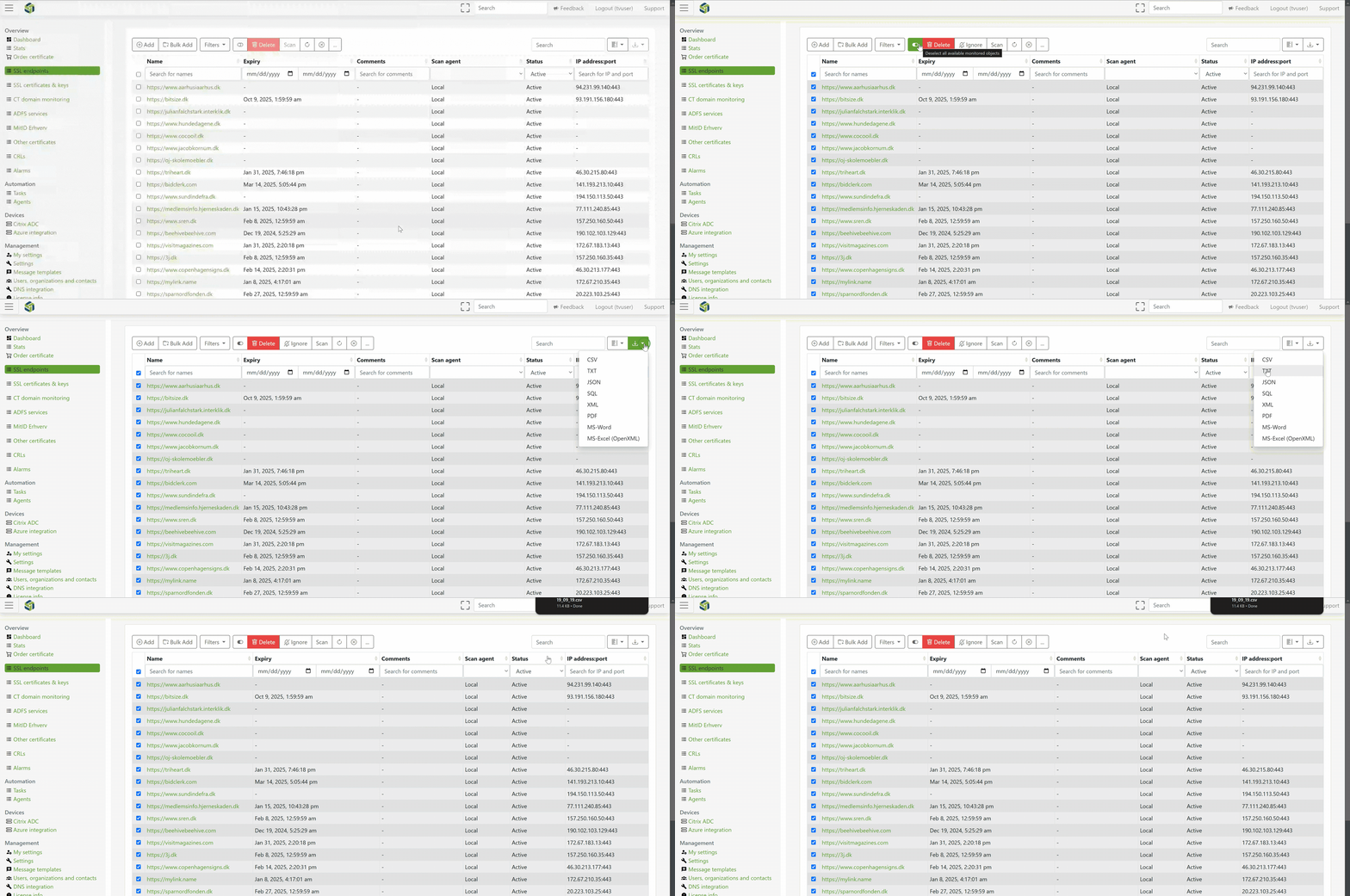
To export data from the list of monitored objects, at least one object must be selected before the export data button is enabled.
Only the data selected will be exported, but by clicking Select all available monitored objects on the toolbar, all objects,
even on pages not currently displayed, will be selected and can then be exported.
All columns currently toggled on will be exported, so the exported content can be customized to fit your needs.
Important
Depending on the export format selected, having all columns toggled on may break the formatting because of lack of space for very large amounts of data.
7.2.1. Export formats
The following formats are available as export options:
CSV
TXT
JSON
SQL
XML
PDF
MS-Word
MS-Excel (OpenXML)
7.3. Column sorting and filtering
It is possible to sort the content of each individual column and filter them based on the content. Clicking the columns will switch the sorting between ascending or descending order, and a third click will reset the sorting of the specific column.
3 types of fields are available for filtering, depending on the type of content of the column:
Text input field (input a search query)
Selection (dropdown with available options)
Datepicker (to and from date selection)
Note
For most columns, the selection field only contains options that are available from the current data in the list of
monitored objects. Example: if none of the monitored objects in the list has the Ignored status, that option will
not be available to choose from in that column’s selection filter.
The Status column is an exception to this - its selection filter always lists every possible status
(Active, Ignored, Found and AutoFiltered), regardless of what’s currently in the list.
7.5. Keyboard events
The following keyboard inputs can be utilized as shortcuts for certain actions:
S - Set focus on search field for the current list
← - Go to previous page of the current list
→ - Go to next page of the current list
7.6. Drag and drop
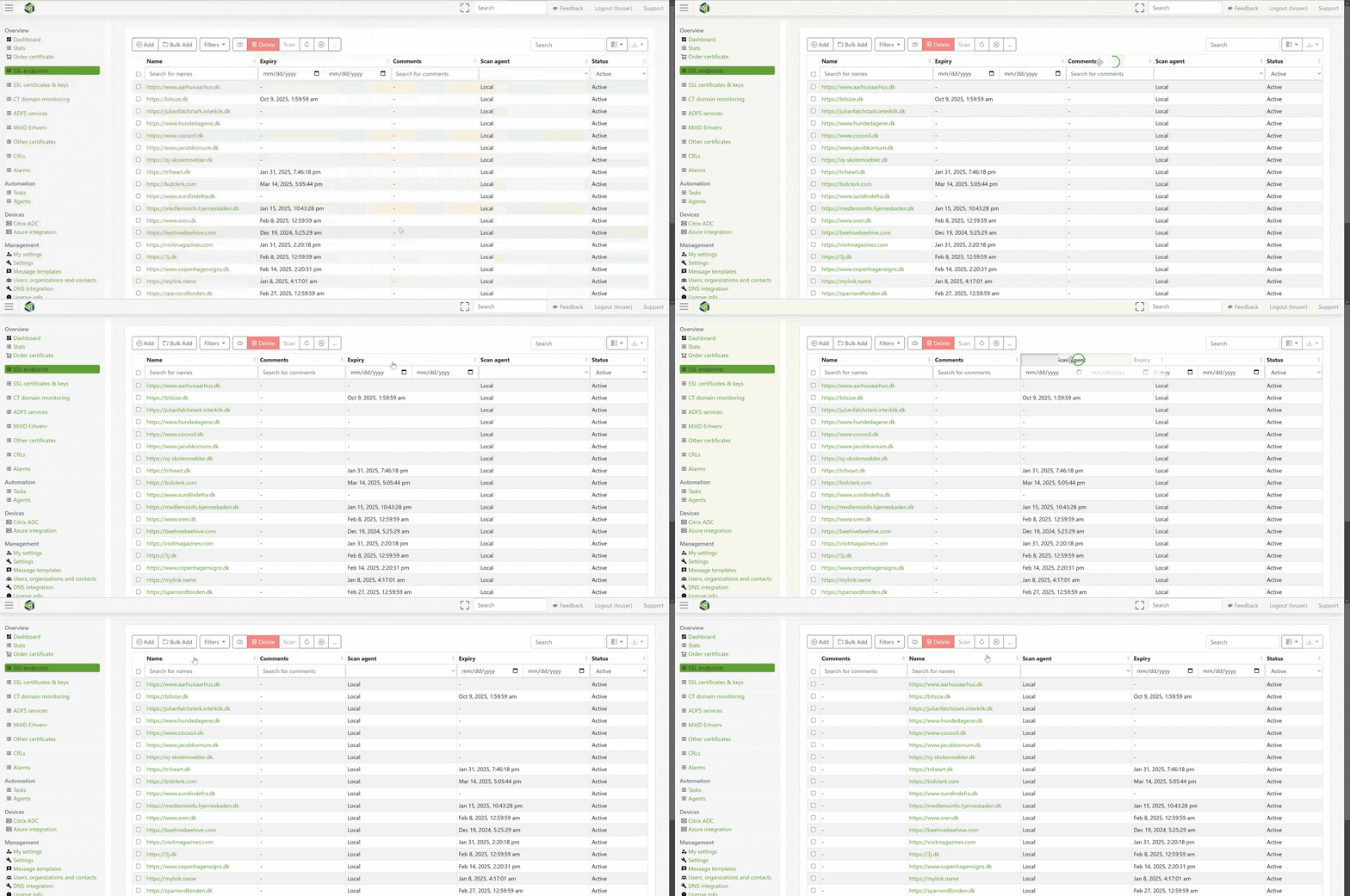
It is possible to rearrange the order of all the visible columns, by dragging and dropping them. To be able to rearrange more columns, simply enable them in the toolbar.
7.7. Filters
The toolbar also contains a dropdown for all available filters for the list. These filters can be enabled and disabled by clicking once on the filter to enable it and once again, on the same filter, to disable it.
Note
The currently enabled filter will be displayed below the toolbar, above the list.
7.8. Manual expiry alarms
A manual expiry alarm lets you track the expiry of something that TrustView cannot otherwise monitor by scanning - for example a VPN static key or any other credential with a known expiry date. It behaves like any other monitored object: it shows up in this list view, supports notifications, external contacts, comments and custom fields, and can have its own notification thresholds.
To create one, go to Alarms and click Add. Provide a name, an alarm timestamp (the expiry
date) and an optional comment.
Multiple alarms can also be created at once from a CSV file, using Create alarms using CSV. Each line of
the file must follow the format Name; Expiration; Comment, where the expiration date uses the format
dd-MM-yyyy and the semicolon is the delimiter. A multiline comment is supported by wrapping it in
quotation marks.
7.9. Dashboard graphs
The TrustView home dashboard shows a set of graphs summarizing your monitored SSL endpoints and certificates:
Signing algorithm - a breakdown of the certificate signing algorithms in use (e.g.
SHA256WithRSA,SHA1WithRSA)Security grade - a security grading of
Critical,MediumorGoodIssuer type - a breakdown of
Selfsigned,Public CA,Private CAandUnknownissuersBrowser errors - a breakdown of Chrome/browser trust errors seen across monitored endpoints
Certificate expiry counts