
 TrustView Documentation
2. Azure SSO
With Azure SSO, you can use just one set of credentials to conveniently access TrustView and any other Azure-related apps.
Tip
More information can be found here.
2.1. Configure Azure Single Sign-On (SSO)
Sign in to the Microsoft Entra admin center (Microsoft Entra) as at least a
Cloud Application Administrator.Browse to
IdentityApplicationsApp registrationsand selectNew registration.Specify a
name.Specify
Supported account types.Under
Redirect URIspecifyWeband type theURLof your TrustView instance.Specify the redirect URI¶1<trustview endpoint>/azuressoTip
Example: https://trustview.local/azuresso
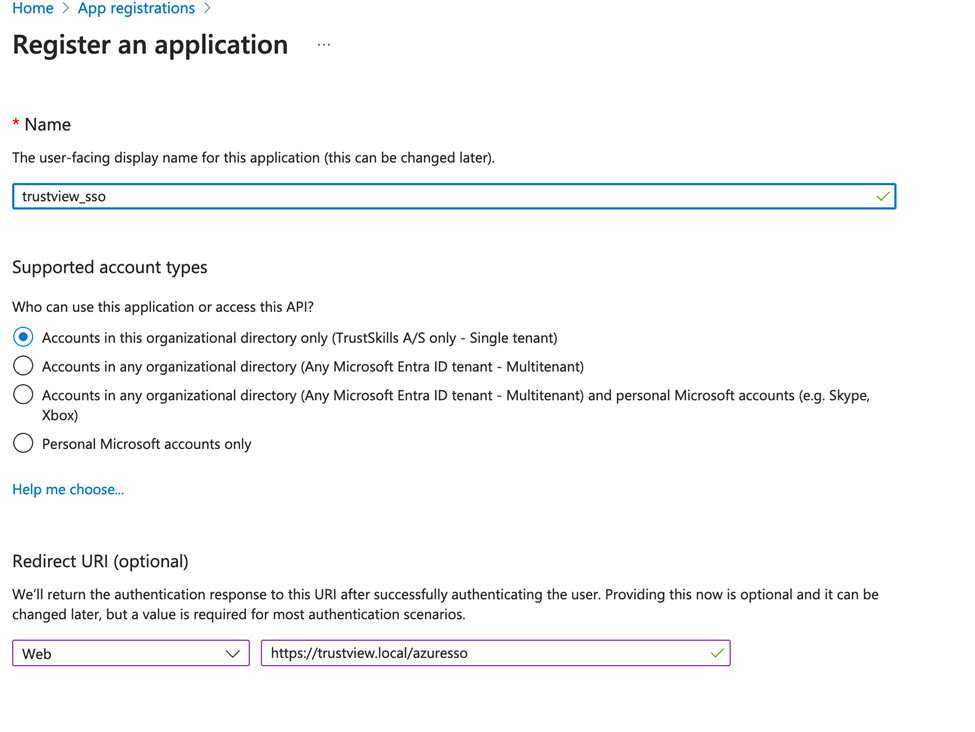
Select
Registerto complete the initial app registration.You will now see the newly created app registration.
Save the
clientID,ObjectID (subscription ID)andTenant IDas you will need them for the configuration in TrustView.You then need to add a secret. Go to
Certificates & secretsand clickNew client secret.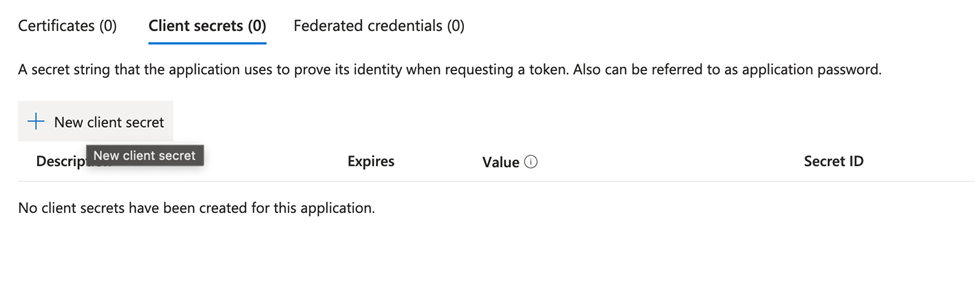
Save the
secret value.You have now created a client that can be used for Azure SSO in TrustView.
But before you are ready, you need to add another API permission:
Select
API permissionsClick
Add a permissionClick
Microsoft GraphClick
Application permissionsSelect the permissions
GroupMember.Read.AllandUser.Read.AllClick
Add permissionsTip
If you can’t find the necessary permissions, you can search for them in the search field.
Lastly, the newly added permissions have to be granted. Click
Grant admin consent for <domain>.Log into TrustView with a global admin user and browse to
Global settings.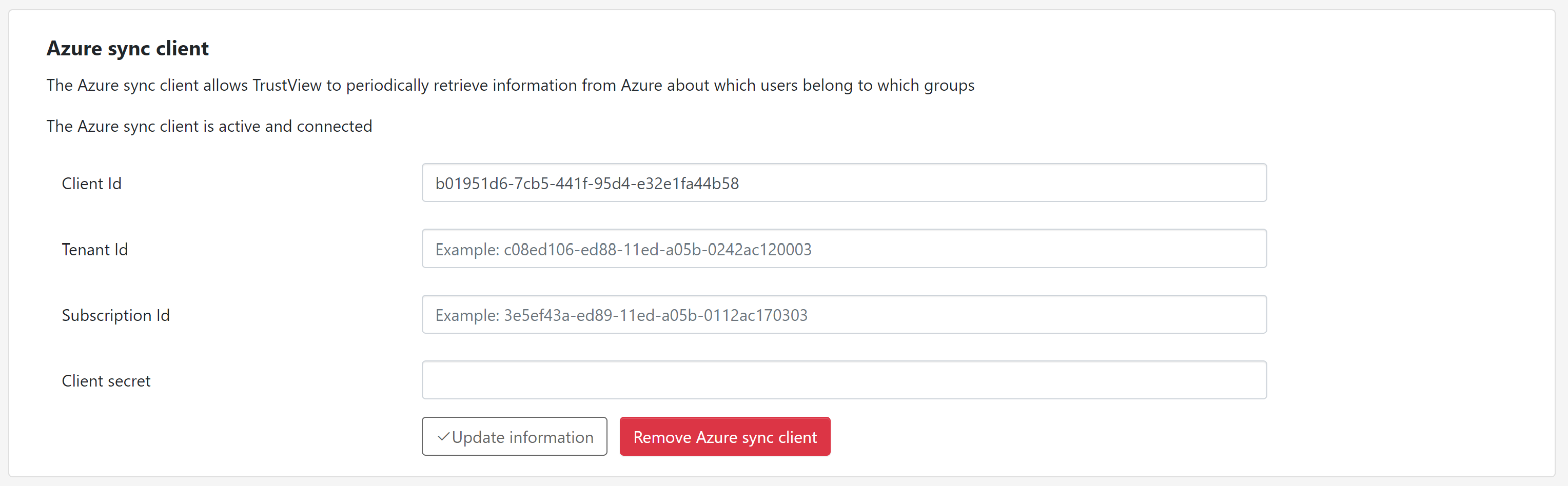
You then need to type in the
clientID,ObjectID,Tenant IDand thesecretcreated.
Type
clientIDinto client IDType
objectIDinto subscription IDType
tenant Idinto tenant IDType
secretinto client secretClick
update.Tip
To disconnect Azure sync again later, use
Remove Azure sync clienton the sameGlobal settingspage - see Azure sync client under Settings. Removing it clears all four settings - tenant ID, client ID, client secret and subscription ID - together; there is no way to remove just one of them.Under
Users, organizations and contactsin TrustView, you can see a button to settings for Azure single sign-on (SSO), where it will be possible to map Azure groups to TrustView Overview of roles.Use the search field to look up an Azure group by name, select the TrustView role it should map to from the dropdown, and click
Add. TrustView validates the group against Azure before creating the mapping, and rejects it if the group cannot be found.Note
Each Azure group maps to exactly one TrustView role at a time - selecting a different role for a group that is already mapped updates its existing mapping rather than adding a second one.
Existing mappings are listed in a table below, each with its own
Deletebutton. Deleting a mapping to theGlobal administratorrole requires the Global administrator role yourself.On the login page a link to Azure SSO will be visible:
Log on with Azure Single sign on? Click here.
2.2. What happens when a user signs in
Clicking the link redirects to Microsoft’s identity platform, where the sign-in itself is a standard OIDC authorization code flow: TrustView exchanges the returned code for tokens and validates the ID token’s signature, issuer, audience and expiry.
That alone does not decide the user’s TrustView role. Immediately after validating the ID token, TrustView
makes a separate, live call to Microsoft Graph - using the app registration’s own client ID and secret
(the same credentials entered in Step 4, shared with the Azure sync client), not
anything belonging to the signing-in user - to look up that user’s current Azure group memberships.
Those memberships are matched against the group-to-role mappings from Step 5 to decide whether the user
is allowed in and which TrustView role they get. This happens on every single login, not only once during
setup, which is also why the app registration needs the GroupMember.Read.All and User.Read.All
Application permissions from Step 3, rather than just ordinary delegated sign-in permissions.
Important
Because of that Graph lookup, the TrustView server needs live outbound connectivity to both
login.microsoftonline.com and graph.microsoft.com at the moment of every Azure SSO login, not
only during initial setup or periodic sync. If the Graph call fails, the login fails.
Note
Azure SSO is a single-purpose Entra ID integration, not a generic OIDC or SAML relying party. The token issuer TrustView requires is fixed to Microsoft’s own endpoint for the configured tenant, and TrustView has no SAML support at all, so this cannot be pointed at a different identity provider.