
 TrustView Documentation
1. Users, Groups and Roles
TrustView supports two types of users, local users and Active Directory (AD) integrated users. Local TrustView users are added and managed directly from TrustView, whereas AD integrated users require no handling in TrustView but are created and managed based on the assigned AD security groups. Users in TrustView are assigned one of several pre-defined roles. Depending on the assigned role, parts of the functionality and features are disabled for the user, such as modifying the configuration or check-out of certificates.
A user is always assigned to a specific group in TrustView. All users in a group manage the same set of certificates. Usually a single group is sufficient for most cases, but there are situations where multiple groups are a better setup. One such situation is an organization where management of SSL certificates and management of MitID Erhverv certificates are strictly separated. With a two-group configuration in TrustView, users handling MitID Erhverv certificates do not have access to any SSL/TLS certificates and vice versa.
1.1. Viewing all users
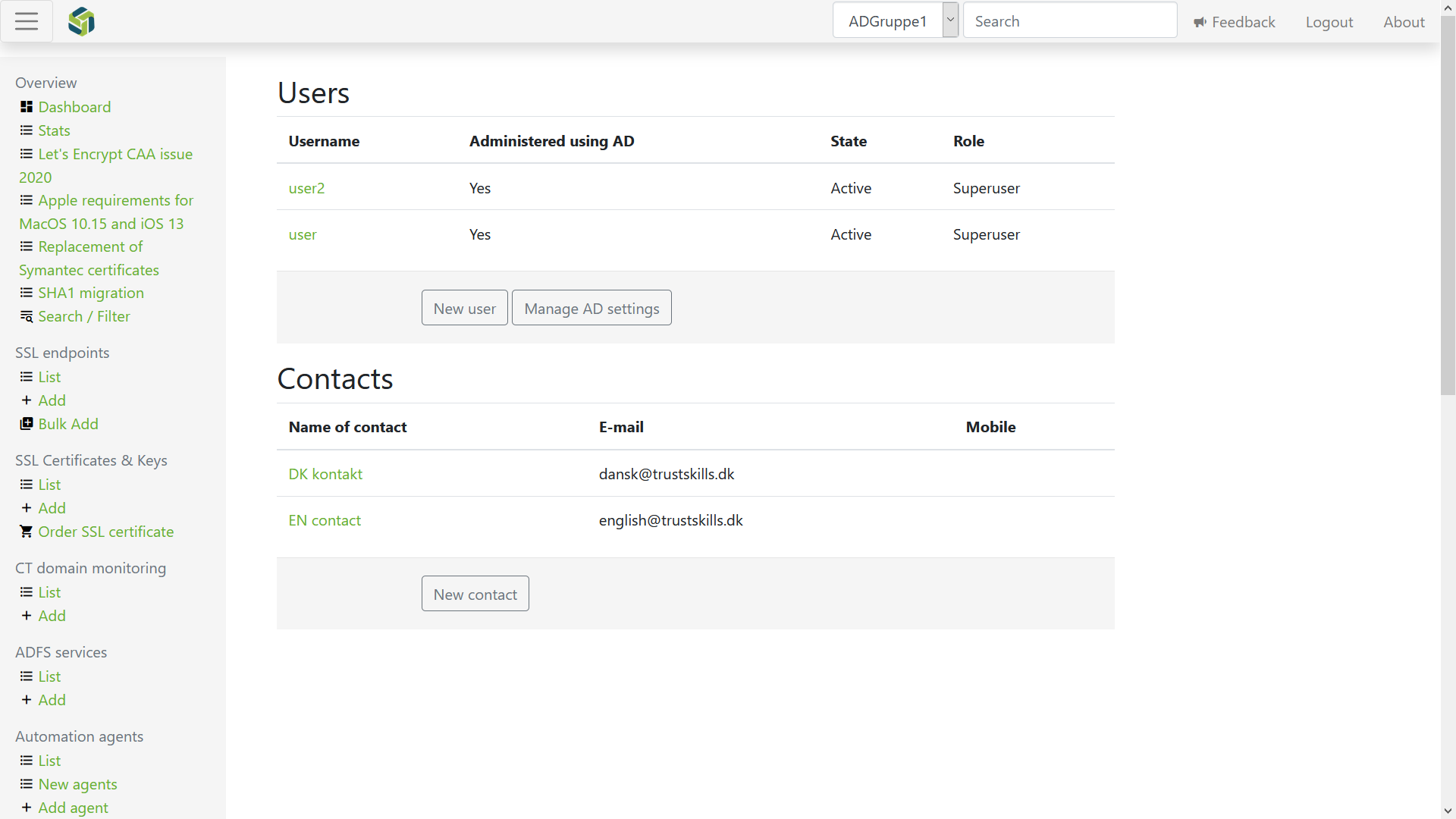
Select Users, organizations and contacts in the left menu under the Management section.
The list of users, organizations and contacts will then be displayed.
Important
TrustView distinguishes between a user and an (external) contact. A contact in TrustView is an identity you can check out a certificate to, without remembering the e-mail and phone number of the contact. An (external) contact cannot log in to or gain access to TrustView.
To get an overview of all the deactivated users, add ?advanced at the end of the browser URL, without removing anything, which should look like this:
https://trustview-instance-url/users/list?advanced
After that, a new advanced menu will be visible, showing all of the deactivated users of TrustView (if any).
1.2. Management of local users
1.2.1. Adding a local user
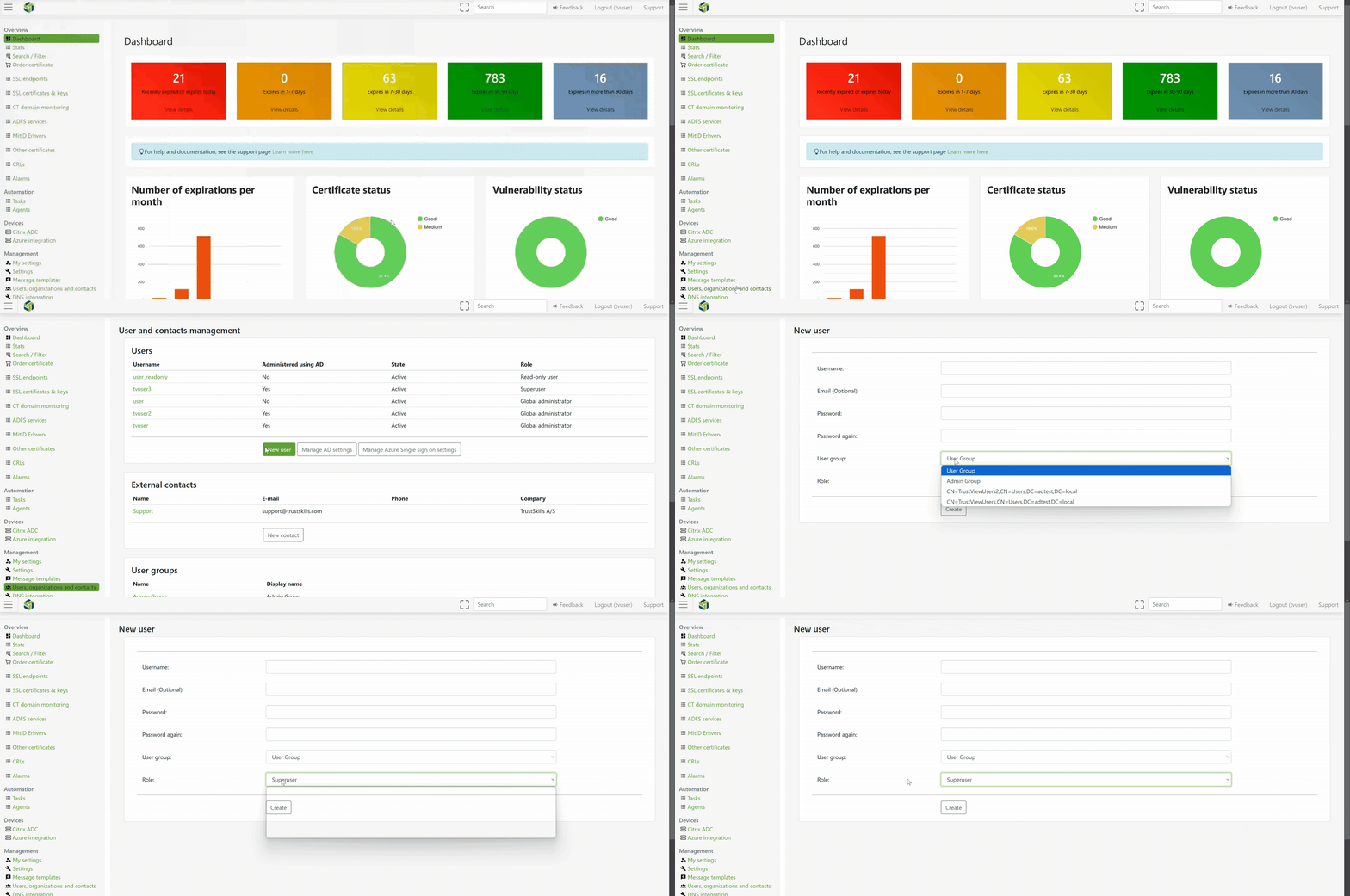
Click New user from the user list and fill out the information.
Tip
By default, a new user (local, AD-integrated or signed in via Azure SSO) receives a notification about
their new account. Set disableNotificationsForNewUsers = true in TrustView.groovy to turn this
off for every new user, regardless of how they’re created.
1.2.2. Deactivating or changing the role of a local user
Select the user from the list of existing users and click Deactivate to deactivate the user.
Important
In TrustView, you can only deactivate a user, not delete a user. This is done to preserve the full history of user events registered by TrustView, such as placed certificate orders and checkouts. A deactivated user does not have access to TrustView.
Tip
Deactivation is reversible: select a deactivated user from the list and click Activate to restore
their access to TrustView. Reactivating a user requires the top System permissions tier, which is
included by default in the Global administrator and Superuser roles.
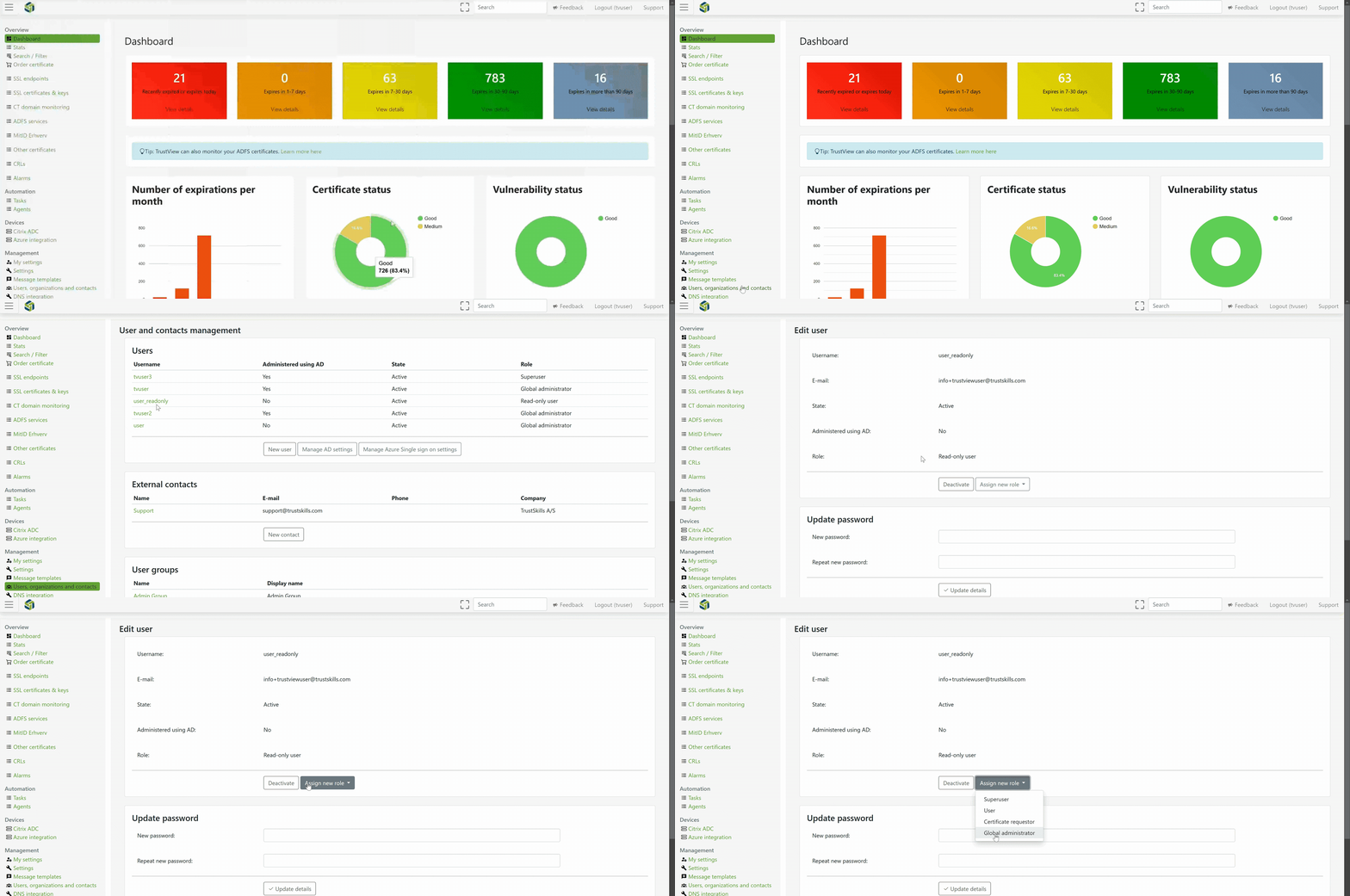
On the detail page for the user, it is also possible to change the role of the user if needed.
Important
The role of the user can never go above the role of the user currently logged into TrustView.
This means that a user with the role of Superuser could never grant the user a role of Global administrator.
1.3. Management of AD-based users
1.3.1. Adding an AD integrated user
A user can log in to TrustView as soon as the user has been assigned to one of the required AD security groups. There is no additional configuration on a per-user basis required from TrustView.
Important
Note that the user is not visible in TrustView before the first login, so simply assigning the user to the AD security group will not, on its own, create the user before the first login.
1.3.2. Modifying an AD integrated user
You can change the user’s assigned role by assigning another AD security group to the user. During the next login by the user, the role of the user is automatically updated.
1.3.3. Deactivating an AD integrated user
You can remove an AD integrated user’s access to TrustView by removing the
user from the AD security group. This does however not immediately deactivate
the user in TrustView, because the state of the user is only updated during
login attempts. You can however deactivate the user explicitly by selecting
the user on the list of all users and clicking Deactivate.
Important
In TrustView, you can only deactivate a user, not delete a user. This is done to preserve the full history of user events registered by TrustView, such as placed certificate orders and checkouts. A deactivated user does not have access to TrustView.
Tip
Deactivation is reversible: select a deactivated user from the list and click Activate to restore
their access to TrustView. Reactivating a user requires the top System permissions tier, which is
included by default in the Global administrator and Superuser roles.
1.4. Configuration of AD-based user management (AD-login)
Using AD-based user management requires an initial configuration of AD communication and mapping of security groups in AD to groups in TrustView.
Tip
Steps 2 and 3 below add a trusted CA certificate via the Java keystore and keytool - this is the
traditional way to fix a certificate-trust error during AD-login, such as
javax.net.ssl.SSLHandshakeException: ... PKIX path building failed: ... unable to find valid certification
path to requested target
. TrustView also offers a simpler, recommended alternative for this - see
Manage trusted certificates below - which takes effect immediately, without
restarting Tomcat.
To set up AD-login in TrustView, these 5 lines must be included in the TrustView.groovy file:
1  adloginUpnsuffix="domain.com"
2  adDomainName="domain.com"
3  adloginSearchbase="dc=domain,dc=com"
4  grails.plugin.springsecurity.auth.loginFormUrl = '/login/adauth'
5  adloginAdHostUseSSL = true
If you need the Searchbase to be expanded, to search in more than one location of your Active Directory, you need to replace your adloginSearchbase line with the following:
1 adloginSearchbase=["OU=Users,DC=adtest,DC=local","OU=Users2,DC=adtest,DC=local"]
In the above example, Users and Users2 will be searched for any users and groups in the Active Directory.
It’s possible to add additional search locations, but they must be contained within the [ ] brackets, to comply with the syntax.
This new setup will enable TrustView to locate the domain controller automatically. If you want to enable a domain controller for fallback, the following lines must be used instead:
1  adloginUpnsuffix="domain.com"
2  adDomainName="domain.com"
3  adloginAdPort=636
4  adloginAdHost="127.0.0.1"
5  adloginSearchbase="dc=domain,dc=com"
6  grails.plugin.springsecurity.auth.loginFormUrl = '/login/adauth'
7  adloginAdHostUseSSL = true
The fallback domain controller used will be 127.0.0.1:636, which is specified as adloginAdHost.
Note
Change the lines to fit your setup. Port 636 is for SSL. To run without SSL, change adloginAdPort to port 389 and
set adloginAdHostUseSSL to false.
Tip
To specify a DC (Domain Controller) explicitly, use this line adloginAdHost="127.0.0.1" (which can be specified as either IP or FQDN) to specify the DC you want to use,
if you have multiple, and then remove the line with adDomainName.
This allows you to use the one you specify and not let TrustView locate a DC automatically.
On the Embedded version of TrustView, add the following 3 lines to the javaopts line of the trustview.properties file, located at:
C:\Program Files\TrustView-Embedded\trustview.properties
for example:
javaopts=-Xms512m -Xmx3072m -Djavax.net.ssl.trustStore="C:\\Program Files\\TrustView-Embedded\\tomcat\\conf\\cacerts" -Djavax.net.ssl.trustStorePassword=changeit -Djavax.net.ssl.trustStoreType=JKS
Restart the Embedded TrustView service for the change to take effect.
Important
If you are still using the Standalone version of TrustView, there is no trustview.properties file. Instead, add the same 3 lines to the
Java Options, under the Java tab in the Tomcat configuration, by opening trustvieww.exe, located in the bin directory of the
Apache Tomcat installation folder:
1  -Djavax.net.ssl.trustStore=C:\Program Files\Apache Software Foundation\Tomcat X.X_TrustView\conf\cacerts
2  -Djavax.net.ssl.trustStorePassword=changeit
3  -Djavax.net.ssl.trustStoreType=JKS
Ensure that the path of the Tomcat directory is correct.
Copy the cacerts file from the Java library (the Java currently used by TrustView) to the desktop or another directory. Then export the CA root certificate to the same place as the cacerts file.
Run the PowerShell command:
1 C:\Program Files\Eclipse Adoptium\jdk-17.0.8.1-hotspot\bin>" .\keytool.exe -import -keystore path\cacerts -storepass changeit -file pathto\rootca.cer
Use the following command when adding a certificate to the keystore to be trusted for Citrix ADC:
1 C:\Program Files\Eclipse Adoptium\jdk-17.0.8.1-hotspot\bin>" .\keytool.exe -import -trustcacerts -keystore path\cacerts -storepass changeit -file pathto\rootca.cer
Important
Ensure that the path of both certificates and the keytool.exe are correct.
When the command has been run, move the modified cacerts file (which should now include the root certificate) to C:\Program Files\TrustView-Embedded\tomcat\conf\cacerts
on the Embedded version of TrustView, then restart the Embedded TrustView service.
Important
If you are still using the Standalone version of TrustView, move the modified cacerts file to the conf folder of the Tomcat directory instead
(C:\Program Files\Apache Software Foundation\Tomcat X.X_TrustView\conf), and restart the Tomcat Windows service.
Change the password of the keystore with PowerShell:
1  .\keytool.exe -storepasswd -keystore \pathto\cacerts
2  Enter keystore password: changeit
3  New keystore password: new-password
4  Re-enter new keystore password:  new-password
Important
If the password is changed, it also needs to be updated in the Tomcat configuration file TrustVieww.exe, under the Java tab, which can be found in the bin directory.
Go to Global settings and fill out the fields, to set up the AD synchronization user.
Go to Users, organizations and contacts, then click Manage AD settings.
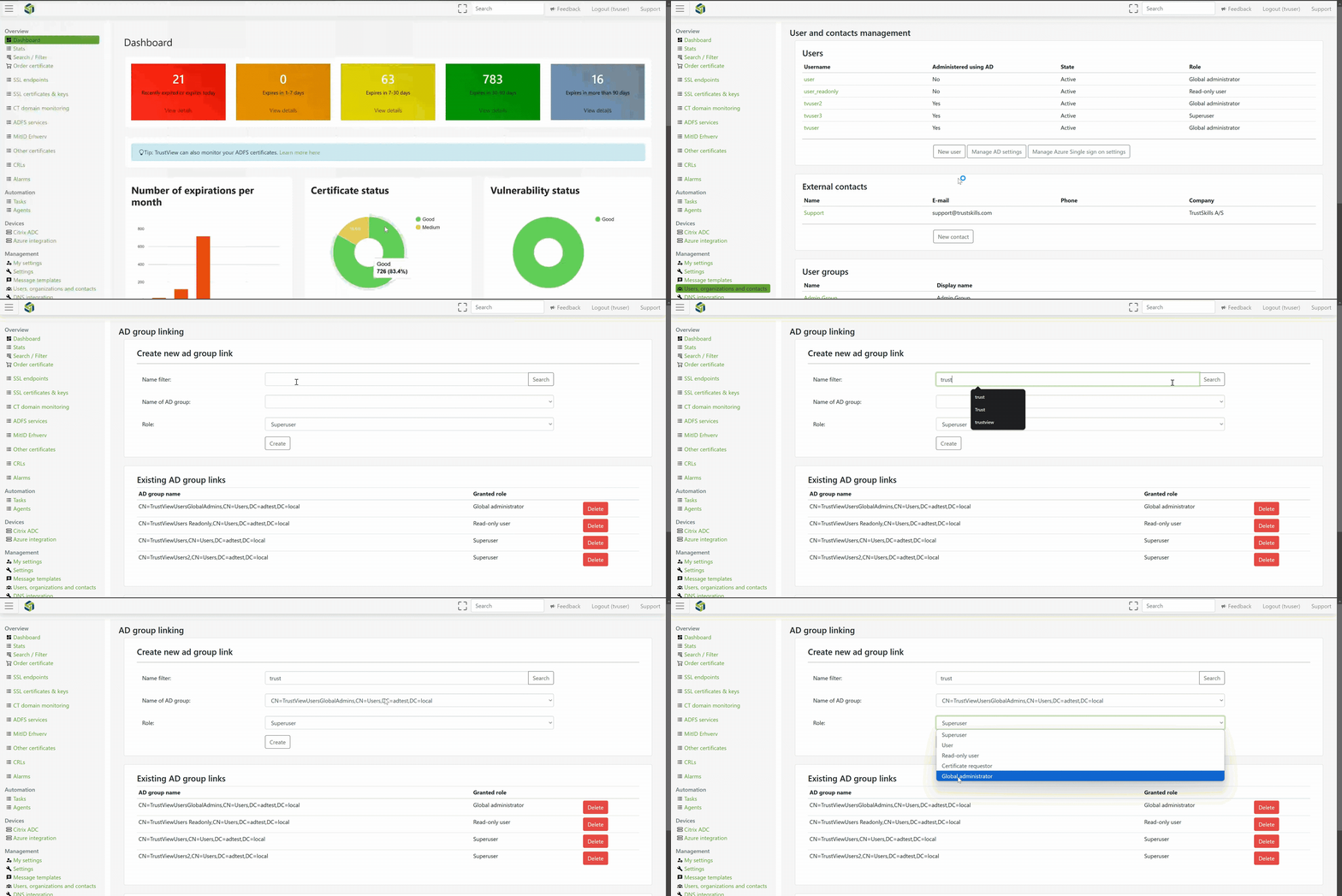
To create a new AD group link, enter the name of the AD group, search for it and then choose a role from the dropdown, to give the groups the desired user permissions.
When an AD group link is created, it will be listed on the page and users from that group should now be able to log in to TrustView with AD-login.
Under AD synchronization job schedule click Run synchronization job now to perform a sync with the AD.
Tip
Our Support will be happy to help you with setting up AD-login, if needed.
The AD group to role mapping set up in Step 5 above can also be configured directly in the
TrustView.groovy configuration file, as an alternative (or a supplement) to the Manage AD
settings page - useful for provisioning the mappings through configuration management instead of
the UI. Four properties each map an AD group name to the TrustView group its members should be added
to, one property per role:
adloginAdGroupReadOnlyRoles- maps to the Read-only role.adloginAdGroupCertrequesterRoles- maps to the Certificate requester role.adloginAdGroupRegularUserRoles- maps to the Regular user role.adloginAdGroupGlobalAdminRoles- maps to the Global administrator role.
1 adloginAdGroupRegularUserRoles = ["AD-TrustView-Users": "Default group"]
2 adloginAdGroupGlobalAdminRoles = ["AD-TrustView-Admins": "Default group"]
A fifth property, adloginAdGroupWhitelist, is simpler but more limited: it takes a plain list of
AD group names, and grants Superuser on a TrustView group to every member of an AD group whose name
matches that TrustView group’s name exactly.
1 adloginAdGroupWhitelist = ["Default group"]
Important
These properties are read on TrustView startup. After adding or changing them, restart the
TrustView service or reload the configuration file under Settings for the change to take effect.
1.5. Manage trusted certificates
To add one or more SSL certificates for TrustView to trust, go to Global settings, then click Edit under the Trusted certificates section.
Here you can see an overview of all the certificates that TrustView trusts, but if empty, click Add to add one.
Note
The SSL certificate in question should be the root certificate of the SSL certificate that you want TrustView to trust.
When at least one SSL certificate has been added, you can delete both the cacerts file and the reference to the file, which can be found either in the server.xml or trustview.groovy file.
Tip
This is the recommended fix if TrustView reports an error such as SSLHandshakeException: ... PKIX path
building failed: ... unable to find valid certification path to requested target while connecting out to
another server - whether that’s an AD-login LDAPS connection, or an outbound integration such as a DNS
provider (for example Infoblox) - since these all share the same underlying trust store.
1.6. Diagnosing certificate trust errors
If you’re not sure which certificate is missing, you can compare what the remote server is presenting against what TrustView currently trusts.
See what certificate the remote server is presenting
Run the following with keytool (already required for TrustView, so nothing extra to install) - this works
the same way for an AD domain controller’s LDAPS port, or a DNS provider’s HTTPS API:
1 keytool -printcert -sslserver dc01.domain.com:636
Tip
If you have OpenSSL installed, openssl s_client -connect dc01.domain.com:636 -showcerts shows the same
thing. Plain Windows doesn’t include OpenSSL by default, so keytool is the option that always works
without installing anything else.
The output lists an Owner and Issuer for each certificate in the chain - the top Issuer is the CA
that TrustView needs to trust.
See what TrustView currently trusts (Method A - the ``cacerts`` file)
Run the following against the same cacerts file referenced in Step 2 above (or, if that -Djavax.net.
ssl.trustStore line was never set, the JDK’s own default cacerts file, alongside keytool.exe in its
bin folder as used in Step 3 above):
1 keytool -list -keystore path\cacerts -storepass changeit
Add -v for full detail (Owner/Issuer/validity) per entry. The default keystore lists well over a
hundred certificates, so on Windows it’s easier to filter the output than to scroll through all of it:
1 keytool -list -v -keystore path\cacerts -storepass changeit | findstr /i "Contoso"
Compare the two
Take the Issuer from the first command and search for it in the second command’s output. If it’s not
there, that’s the exact certificate that’s missing and needs to be added - either via keytool -import as
described above, or under Manage trusted certificates.
Note
A certificate added under Manage trusted certificates (Method B) is stored in TrustView’s own database,
not in the cacerts file, so it won’t show up in the keytool -list output above. To check what Method
B currently trusts, look directly at the Trusted certificates list under Global settings.
1.7. Test the configuration for AD-login
Go to Global settings, then click AD autodetect configuration under the Autodetect AD configuration section.
Fill out the required and/or optional fields, to perform a range of tests to see what the optimal configuration would be, for the AD-login in TrustView.
From the results, it can be established how the configuration in the TrustView.groovy configuration file should look.
1.8. Overview of roles
Each user in TrustView is assigned one of the following pre-defined roles:
Superuser
User
Read-only user
Certificate requestor
Global administrator
The Global administrator role allows the user to configure setups across TrustView groups.
Tip
It is recommended to have at least one user with the role of Global administrator to be able to update TrustView and manage all the global settings of TrustView.
The following table lists the functionality enabled for all the roles:
Global administrator |
Superuser |
User |
Read-only user |
Certificate requestor |
|
|---|---|---|---|---|---|
Update configuration
(e.g. network scans)
|
Yes |
Yes |
No |
No |
No |
Add, modify and remove users |
Yes |
Yes |
No |
No |
No |
Add, modify and remove
monitored objects
(e.g. SSL and MitID Erhverv certificates)
|
Yes |
Yes |
Yes |
No |
No |
Check-out of certificates |
Yes |
Yes |
Yes |
No |
No |
View details of all
monitored objects
|
Yes |
Yes |
Yes |
Yes |
No |
Receive e-mail notifications
about expiring monitored objects
|
Yes |
Yes |
Yes |
Yes |
No |
Place certificate orders |
Yes |
Yes |
Yes |
No |
Yes |
Update the TrustView application |
Yes |
No |
No |
No |
No |
Manage user groups |
Yes |
No |
No |
No |
No |
View the Automation module |
Yes |
Yes |
Yes |
Yes |
No |
Manage the Automation module
(agent connections, ACME/SCEP,
Citrix NetScaler and Azure)
|
Yes |
Yes |
Yes |
No |
No |
1.9. Custom roles
To customize or predefine user roles more granularly, go to Users and roles New role.
Enter a name for the custom role you are creating and select the desired permissions and when done, click Create.
The permissions are grouped into five categories, each with its own tier of access:
Certificate order permissions - Disable / Create certificate order for approval / Order certificates / Approve certificate orders
SSL module permissions - Disable / Read and list SSL entities / Create and edit SSL entities
MitID permissions - Disable / Read and list MitID entities / Create and edit MitID entities
Automation permissions - Disable / Read and list automation elements / Create and edit automation elements
System permissions - Disable / View and edit own TrustView setups / View and edit group specific TrustView setups / View and edit global TrustView setups
Note
The top System permissions tier (“View and edit global TrustView setups”) is what unlocks
TrustView-wide administrative features such as chain-building certificates
and custom ACME issuers (see Settings). The built-in Global administrator and Superuser roles
both already include this tier.
Once a custom role has been created, it can be edited or deleted again by pressing its Edit link.
On the list of roles, you will be able to see both the custom roles that have been created (if any), and the five built-in roles described above
(Superuser, User, Read-only user, Certificate requestor and Global administrator), which are fixed and cannot be renamed, edited or deleted.
1.10. Management of user groups
Click here for detailed steps
To manage and see the user groups in TrustView, a user must have the Global administrator role, to get the complete overview.
Tip
Our Support will be happy to help, if none of your users are assigned the Global administrator role,
or you are experiencing issues with user roles in general.
Under Users, organizations and contacts, all user groups can be seen listed, if the user logged in has the Global administrator role.
Create user groups
Start by creating the desired groups in your Active Directory (AD).
Example:
Create the following groups:
LetsEncryptCertificates
DigicertCertificates
SSLEndpoints
OcesCertificates
Create the following AD users:
letsencrypt_user
digicert_user
sslendpoints_user
ocescertificates_user
In this example, the groups are created to be able to separate users into groups that only have access to the specified type of monitored objects. So in this example, the users in the DigicertCertificates group will only have access to the certificates issued from DigiCert and no certificates from the other issuers.
The user roles still apply to this, so the Read-only user role e.g. can still be applied to any of the groups created in the example above.
See AD Integrated User Management for details on delegating roles to user groups.
Link users to user groups
Once the desired local group(s) inside TrustView have been created (should correspond to the number of AD groups created), then go to Users, organizations and contacts New user
and here you can link users to any of your new groups under the User group by selecting a group from the dropdown.
Important
This can currently only be done in TrustView, for new users. For existing users, you would have to link it manually in the database used by TrustView or delete your existing user and create a new user, with the correct link.
Next step is to log out of TrustView with the current user, and then log in as the newly created user and go to Manage AD settings and set up your group link(s) to your Active Directory (AD) group(s).
Once that has been completed, log out of TrustView and back in again with the user that is a member of at least 2 user groups.
When you have been logged in, you should be able to see a dropdown in the top navigation of TrustView, where you can switch between your available groups.
Separate monitored objects into groups
To separate monitored objects (certificates, endpoints, CRLs etc.) into groups, go to the list view or the detail page of the monitored object that you wish to move to another group (inside TrustView).
Use the dropdown Move to another user group to select the group you wish to move the monitored object to.
Important
The dropdown will not be available or visible on the list view or the detail page of the monitored object, if the user currently logged in is not part of at least 2 groups - the group where the monitored object is currently located and the group of the new location.
Once the monitored objects have been moved to the new group, you may remove the origin group for the user, so the monitored objects can’t be moved back if you so wish.
Doing this from the list view and not the detail page will allow the action to be performed as a bulk operation.
At the top navigation in TrustView, there is a dropdown which can be used to switch between the groups that the user currently logged in is a member of (only available if the user is a member of at least 2 groups).