
 TrustView Documentation
4. DNS Integration
Certificate issuers, such as Let’s Encrypt, require that you prove technical control of the domain you are issuing a certificate to, since these are DV (Domain Validated) certificates. A common way of doing this is by adding a DNS TXT record to your public DNS. The value of the DNS TXT record is provided by the certificate issuer, and the certificate issuer checks that you have added the requested DNS TXT record to verify that you indeed control the domain.
TrustView can integrate with your DNS and automatically add the requested DNS TXT records whenever a certificate is ordered using TrustView or for prevalidating domains. A DNS provider in TrustView is a DNS integration for a number of domains that TrustView will use to add DNS TXT records whenever a certificate is ordered for one of the domains that the DNS provider is handling.
Note
By default, this DNS TXT record is added and removed again for every single issuance and renewal. A newer, persistent alternative is also available, which publishes a standing record once and reuses it for future renewals instead - see DNS validation method under Ordering SSL Certificates.
Important
Some DNS providers will require the SSL certificate to be trusted by TrustView, before a connection can be established.
If this fails with an error such as SSLHandshakeException: ... PKIX path building failed: ... unable to find valid
certification path to requested target, add the SSL certificate (from the DNS provider) under
Manage trusted certificates - this is the recommended way to establish trust and takes
effect immediately. Adding the certificate to the Java keystore (cacerts file) of TrustView, as described
here, is an older alternative that still works but requires a Tomcat restart.
4.1. Adding a DNS provider
Important
Most DNS providers require all TXT records with the same FQDN to have
TTLset to the exact same value. So for example, all TXT records under example.domain.com must have theirTTLset to a matching value, otherwise adding a DNS TXT record may fail.Go to
DNS integrationAdd.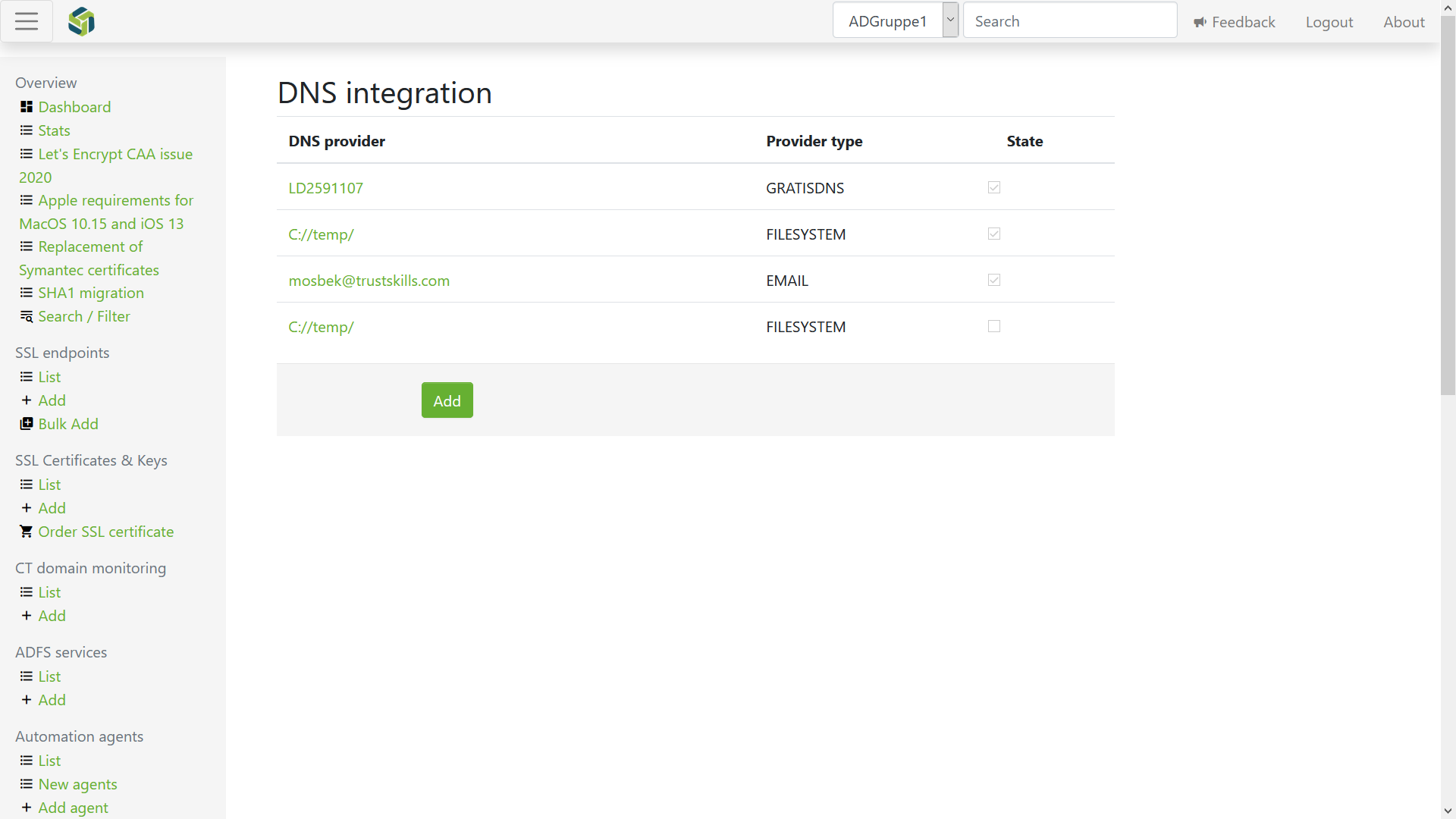
Select the DNS provider you are using, to set up an integration with TrustView. Currently, the following DNS providers are supported:
Cloudflare - a commercial provider of DNS services
PowerDNS - an open source DNS service provider
Microsoft Azure DNS - Microsoft Azure
Vercara (UltraDNS) - UltraDNS
Google Cloud DNS - Google Cloud DNS
Akamai Edge DNS - Akamai Edge DNS
Infoblox - Infoblox
EuroDNS/EBrand - EuroDNS (Also covers the EBrand DNS provider)
DNSimple - DNSimple
Amazon Route 53 - Amazon Route 53
CSC DNS - CSC DNS
ScanNet - ScanNet
Curanet DNS - Curanet DNS
Dandomain DNS - Dandomain DNS
Excedo - a commercial DNS provider; requires a base URL and an API key, with domains added manually the same way as for the File system and E-mail options
File system based - writes the DNS record to the local file system, for integrating with a self-hosted or custom DNS server that has no direct TrustView integration (for example BIND, Knot, or dnsmasq on Linux). You then integrate with your DNS server yourself, by creating a script that reads the dropped file(s) and adds the record, e.g. with
nsupdate, or by editing and reloading the zone file directlyE-mail - sends the DNS TXT token to a specified e-mail, for the same kind of self-hosted or custom DNS server scenario as the File system option above, when having a person (or a mailbox rule/script) add the record manually is preferred over a drop-file integration
Microsoft DNS - use a Windows server as a DNS server
Note
If you don’t see your DNS provider on the list, we can create an integration to that DNS provider, if they have a public API available that would allow a connection. Contact our Support with the details.
To add PowerDNS as a DNS provider, complete the following steps:
Enter your
API keyEnter your
host- format example:http://127.0.0.1:8081Enter your
server id(default is localhost, but can be set up with a proxy in front of several servers, each with their own server id)Click
AddImportant
Enabling the API
To enable the API, the webserver and the HTTP API need to be enabled. Add the 2 following properties to
pdns.confand restart:1 api=yes 2 api-key=changemeThe following examples should start working:
1curl -v -H 'X-API-Key: changeme' http://127.0.0.1:8081/api/v1/servers/localhost1curl -v -H 'X-API-Key: changeme' http://127.0.0.1:8081/api/v1/servers/localhost/zonesTo add Azure as a DNS provider, complete the following steps:
Enter your
Subscription IdEnter your
Resource group nameEnter your
App IdEnter your
PasswordEnter your
Tenant IdAzure CLI
The Azure CLI is a command-line tool that allows you to manage and interact with Azure resources, including the ability to get the necessary accounts and tokens required to interact with Azure. This is used to create a service principal, which will be used to get credentials used for authentication.
You can either use the Azure Cloud Shell or install the Azure CLI locally.
Cloud Shell
The Azure Cloud Shell is an in-browser terminal interface that allows you to execute Azure CLI commands without installing the Azure CLI locally.
Go to https://shell.azure.com
Azure CLI Local Install
Install the Azure CLI: Azure CLI
Log in with
az loginSelect your active Azure subscription with:
1az account set -n {name of your sub}Service principal
A service principal is an Azure account that allows you to perform actions on Azure resources. A service principal is like a system account that can have roles assigned to it and can be used to get authentication tokens.
Tip
More info here: Azure service principal
Create the service principal
In Azure CLI, type the following command:
az ad sp create-for-rbac --role Contributor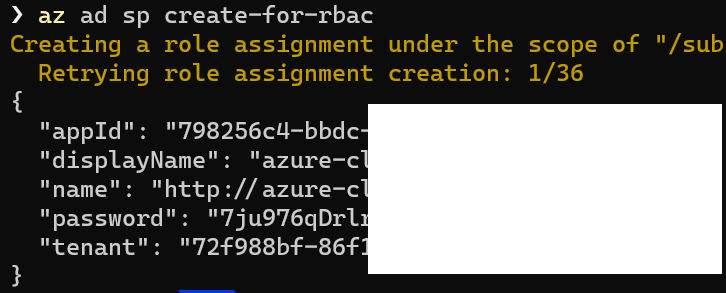
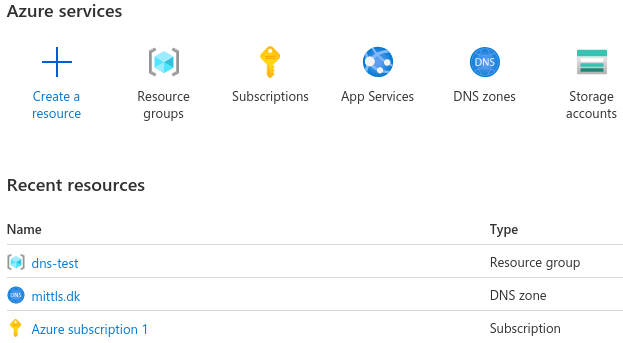
The resource group name can be found here:
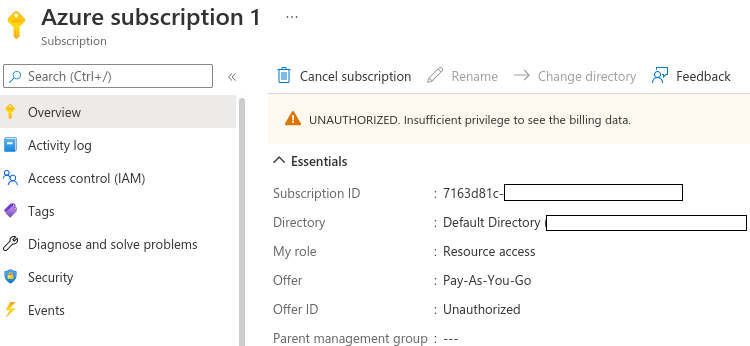
The subscription Id can be found here:
Important
The app used for DNS must have at least the
contributorrole to have the correct rights.To add an UltraDNS provider, complete the following steps:
Enter your
usernameEnter your
passwordNote
- The minimum rights needed for the
API ONLY USERare as follows:
List zones
View zone details
List records
View record details
Add/update/delete recordsTo add Amazon Route 53 as a DNS provider, complete the following steps:
Enter your
Access keyEnter your
Secret access keyTrustView automatically finds the Route 53 hosted zone that matches each domain - there is no separate hosted zone ID field to fill in.
Note
- The minimum IAM permissions needed are as follows:
route53:ListHostedZones
route53:ListResourceRecordSets
route53:ChangeResourceRecordSetsTo add Google Cloud DNS as a provider, complete the following steps:
Create an account: Google Cloud Console or use an existing account to log in to the Google Cloud Console
Create a new project or use an existing Google Cloud DNS project: Google Cloud DNS Project
Create a new Service Account or use an existing one: Google Cloud Service Account
Download the private key in JSON format: Click the Service Account and go to the
KEYStab. ClickAdd keyandCreate new key, then select theJSONkey typeThe exported JSON key must then be uploaded to TrustView under the DNS integration section
Add the Project ID (which is not necessarily the same as the Project Name) to TrustView and click
AddOnce Google Cloud DNS has been successfully added as a DNS provider, click
Update domain listto list all the added domainsIf no domains have been created, they can be created from the Google Cloud Console: Create Google Cloud Domain
Permissions needed for the DNS Administrator role:
1dns.changes.create 2dns.managedZones.list 3dns.resourceRecordSets.create 4dns.resourceRecordSets.get 5dns.resourceRecordSets.updateTo add a file system-based DNS provider, complete the following steps:
Enter the directory to store the DNS records in (the directory entered here must be created manually on the server)
Enter the domain that the DNS provider is handling, e.g.
example.orgClick
Add domainEnter and add additional domains if required
Click
AddImportant
The directory prefix must be set in the configuration file; add
dnsprovider.filesystem.pathprefix = "C://temp/"to theTrustView.groovyconfiguration file. The example uses the C: drive, but it could be any drive or directory.Each time TrustView needs a DNS TXT record added, it writes a file into that directory named:
dns-<name>-<timestamp>.txtwhere
<name>is the same value as the file’s first line (see below) and<timestamp>is the number of milliseconds since the Unix epoch, so filenames sort chronologically. The file itself always has exactly two lines:
The exact DNS name to create the TXT record under, exactly as required by whichever issuer requested the challenge - never add or assume a prefix yourself, since it isn’t the same for every issuer:
For a Let’s Encrypt DNS-01 challenge (issued directly by TrustView), this is always
_acme-challenge.<domain>, e.g._acme-challenge.sub.example.org- this prefix is fixed and never changes.For a certificate ordered through the TrustView backend (DigiCert, Certum and other backend-issued CAs), the name comes from the issuer itself and varies: Certum, for example, sends back whatever hostname its own API specifies for that order, while DigiCert can be configured per account to use either the bare domain name or a
_dnsauth.<domain>prefix - this is a setting on the Cryptomathic account, not something configurable from within TrustView, so don’t assume which one applies; use whatever the file actually says.The exact value to publish in that TXT record, verbatim.
The other end - your own DNS server - is responsible for picking that file up and publishing the record. For example, a small script watching the directory on a Linux server running BIND could do something like:
Example only - not a TrustView-provided script¶1#!/bin/bash 2for f in /path/to/dns-drop-dir/dns-*.txt; do 3 [ -e "$f" ] || continue 4 name=$(sed -n '1p' "$f") 5 value=$(sed -n '2p' "$f") 6 nsupdate -k /etc/bind/keys/tsig.key <<EOF 7server 127.0.0.1 8update add ${name} 120 IN TXT "${value}" 9send 10EOF 11 rm "$f" 12doneImportant
TrustView never removes these files itself: the
File systemandCleanup old DNS records periodicallyoption on the provider’s edit page has no effect for them. As shown in the example above, your own script is responsible for removing a dropped file (or acting on an e-mail) once it has been processed, otherwise they will simply accumulate in the directory.To add an e-mail based DNS provider, complete the following steps:
Enter the
Receiver emailthat the DNS TXT record request should be sent toEnter an
Email subjectandEmail body- use the placeholders#Domainand#Valueanywhere in either field, and TrustView will replace them with the actual hostname and TXT record value when sendingEnter the domain that the DNS provider is handling, e.g.
example.orgClick
Add domainEnter and add additional domains if required
Click
AddLike the File system option above, this is intended for a self-hosted or custom DNS server with no direct TrustView integration - the e-mail simply tells whoever (or whatever mailbox rule or script) is responsible for that DNS server which record to add.
Important
The same limitation applies here as for the File system option: automated removal of old DNS records is not supported, so the
Cleanup old DNS records
periodically
option has no effect for an e-mail based provider.First the
DnsServer Modulemust be installed, which can be obtained either by installing the DNS Server role or adding theDNS Server Tools, which is part of the Remote Server Administration Tools (RSAT) feature on the Windows server.The DNS integration with Microsoft DNS requires a PowerShell script to be automated with Let’s Encrypt certificates.
The following
TV-MicrosoftDNS.zipfile contains 4 files. The filetransferdnsrecords-v1_1.ps1is an optional file that can help transfer DNS TXT records, if the TrustView server and the DNS server are not domain joined and need to be moved between servers.Note
The script file names include a version suffix (
transferdnsrecords-v1_1.ps1and, further below,msdns-v1_2.ps1), which may be higher in a newer version of the zip file than the one shown here - use whichever version is actually present after extracting the files.Once the files have been extracted, run the following PowerShell command to install the
msdns-v1_2.ps1script as a Windows service and make it run in the background:Install the Microsoft DNS service¶1C:\temp\TV-MicrosoftDNS> .\TrustView-MS-DNS-Service.exe installImportant
The file for the main script
msdns-v1_2.ps1and the optional filetransferdnsrecords-v1_1.ps1contain a set of parameters at the top of the script that need to be adjusted to fit your setup in terms ofZone nameandcredentialsetc.If you are using an internal DNS setup on your Windows server, you can in the
TrustView.groovyconfiguration file point to an external DNS server, so the DNS TXT records can be validated by e.g. Let’s Encrypt. This can be done by adding the following line to the configuration file:1staticAuthoritativeDnsIpList = "8.8.8.8,8.8.4.4"TrustView will now attempt to validate the DNS challenges, based on these IPs for Google public DNS.
4.2. DNS integration properties
Additional properties are also available, depending on the scenario and must be set in the TrustView.groovy configuration file to be utilized:
1dnsprovider.filesystem.pathprefix = "C://temp/"
1staticAuthoritativeDnsIpList = "8.8.8.8,8.8.4.4"
Tip
The example above uses Google’s public DNS, but others can be used, such as Cloudflare 1.1.1.1, 1.0.0.1 or you can take a look at this list Public DNS info.
1letsencryptprevalidationenabled = false
Tip
If you encounter the error INCONSISTENCY_DETECTED in the event log on the certificate detail page,
try using the property above to solve the issue.
1Letsencryptpretriggervalidationrestinterval=30
Note
The value for Letsencryptpretriggervalidationrestinterval is equal to 30 seconds, but can be adjusted to your needs.
This property can be used to delay when Let’s Encrypt is verifying the DNS validation, to ensure that everything is finished on the TrustView side.
4.3. Troubleshooting
If you are using the Infoblox DNS provider and have a large number of domains, you may experience a timeout and deployment of the DNS TXT record(s) will fail.
So to circumvent this, you can increase the timeout connection value by adding the properties below:
1dnsprovider.infoblox.timeout.connect=14000
2dnsprovider.infoblox.timeout.read=14000
Note
If not set, the default value is 7 seconds (7000 ms). The value in the example above is in milliseconds (ms) and is equal to 14 seconds (14000 ms).
4.3.1. Connection fails with a certificate trust error
If adding or using a DNS provider fails with an error such as:
1javax.net.ssl.SSLHandshakeException: (certificate_unknown) PKIX path building failed:
2sun.security.provider.certpath.SunCertPathBuilderException: unable to find valid certification path to requested target
this means TrustView doesn’t yet trust the SSL certificate presented by the DNS provider’s API endpoint. Add the certificate under Manage trusted certificates (recommended, takes effect immediately), or to the Java keystore as described here (requires a Tomcat restart). See Diagnosing certificate trust errors for commands to see exactly which certificate is missing.
Note
Adding a DNS provider only reports success or failure, without differentiating the cause. If it fails and you’re not sure whether it’s a certificate-trust problem or a mistake in the URL or credentials, check TrustView’s own application log for the specific exception before assuming it’s a trust issue.