
 TrustView Documentation
5. Settings
5.1. My settings
My settings in TrustView allows for user-specific changes; if you are looking for the configuration of all users, see Settings.
5.1.1. User details
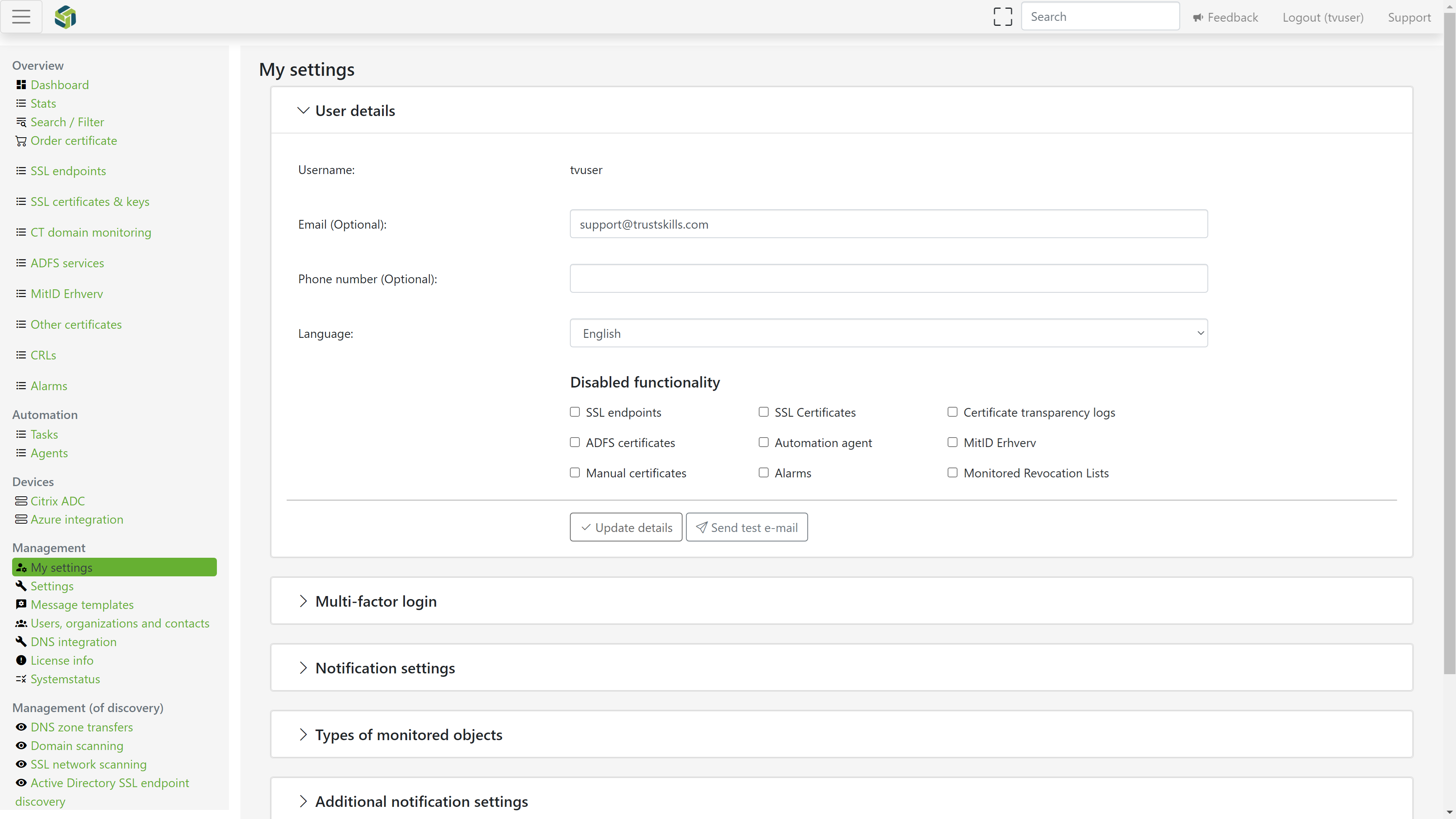
The email, Phone number and Language can be changed here. This only applies to the user currently logged into TrustView.
It’s possible to test the email by clicking Send test mail.
This will send an email from TrustView to the specified email.
Important
To save the changes to the user details section, click Update details.
5.1.2. Disable functionality
The following checkboxes can be checked if the functionality is unwanted and you want to hide them. Each one hides the corresponding section from the left-hand menu for the user it’s set on; no data is deleted, so re-enabling it brings the section back:
SSL endpoints - hides the
SSL endpointsmenu section, used for scanning hosts and ports for SSL/TLS certificates.Alarms (manual expiry alarms) - hides the
Alarmsmenu section, used for manually tracked certificate expiry alarms.Manual certificates - hides the
Other certificatesmenu section, used for certificates entered into TrustView by hand rather than ordered or discovered.MitID Erhverv - hides the
MitID Erhvervmenu section; only shown under a TrustView Classic license.Automation agent - hides the
Automationmenu section used to manage automation agents and activation templates; only shown under a TrustView Classic license, or one with the SSL automation module active.Monitored Revocation Lists - hides the
CRLsmenu section, used for monitoring certificate revocation lists.Certificate transparency logs - hides the
CT domain monitoringmenu section.ADFS certificates - hides the
ADFS servicesmenu section; only shown under a TrustView Classic license.SSL Certificates - hides the
SSL Certificates & Keysmenu section.
5.1.3. Multi-Factor authentication (MFA)
To set up Multi-factor authentication (MFA) for TrustView users, go to the My settings menu. Then click Update password if you are logged in with a local user,
or Multi-factor login if you are logged in with an AD user.
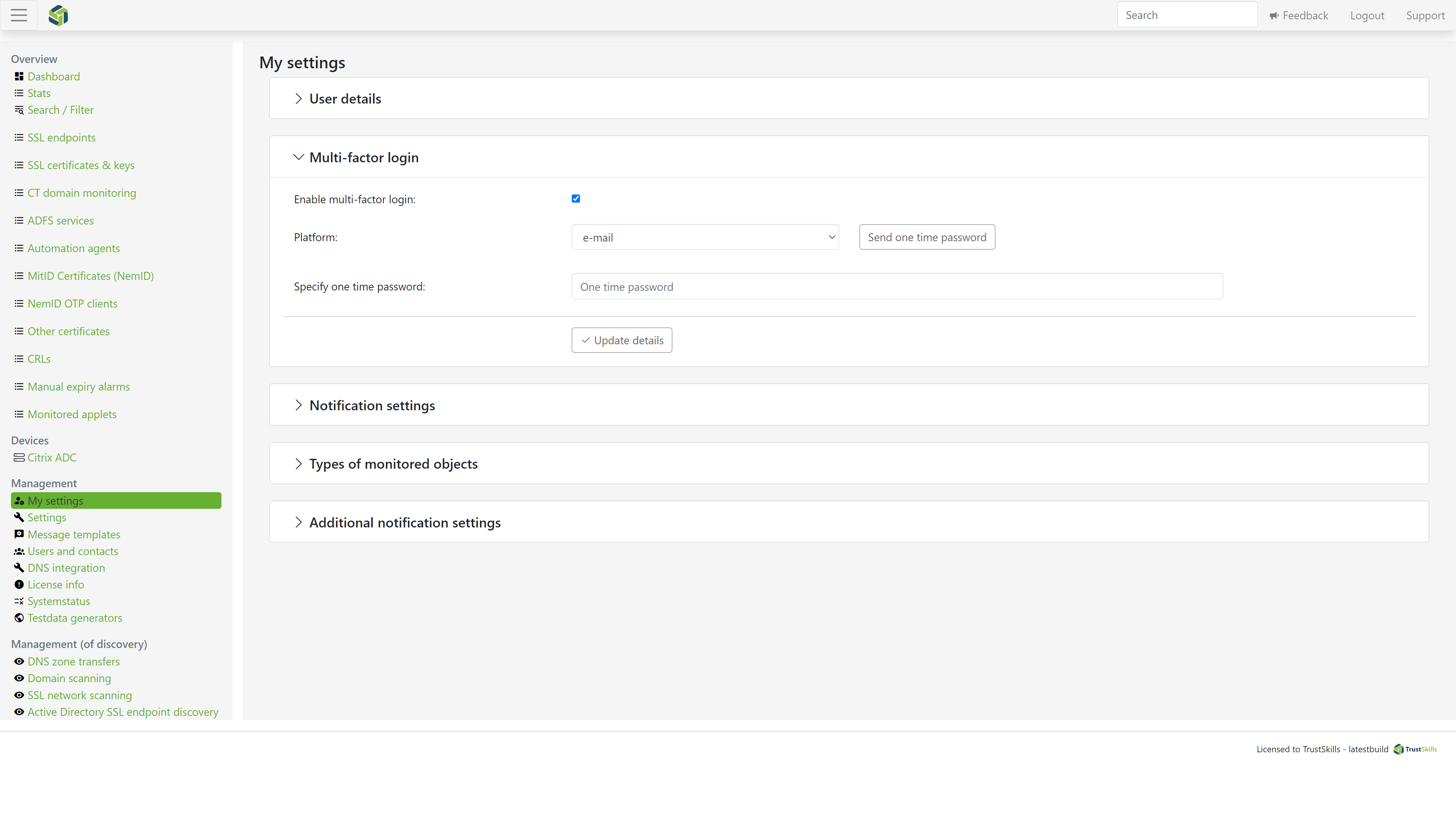
Once you have it set up, you can always disable it again.
Three methods of verification are available:
SMS
E-mail
Authentication app
5.1.4. Notification settings
To adjust additional notification settings, go to:
Notification settings
Types of monitored objects
Additional notification settings
Important
To save the changes to any of the notification sections, click Update details.
5.2. Settings
These settings are configured for all users, not just those currently logged in. To see the settings for the user currently logged in, go to My settings
5.2.1. Chain-building certificates
A user with the role of Global administrator or Superuser can supply extra CA certificates as candidates for TrustView to use when it needs to build a certificate’s chain - for example when an intermediate certificate isn’t otherwise available to TrustView. These are chain-building material only, not trust anchors; TrustView’s own trusted certificates are configured separately, under Global settings.
Click Chain-building certificates at the top of this page, then Add certificate, and paste a PEM-encoded certificate or upload a file, with an optional comment.
When TrustView needs to build a certificate’s chain - for example right after importing a manually-ordered certificate, or to determine its OCSP revocation status - it tries two tiers in order. First, it tries to resolve the chain using only the certificates configured here, with no internet access; if that reaches all the way to a self-signed root, it stops there. If it doesn’t, it falls back to a second attempt that also includes the JVM’s own trusted CA store and is allowed to fetch a missing intermediate certificate directly from the internet, using the URL in the leaf certificate’s Authority Information Access (AIA) extension.
Note
Whether a chain can be built affects more than how it’s displayed: TrustView also uses it to determine a certificate’s OCSP revocation status, and to complete a manually-ordered certificate’s import once it has been issued. If the chain can’t be resolved from the certificates configured here alone, and the AIA fallback can’t reach the internet either, both of those can be affected.
5.2.2. Custom ACME issuers
A user with the role of Global administrator or Superuser can register an external, ACME-compliant certificate authority (RFC 8555) as a custom issuer, in addition to the built-in ones (ADCS, Let’s Encrypt, and the backend-issued Certum/DigiCert/GeoTrust). This is useful for a private or enterprise ACME CA that isn’t one of the built-in options. Once registered, the custom issuer is selectable wherever a certificate issuer is chosen, including activation templates used by automation.
Go to List of ACME issuers and click Create new. Provide a name to identify the issuer, and the ACME url for its ACME
directory endpoint. If the endpoint uses External Account Binding, also provide the Key ID and MAC Key supplied by the CA.
An account key is generated automatically on first issuance (or you can generate one immediately by pressing Rotate key). The account
key can be rotated at any time, which generates a new key and re-registers it with the ACME server. A custom issuer can also be
activated, deactivated or deleted from the list.
5.2.3. User defined fields
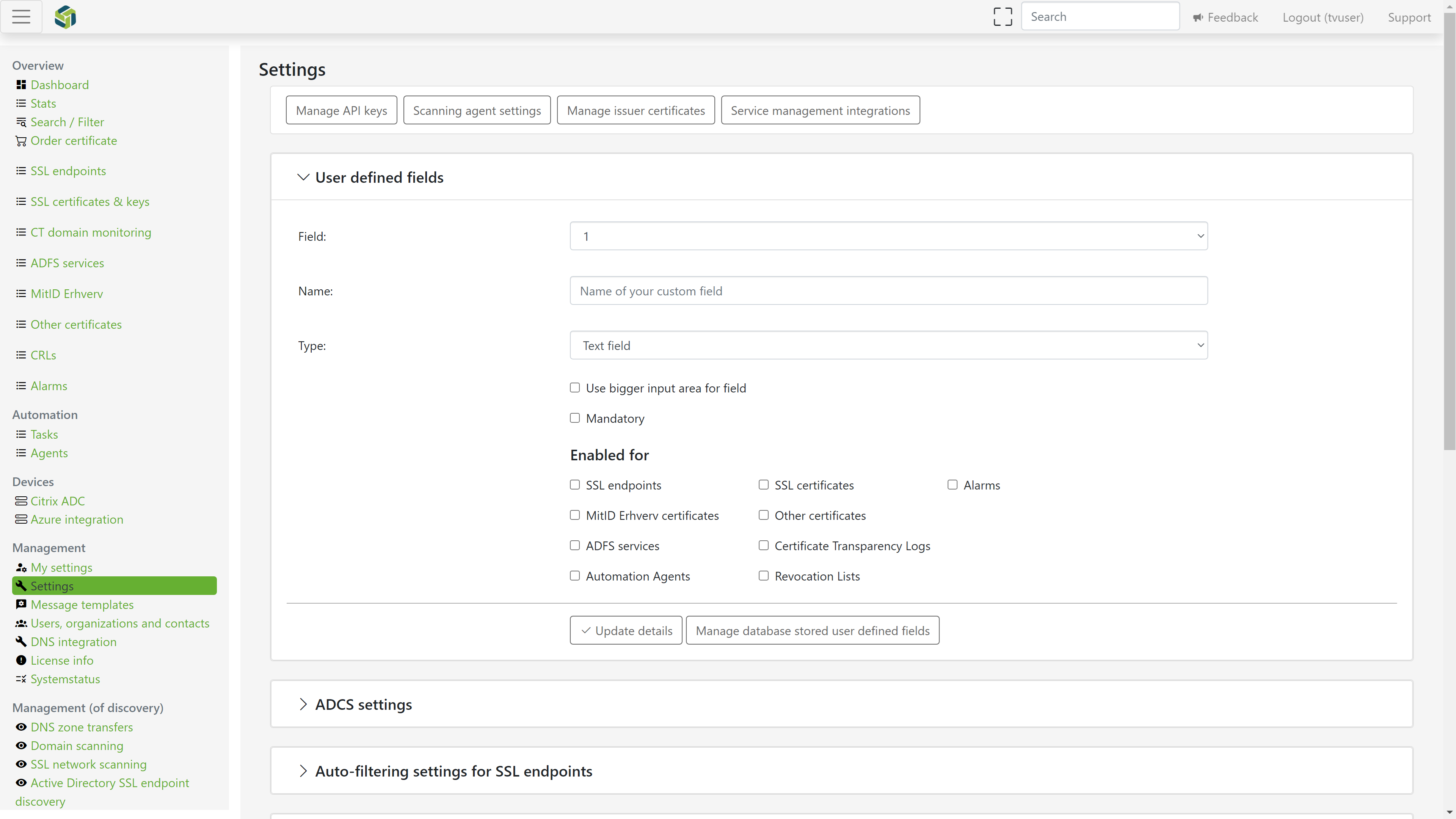
TrustView offers up to 10 custom fields that administrators can configure and make available on monitored objects - SSL certificates, SSL endpoints, MitID Erhverv certificates, ADFS services, revocation lists, and more - to attach organization-specific data to them, such as an owner, a cost centre, or an internal asset tag. The 10 fields are shared across the whole organization: whatever is configured here applies to every user.
Each of the 10 fields is configured independently, with its own name and one of the following types:
Text field - a free-text value.
Selection - a dropdown with a fixed set of options typed directly into the field’s own configuration, separated by commas (for example
Yes, No, Maybe).Multi-selection - the same as Selection, but more than one option can be chosen at once.
Database list / Database list (multiselect) - a dropdown (or multi-select) whose options come from a managed list of values, maintained separately rather than typed into the field’s own configuration - see Managing database-backed field values below.
Derived description 1 / Derived description 2 - a read-only field that is filled in automatically based on the value chosen in another, database-list field - see Derived fields below.
A field can also be set to use a bigger input area (useful for longer free text), and can be made Mandatory, with a Default value: once a field is made mandatory, any existing object that is still blank for that field is automatically filled in with the default value.
Each of the 10 fields can additionally be enabled or disabled per object type - SSL endpoints, SSL certificates, Alarms (manual expiry alarms), MitID Erhverv certificates, other certificates, ADFS services, Certificate Transparency Logs, and Revocation Lists - so the same field slot can be shown on some object types and hidden on others.
5.2.3.1. Managing database-backed field values
When a field’s type is set to Database list or Database list (multiselect), its selectable options are maintained on a separate page, reached via Manage database stored user defined fields at the bottom of this section. There, each option is defined with a Field type (a free-text name identifying which database-backed field it belongs to - the same name is then picked from a dropdown when configuring the field’s type above), a Value (the option itself, for example a person’s name), an Ordering, and two optional lookup values, Derived value 1 and Derived value 2 - see Derived fields below.
Deleting one of these values offers to replace it, on every object that currently has it selected, with another existing value or with nothing - so removing an option doesn’t leave objects with a dangling, no-longer-valid value. As a safety net, TrustView also checks for this on every save of this settings page and each time it starts up: any object left with a value that is no longer a valid option for its field has that value cleared automatically, which is recorded on the object’s event log.
5.2.3.2. Derived fields
A field set to Derived description 1 or Derived description 2 is not filled in directly. Instead, it is configured with a Derived from field, pointing at one of the other fields, which must itself be a Database list field. Whenever that field’s value is set or changed on an object, the derived field is filled in automatically with the chosen option’s Derived value 1 or Derived value 2 respectively (as configured on the Managing database-backed field values page above), and stays read-only on the object itself.
This is useful for keeping a second (or third) piece of information in sync with a selection - for example a field listing certificate owners by name, with two derived fields automatically showing that owner’s e-mail address and phone number, maintained in one place instead of being retyped on every certificate.
5.2.3.3. Custom fields elsewhere in TrustView
The 10 fields are always referred to by their fixed position outside of this settings page as well: for example, they’re available as #customfield1 through #customfield10 placeholders in ServiceNow description templates, and their values can be read and searched through TrustView’s REST API and search/filter functionality, in addition to being shown and editable directly on each monitored object’s own page. Automation activation templates and agent connections support the same 10 fields too, with one caveat of their own - see Custom fields on activation templates.
5.2.4. ADCS settings - Import
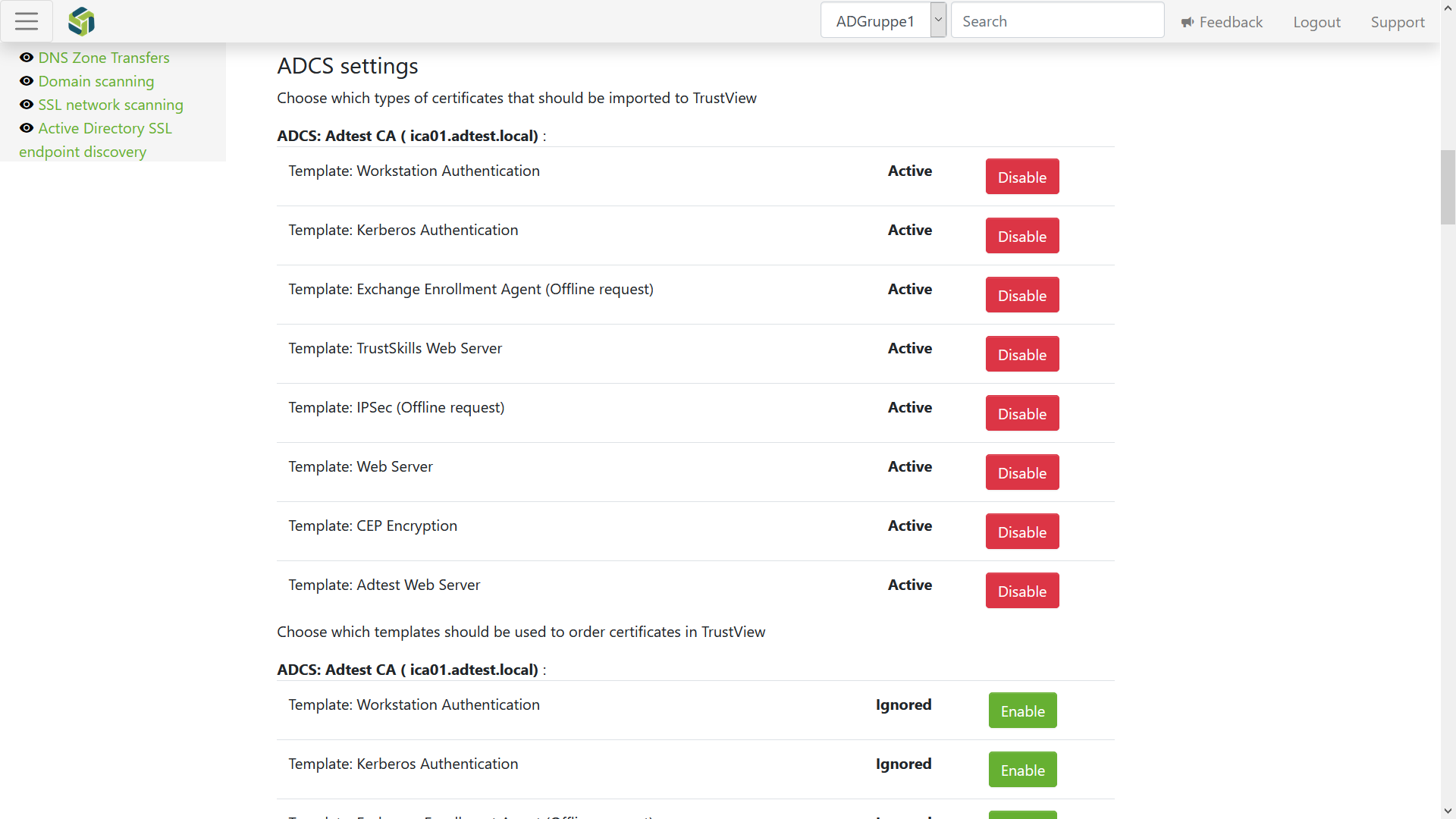
Here, the types of certificates to import in TrustView can be selected. It’s possible to enable or disable each template individually, depending on your needs.
5.2.5. ADCS settings - Issuance
Select which templates should be used to order certificates in TrustView. It’s possible to enable or disable each template individually, depending on your needs.
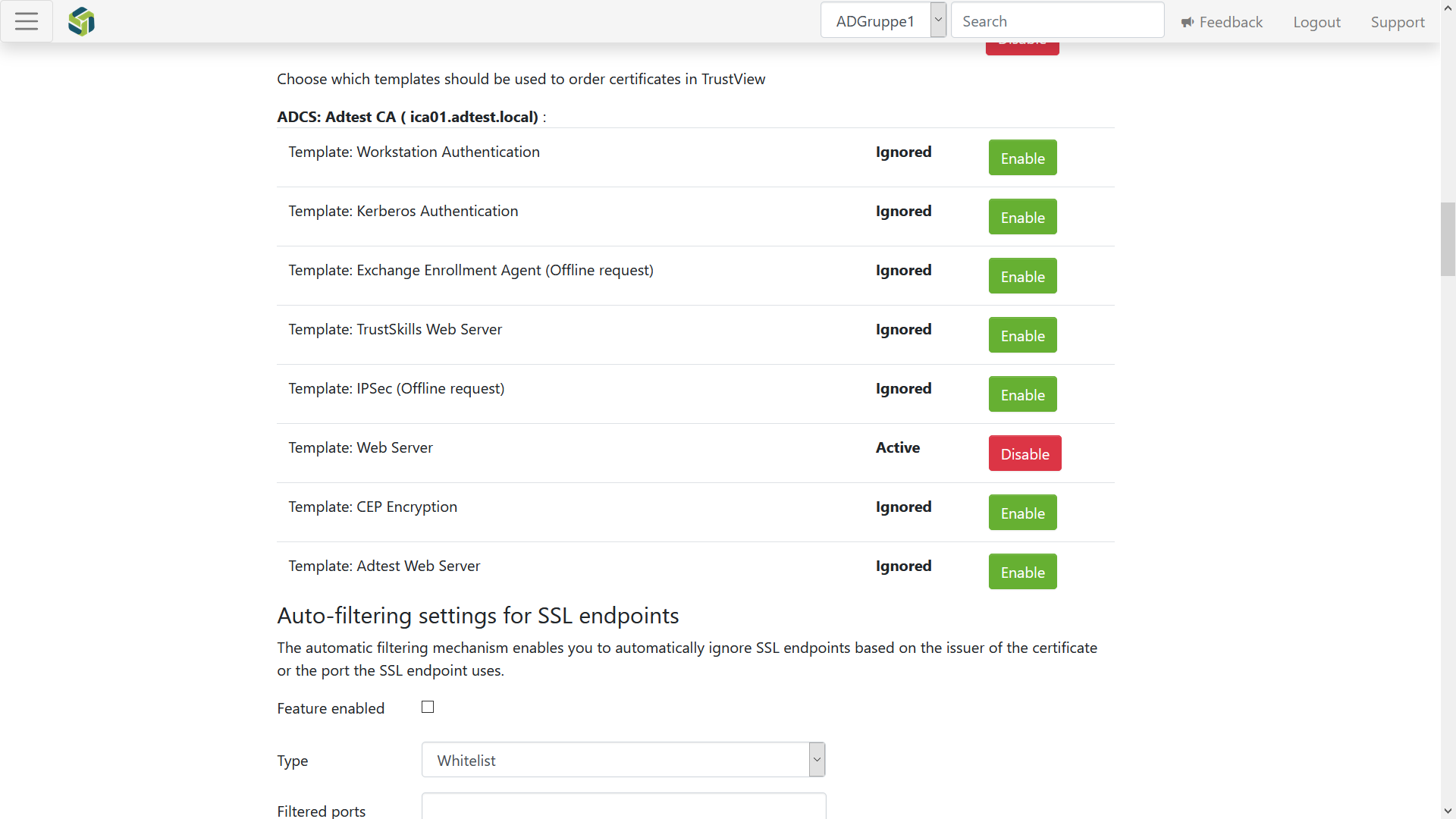
Important
To save the changes to the ADCS section, click Update details.
5.2.6. Auto-filtering settings for SSL endpoints
Here, the auto-filtering of SSL endpoints feature can be enabled or disabled. This allows you to automatically ignore SSL endpoints based on the issuer of the certificate or the port of the SSL endpoint.
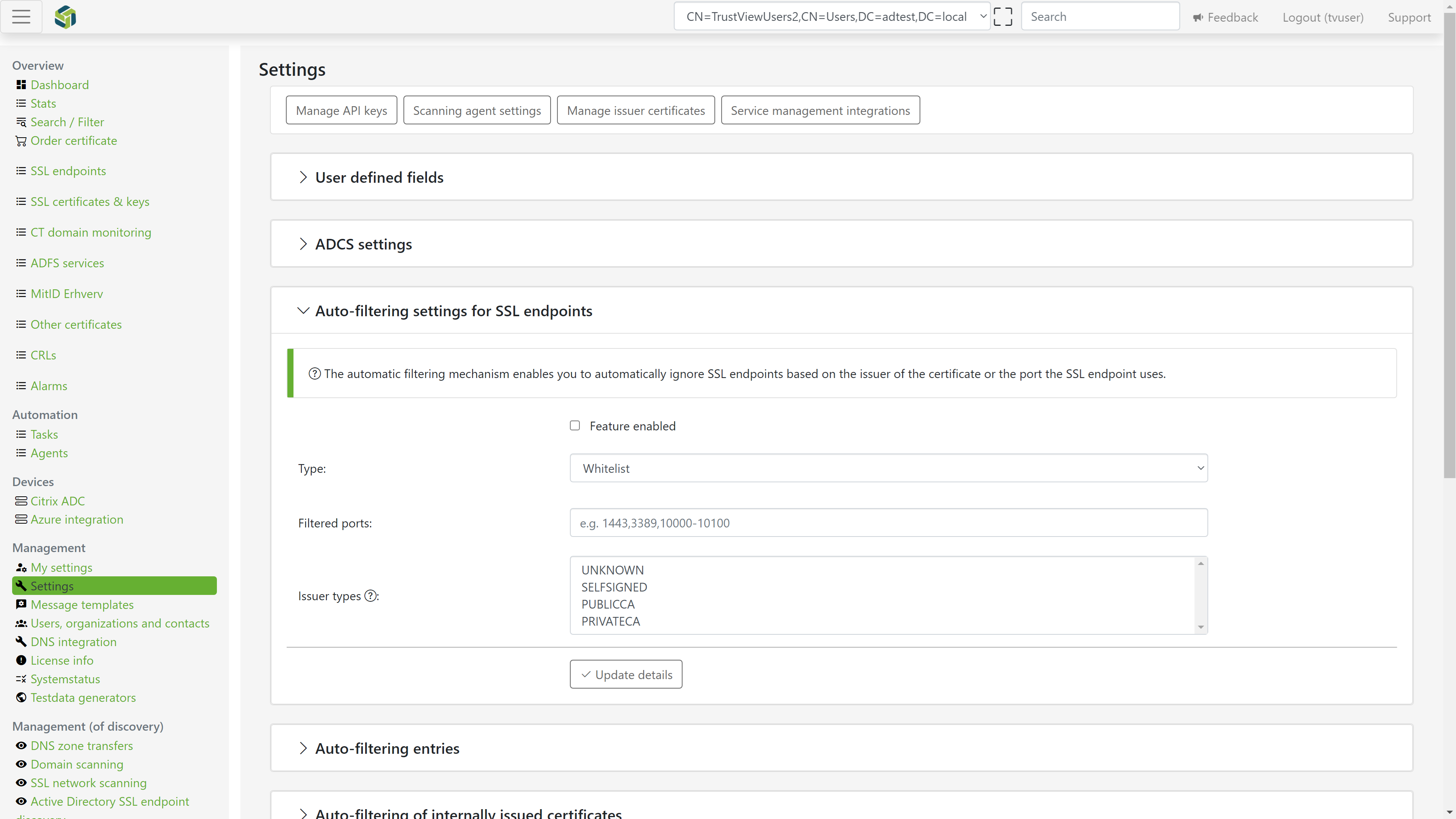
Important
To save the changes to the auto-filtering settings, click Update details.
5.2.7. Auto-filtering entries
If there are any certificate entries for auto-filtering, they will be shown on the list here.
Important
To add a certificate to the auto-filtering list, click Add certificate to the auto-filtering list.
5.2.8. Auto-filtering of internally issued certificates
These settings can help you to automatically ignore internally issued machine-certificates from your CA (ADCS), if the machine has since been decommissioned in Active Directory.
Enabling this connects to AD to check each machine certificate’s status. The following can be configured:
AD host and AD port - the domain controller to connect to (
636ifEnable SSLis checked,389otherwise)AD user and AD password - credentials used for the AD lookup, plus an option to use MD5-DIGEST authentication
AD searchbase - e.g.
dc=domain,dc=localAD searchfilter - an LDAP filter, e.g.
CN=Test,ou=Group name,dc=Domain,dc=comCertificate templates - which ADCS certificate template names this filtering should apply to
Subtrees to ignore during the AD lookup
Ignore AD entry if last logon is older than (days) - treat the machine as decommissioned if it hasn’t logged on within this many days
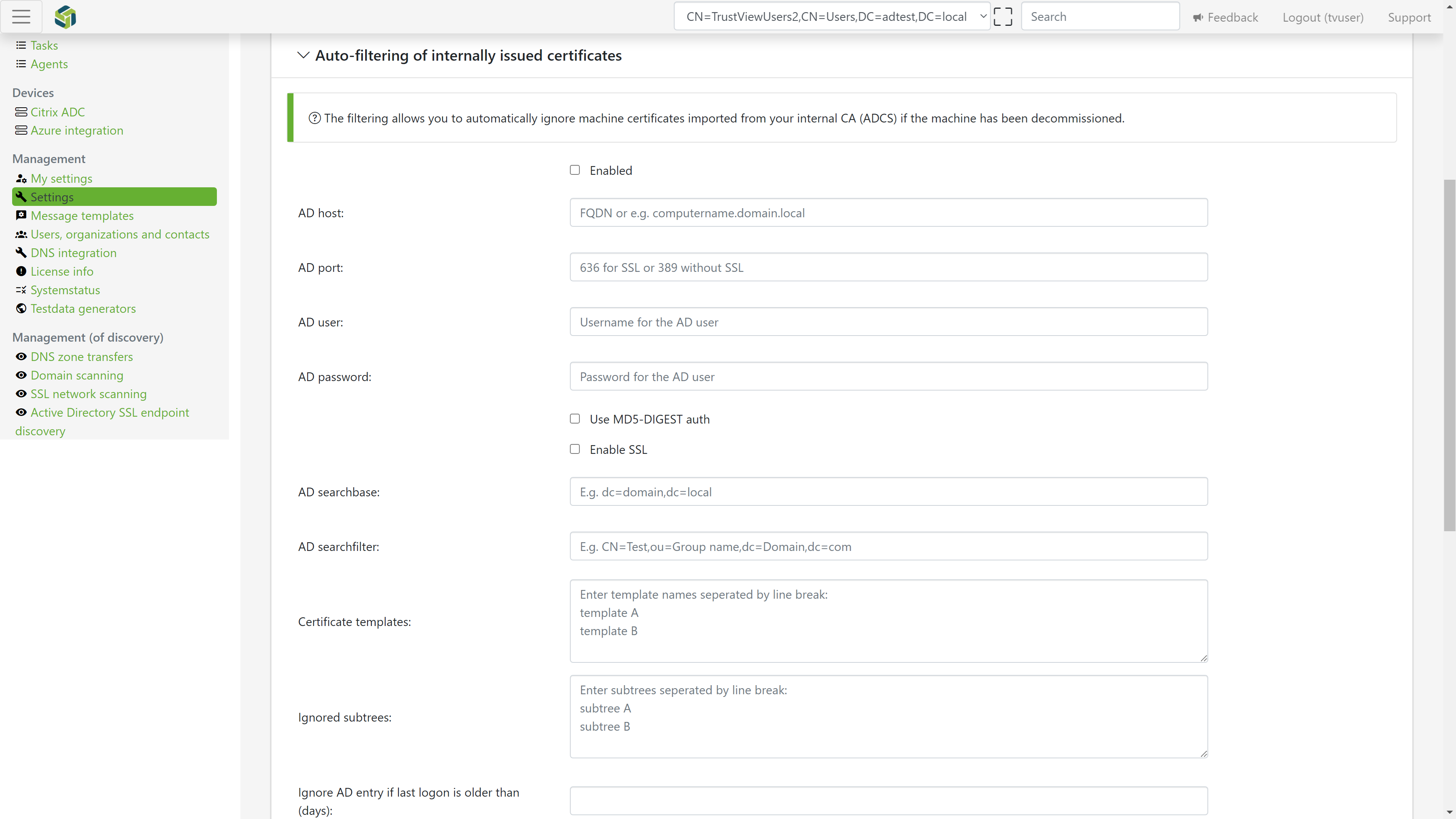
Important
To save the changes, click Update details.
5.2.9. Automatically generate certificates
Here, you can toggle between generating SSL certificate monitoring from SSL endpoint scans.
Important
To save the changes, click Update details.
5.2.10. Timed limit for certificate checkout
Here you can toggle between using a checkout limit on SSL and OCES certificates.
Important
To save the changes, click Update details.
5.2.11. Checkout password strength
This controls how many characters the generated password will have at checkout. With the checkbox enabled, the generated password will include symbols to increase the strength of the password.
Important
To save the changes, click Update details.
5.2.12. Recently expired objects listing
Specify how many days to cover for expired certificates in the recently expired monitored items table on the dashboard. The
default number of days is 30.
Example: if set to 60 days, the dashboard will list all certificates that expired within the last 60 days.
Important
To save the changes, click Update details.
5.2.13. Filtering of certificate suppliers
Use this to toggle the individual certificate suppliers on or off on the certificate ordering page.
Important
To save the changes, click Update details.
5.2.14. Ignore existing SSL certificate
On the same page, a Global administrator or Superuser can enable Ignore existing SSL certificate. By
default this is off, and renewing or reissuing an SSL certificate has no effect on the certificate it replaces -
the old certificate keeps its Active status and keeps generating its own expiry notifications alongside the
new one, unless it’s ignored or disabled by hand.
With the checkbox enabled, every subsequent renewal or reissue (of a Let’s Encrypt, ADCS, local-issuer or
backend-issued certificate - see Ordering SSL Certificates) automatically sets the certificate it replaces to
Ignored, so only the new certificate remains active and generates notifications. This does not apply
retroactively to certificates already replaced before the checkbox was enabled, and it has no effect on
manually entered certificates, which cannot be renewed through TrustView in the first place.
Important
To save the changes, click Update details.
5.2.15. Custom text for manual certificate ordering
Here you can create your own custom text, which is used when ordering certificates manually.
Important
To save the changes, click Update details.
5.2.16. Certificate keystore checkout notification mail
Send an email whenever there is a certificate keystore checkout.
5.2.17. Systeminfo
Note
If Systeminfo is not available under Settings, check under Systemstatus in the left menu.
Systeminfo shows various information about the current installation, such as the current version of TrustView and Java etc.
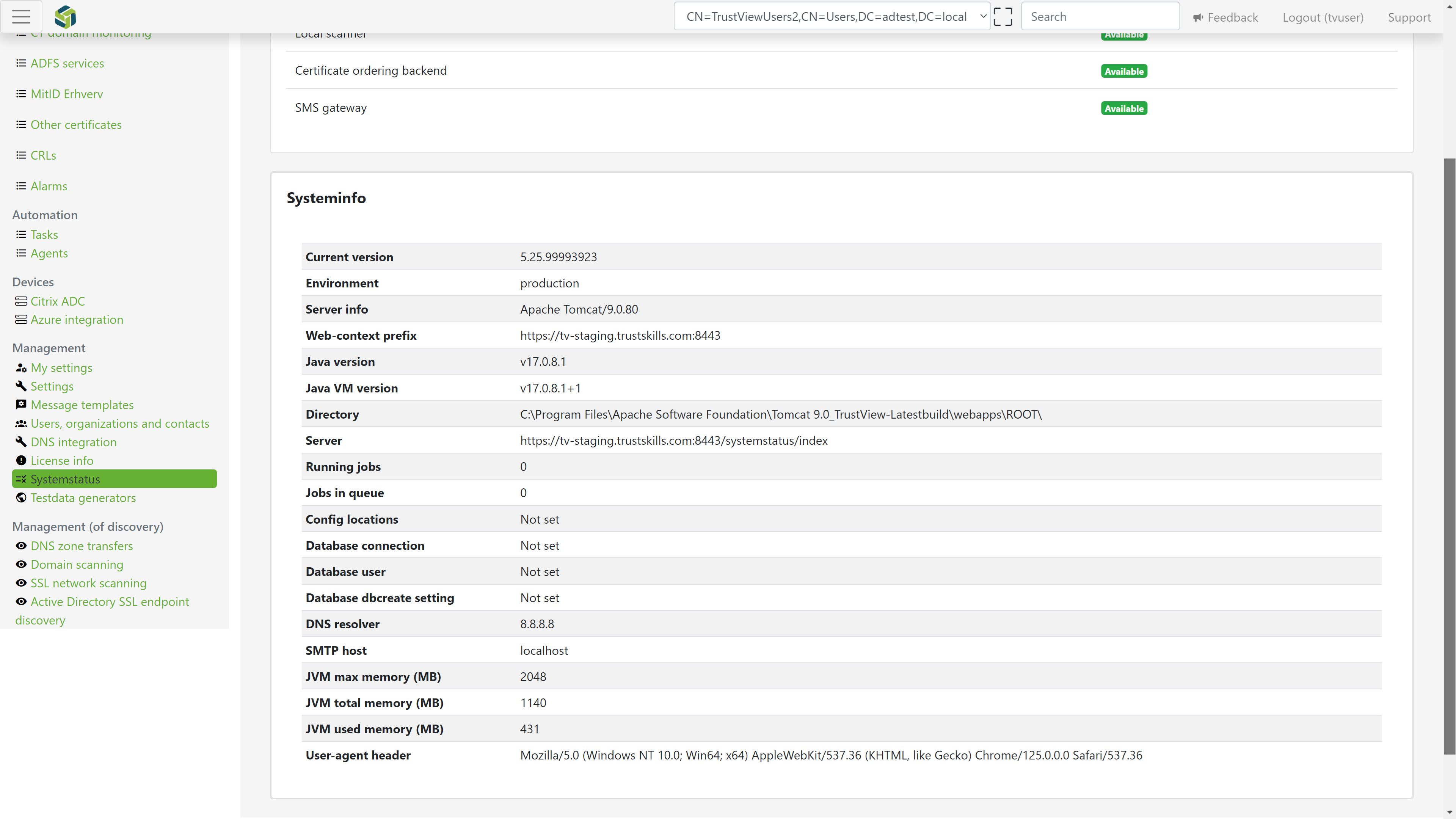
5.2.18. Minimal scanning
The setting is located under Settings Other settings.
By default, multiple connections are performed to each SSL endpoint during scanning. This is required to be able to detect server capabilities, such as supported SSL and TLS versions. If minimal scanning is selected, the number of connections is minimized during scanning. This means that TrustView is not able to report e.g. protocol level vulnerabilities and supported SSL/TLS versions.
A full TLS handshake is performed during minimal scan, thus certificate expiry and the presented certificate chain are always reported. Some customers may prefer to enable minimal scanning, as it is less likely that the monitoring performed by TrustView will be falsely detected as an intrusive network scan.
5.2.19. DNS validation (DNS-PERSIST-01)
The setting is located under Settings Other settings.
For DV certificates validated over DNS - such as Let’s Encrypt - TrustView supports two DNS challenge methods: the
existing, one-time DNS challenge (dns-01), and a newer persistent DNS validation method (dns-persist-01).
Instead of publishing and removing a DNS TXT record for every issuance, persistent DNS validation publishes a standing
authorization record once; that record is then reused for every future renewal, so DNS no longer needs to change at
each renewal.
Important
A persistent authorization record is permanent and must not be deleted - doing so breaks future renewals. Since the record alone authorizes issuance, the ACME account key effectively becomes the thing to protect, rather than DNS itself.
Three settings control the group-wide default:
Prefer persistent DNS validation over ordinary DNS validation- sets the default DNS validation method for new orders. The choice can still be overridden per order - see DNS validation method under Ordering SSL Certificates.
Allow wildcard and subdomains (policy=wildcard)- without this, one persistent record only authorizes the exact hostname it was created for. With it, the same record also authorizes wildcard certificates and subdomains - fewer records to manage, but a broader standing authorization for the ACME account.
Authorization lifetime (months)- leave empty for the persistent record to remain valid indefinitely.Important
If a lifetime is set, the record must be renewed before it expires, or certificate issuance will start failing without warning. Make sure monitoring is in place before setting an expiry.
5.3. Global settings
These settings apply to the whole TrustView installation. Click Global settings in the left menu,
under the Management section, to get here - it is a separate menu item from Settings above it in
the same section. Everything below is a single long page, so scroll down to find the section you need.
5.3.1. Update TrustView
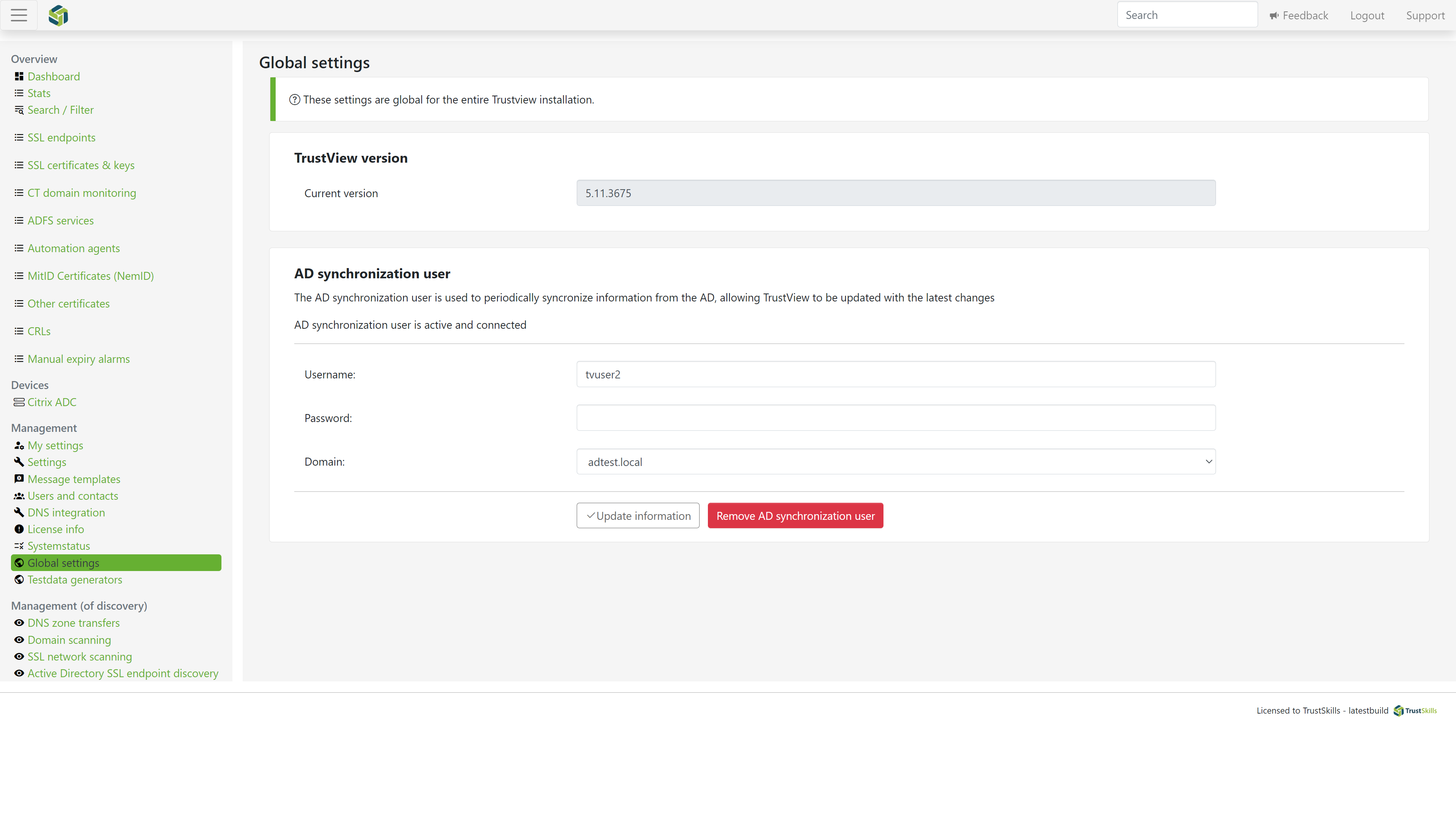
In this section, you can see the current version of TrustView, and see if a new version is available; in that case, the version will be ready for download and installation. You will also have access to the related changelog for the version of TrustView.
Note
To get access to the Global settings menu, the user must have Global administrator rights.
We now have two versions of TrustView available:
Stable
Beta
Normally only the release of the stable version will be available, but if you want to get access to the beta releases, contact our Support and we will give you access, since the beta version is opt-in.
5.3.2. AD synchronization user
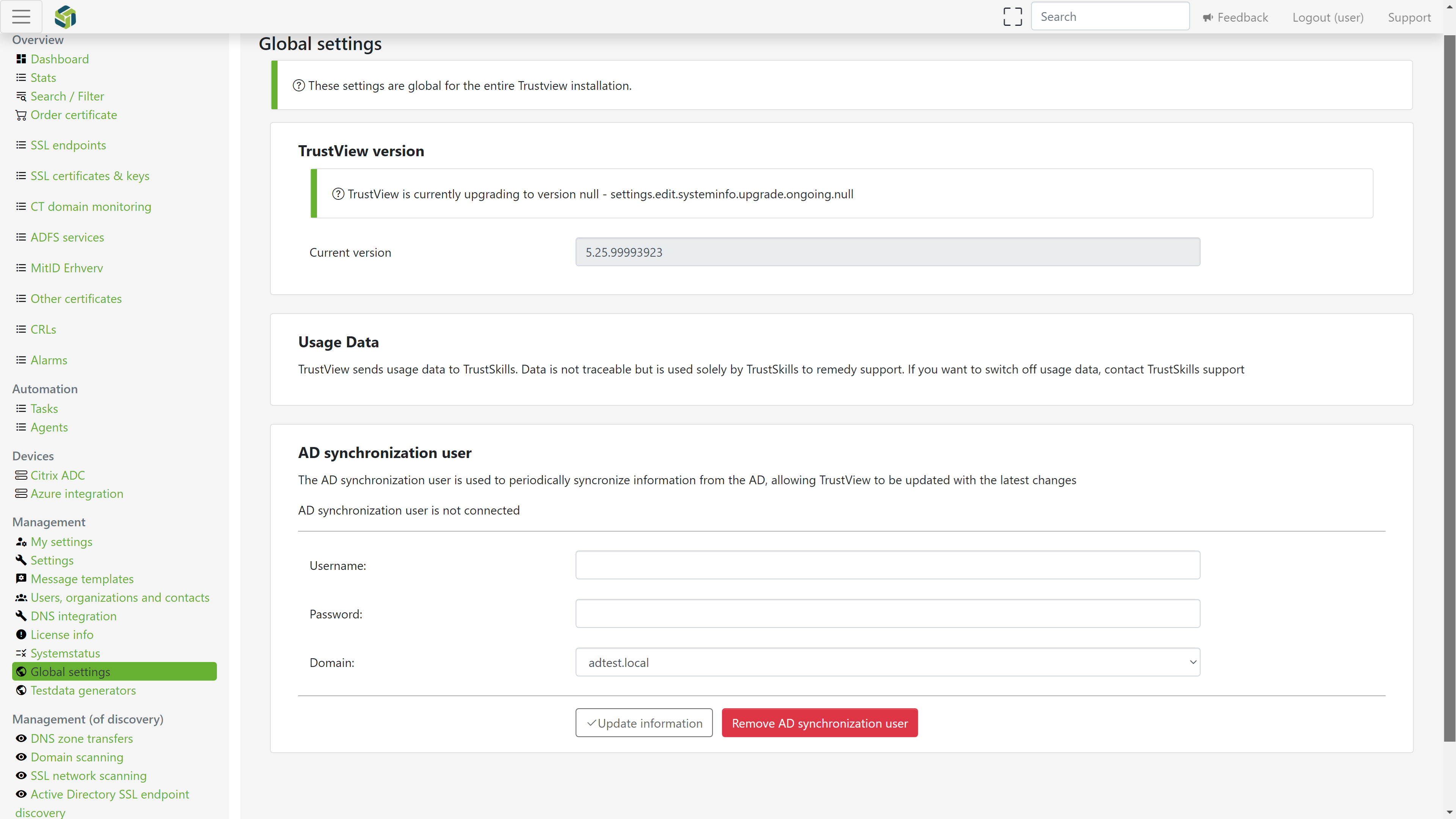
Allows a user to be synchronized with the AD for TrustView to be updated with the latest changes. Used for AD users and user groups.
Important
To save the changes, click Update details.
5.3.3. Azure sync client
The Azure sync client allows TrustView to periodically retrieve information from Azure about which users belong to which groups, used for Azure-group-based role assignment (see Azure SSO).
Provide the Client ID, Tenant ID, Subscription ID and Client Secret of an Azure AD app registration
with the required Graph API permissions, then click Update information. The page shows whether the Azure sync
client is currently connected. Click Remove Azure sync client to disconnect it again.
5.3.5. SMTP OAuth2 settings
On the Global settings page, this section comes right after AD synchronization user
and Azure sync client, and before OAuth2 authorization server.
As an alternative to editing trustview.groovy/TrustView.groovy by hand (see
Using OAuth2 with Office 365 under Maintenance), the same OAuth2 credentials for
the SMTP server can be entered directly here: Tenant ID, Client ID and Client Secret of the
Azure AD app registration used to authenticate outgoing mail. Click Update to save, or Delete to
remove the configuration again.
Tip
Prefer this over the configuration-file examples referenced above. Entering the Client Secret here keeps
it out of trustview.groovy/TrustView.groovy entirely, and TrustView stores it encrypted in its
own database instead of as plain text. The same applies to the
AD synchronization user password and the
Azure sync client secret above - both are entered through the UI and stored
encrypted the same way, rather than written to a file.
5.3.6. Usage data
By default, TrustView sends anonymized usage data to Cryptomathic, used solely to help with support. This data is not traceable back to your organization. If you want to switch this off, contact Support.
Tip
By default, this usage data does not include any detail on the status of your scheduled scans - only add the property below if our Support team asks for it while diagnosing a scan-scheduling issue.
trustview.groovy / TrustView.groovy¶ reportingOnScantaskSchedulesDisabled = false