
 TrustView Documentation
2. Scan Agents
TrustView can scan endpoints from different places. A connection from within your network may give a different result than one from the cloud.
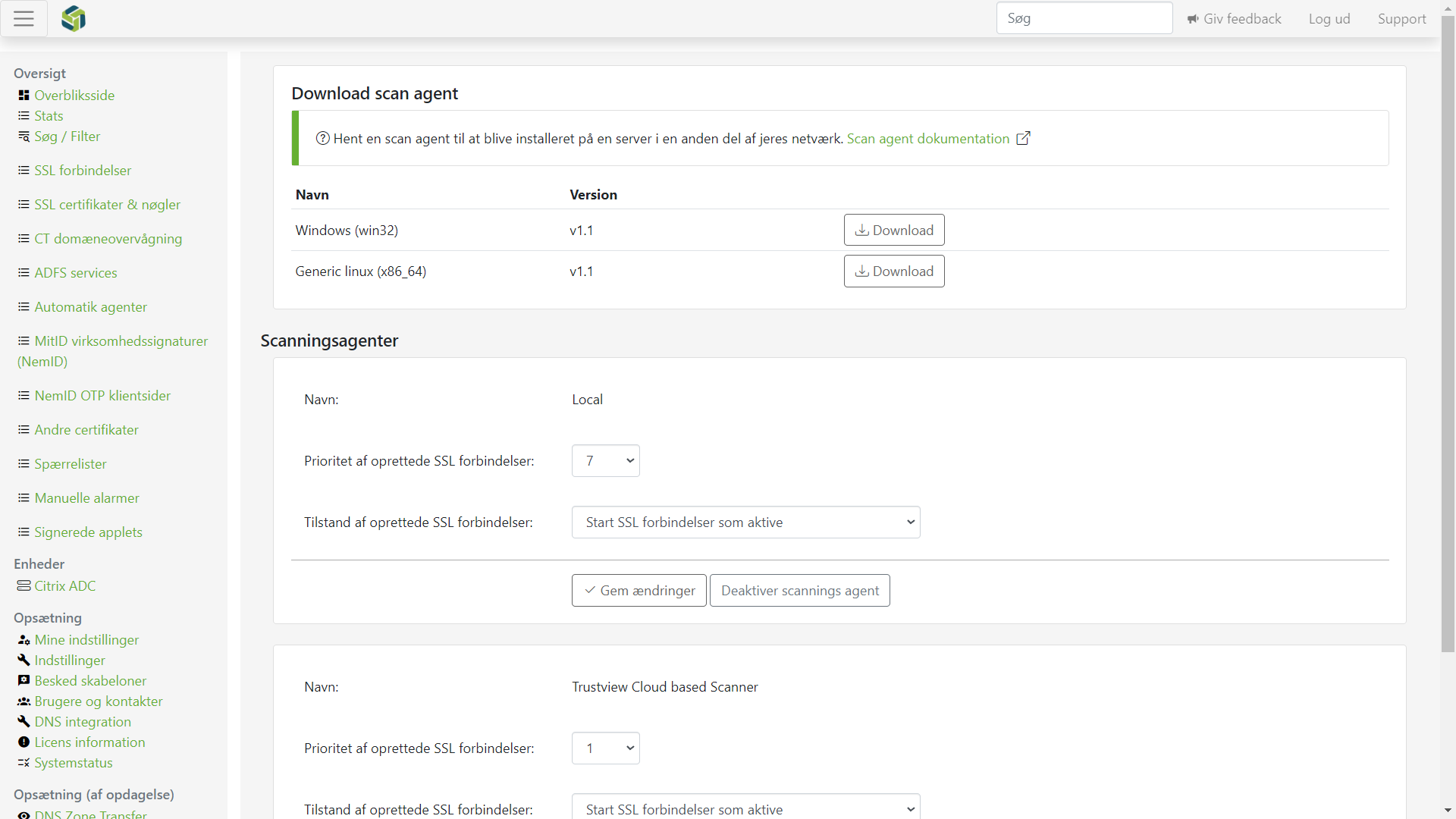
The Local scan agent is part of the primary TrustView installation. There is also a cloud-based scanner,
positioned in the cloud to scan from outside your network. Additional Scan agents can be downloaded for Windows and Linux and installed
on other servers in your network. TrustView will create and maintain one SSL endpoint object for each combination of
active Scan agent and hostname. If you don’t want TrustView to scan a specific combination, you can ignore the endpoint.
On the Scan agent Settings page, you can activate and deactivate Scan agents. You can also control whether endpoints created
with the Scan agent start as:
Active- Have the scan agent run on the endpoint by defaultIgnored- Manually activate the endpoints you want scanned by the agent
In order to avoid clutter with multiple endpoints with the same result from different agents, the connections also have a priority.
If a connection gives the same result as a connection with a higher priority, it is set to Auto-filtered and not shown.
You can set the priority that the agents give by default, but you can also edit the priority on the individual endpoints on their edit page.
2.1. External agents
In addition to the 2 agents that are always available, external agents can be set up elsewhere in your network for full coverage.
External agents can be installed on a 64/32-bit Windows or Linux server that has Java installed and can reach your primary TrustView URL.
Danger
Deactivating a Scan agent deletes every SSL endpoint that was created using it, exactly like deleting one does - the Ignore/Activate
toggle is not a safe way to pause an agent without losing its endpoints. This holds even for the built-in Local/cloud-based agents, which
cannot be deleted but can still be deactivated. Both actions are called out in their own confirmation dialog (”…all endpoints using it will
be deleted”) before they go through, and neither can be undone.
On an external agent’s edit panel, the Scan agent version, Scan agent server url, Scan agent server IP address, and Verification date
fields are all read-only - they are reported by the agent itself and cannot be changed from TrustView.
2.1.1. Windows
2.1.1.1. Installation
Navigate to the Scan agent page that can be found under the settings page and download the zip package for Windows with the external agent. Extract the package where you wish to install it.
Navigate to the folder with PowerShell and run:
1 .\scanAgentSetup.exe install
This will set up the Scan agent as a Windows service. To ensure that the service will start after a possible server reboot, set the startup to Automatic under properties of the service. With the agent running, you
should be able to locate it on the Scan agent page in TrustView and activate it.
Note
If the Scan agent is not available or visible in TrustView, ensure that the Windows service is running and refresh the browser.
2.1.1.2. Uninstalling
The agent can be uninstalled by stopping the Scan agent Windows service, navigating to the installation folder and running:
1 .\scanAgentSetup.exe uninstall
Afterwards, the Scan agent folder can be removed, and the agent can be deleted under the Scan agent page in TrustView.
2.1.1.3. Upgrading
When a new version of the agent is available, first stop the Scan Agent Windows service, navigate to the installation folder with PowerShell, and run:
1 .\scanAgentSetup.exe uninstall
Then download the zip with the new version from TrustView and extract the contents to replace existing files in the installation folder.
To reinstall, run:
1 .\scanAgentSetup.exe install
Restart the Scan agent Windows service and the new version number should now be shown for the Scan agent in TrustView.
Note
If the Scan agent is not available or visible in TrustView, ensure that the Windows service is running and refresh the browser.
2.2. Linux
Navigate to the Scan agent page in TrustView and download the zip package for Linux with the external agent.
Install java-17-openjdk:
Command to install the minimum required Java version¶1$ yum install java-17-openjdkTip
You may want to update to a newer version of Java, as Java 17 is only the minimum required version.
Extract the ScanAgent package:
Command to extract the agent¶1$ mkdir /opt/cryptomathic 2$ gunzip -c trustview-scanagent-v1.2.tar.gz | (cd /opt/cryptomathic; tar xf -)Important
Make sure trustview-scanagentw.sh is executable:
Command to grant permissions¶1$ chmod 755 /opt/cryptomathic/trustview-scanagent/trustview-scanagentw.shAssuming your system is using
systemdfor managing services, complete the following steps:
Modify
examples/trustview-scanagent.serviceto match your requirementsCopy the modified
trustview-scanagent.serviceto/etc/systemd/systemStart the service and enable automatic start on boot:
Commands to start and enable the scan agent¶1$ systemctl start trustview-scanagent 2$ systemctl enable trustview-scanagent
2.3. Add certificate to truststore [Optional]
2.3.1. Windows
Copy the cacerts file from the Java directory to the <scan agent installation path> directory and import the CA ROOT certificate with the command:
Import the root certificate into the truststore¶1"C:\Program Files\AdoptOpenJDK\jre-8\bin\keytool.exe" -import -keystore Path\cacerts -storepass changeit -file Path\trustedrootcert.cer
Important
Adjust the command parameters to fit your file location etc.
Inside the file scanagentsetup.xml, under Arguments, add the following lines:
1-Djavax.net.ssl.trustStore=<scan agent installation path>\cacerts
2-Djavax.net.ssl.trustStorePassword=changeit
3-Djavax.net.ssl.trustStoreType=JKS <arguments>
Note
Remember to adjust the scan agent installation directory path.
2.3.2. Linux
Copy the cacerts file from the Java directory to the <scan agent installation path> directory and import the CA ROOT certificate with the command:
Import the root certificate into the truststore¶1Root "/path/to/jre/bin/folder keytool" -import -keystore Path\cacerts -storepass changeit -file Path\trustedrootcert.cer
Inside the file trustview-scanagentw.sh, under JAVA_OPTIONS, add the following lines:
1-Djavax.net.ssl.trustStore=<scan agent installation path>\cacerts
2-Djavax.net.ssl.trustStorePassword=changeit
3-Djavax.net.ssl.trustStoreType=JKS
Note
Remember to adjust the scan agent installation directory path.
2.4. Troubleshooting
2.4.1. Scan agent doesn’t appear to connect
If an external Scan agent doesn’t show as connected in TrustView, check the agent’s own log file first.
A log entry reading:
1Unable to reach TrustView
means the agent could not reach the TrustView server at all - check the network path and firewall rules between the agent and the TrustView server.
If instead the agent’s log shows a certificate or SSL/TLS-related error when trying to connect, the agent likely doesn’t trust the SSL certificate used by TrustView. See Add certificate to truststore above.
2.4.2. Scan agent logging
The external Scan agent writes its own, separate log output to its console/service log - it does not use TrustView’s own
logback.xml/logback.groovy files described under Additional logging for troubleshooting in
Maintenance, since it runs as its own process.
Its log level can be raised in two ways, without editing the agent’s own packaged configuration file:
Set the
root.level(and, for the scheduler specifically,quartz.level) system property when starting the agent, for exampleDEBUGinstead of the defaultINFO.Drop a
logconfig.xmlfile next to the agent’s own configuration file - if present, it is automatically included and can define additional loggers/appenders the same way as described for the main TrustView application.