
 TrustView Documentation
3. Ordering SSL Certificates
TrustView supports the following external certificate providers:
It’s also possible to choose Manual to manually insert the certificate details or ADCS, if you have access to the ADCS module of TrustView.
This will allow you to issue internal certificates from your PKI.
To order an SSL certificate, a certificate signing request (CSR) is required. More info about certificate signing requests can be found here: CSR Guide.
Once the order has been submitted, Cryptomathic will process the order, which involves a verification of your organization and the validation of any domains included as common name or SANs in the certificate.
The billing will be handled by Cryptomathic.
Important
From version v5.22.132 of TrustView, a new order page will be available.
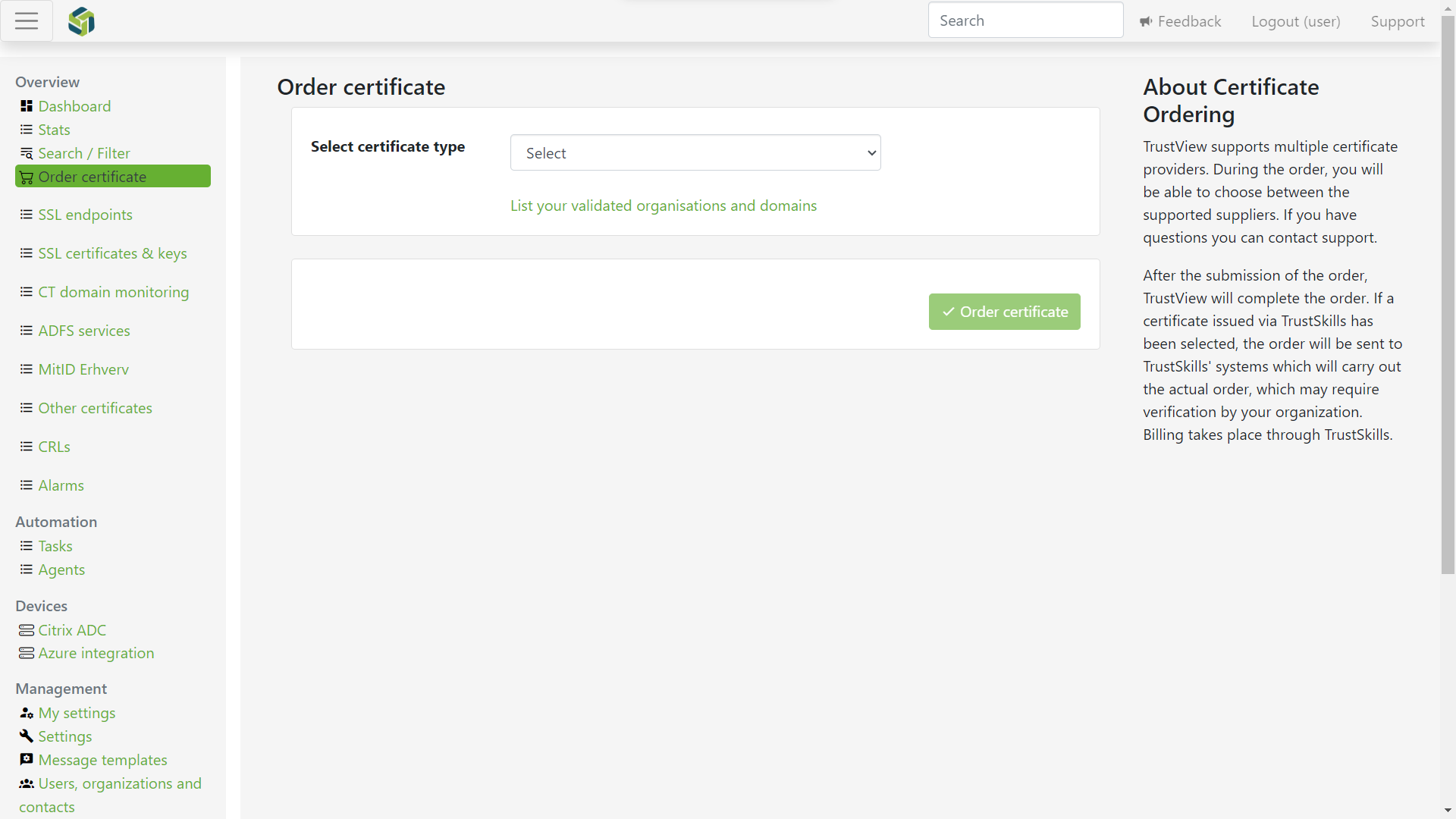
3.1. Select certificate issuer
Let TrustView generate the CSR (Certificate Signing Request) and store the private key - encrypted in the database, unless you want to provide your own CSR, which is also an option on the order page.
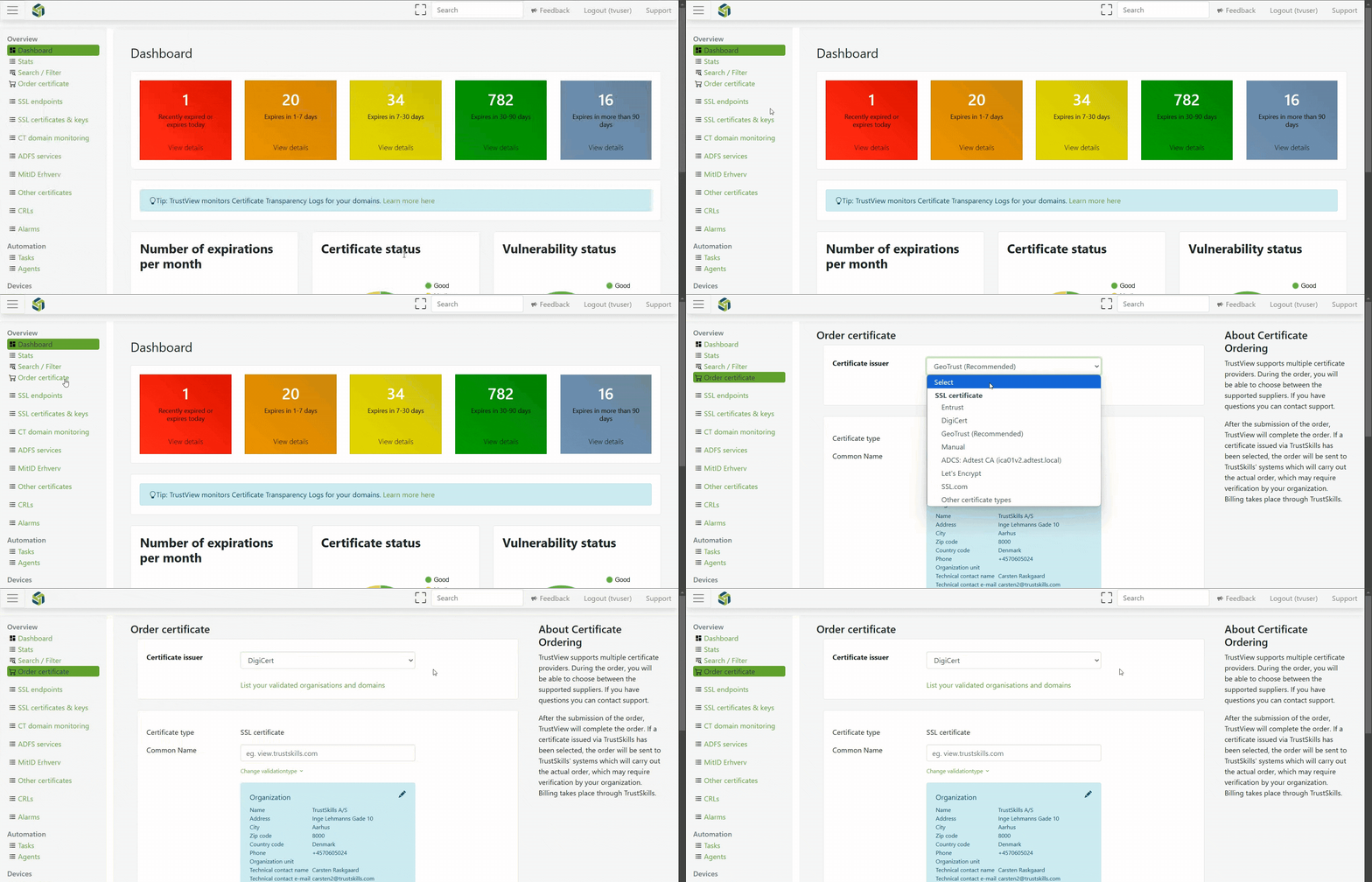
8 different certificate issuers are available, under certain conditions:
Certum (external)
DigiCert (external)
GeoTrust (external)
Manual
ADCS (internal - PKI) Requires a license for the ADCS module
Let’s Encrypt (external)
ACME issuer (add your own ACME issuers from the
Settingsmenu to enable this option)Other certificate types (Code Signing, Verified Mark Certificates (VMC), Document Signing etc.)
Note
ADCS is a single entry here regardless of how many ADCS CA connections are configured. Choosing it
reveals a second selection for the template to issue from (e.g. Web Server) instead - not a CA.
TrustView resolves which configured connection actually issues the certificate automatically; see
ADCS for how templates are enabled per connection, and what happens to existing automation if a
template is later disabled.
Note
To order any of the other types of certificates, such as Code Signing or VMC certificates, reach out to our Support. They can handle the order manually, even if it can’t be ordered directly through TrustView.
Once a selection has been made, you will be prompted to enter the CN (common name) of your certificate,
which is also where you can specify if the certificate should be a wildcard certificate, by adding *. in front of the name, like
*.example.org.
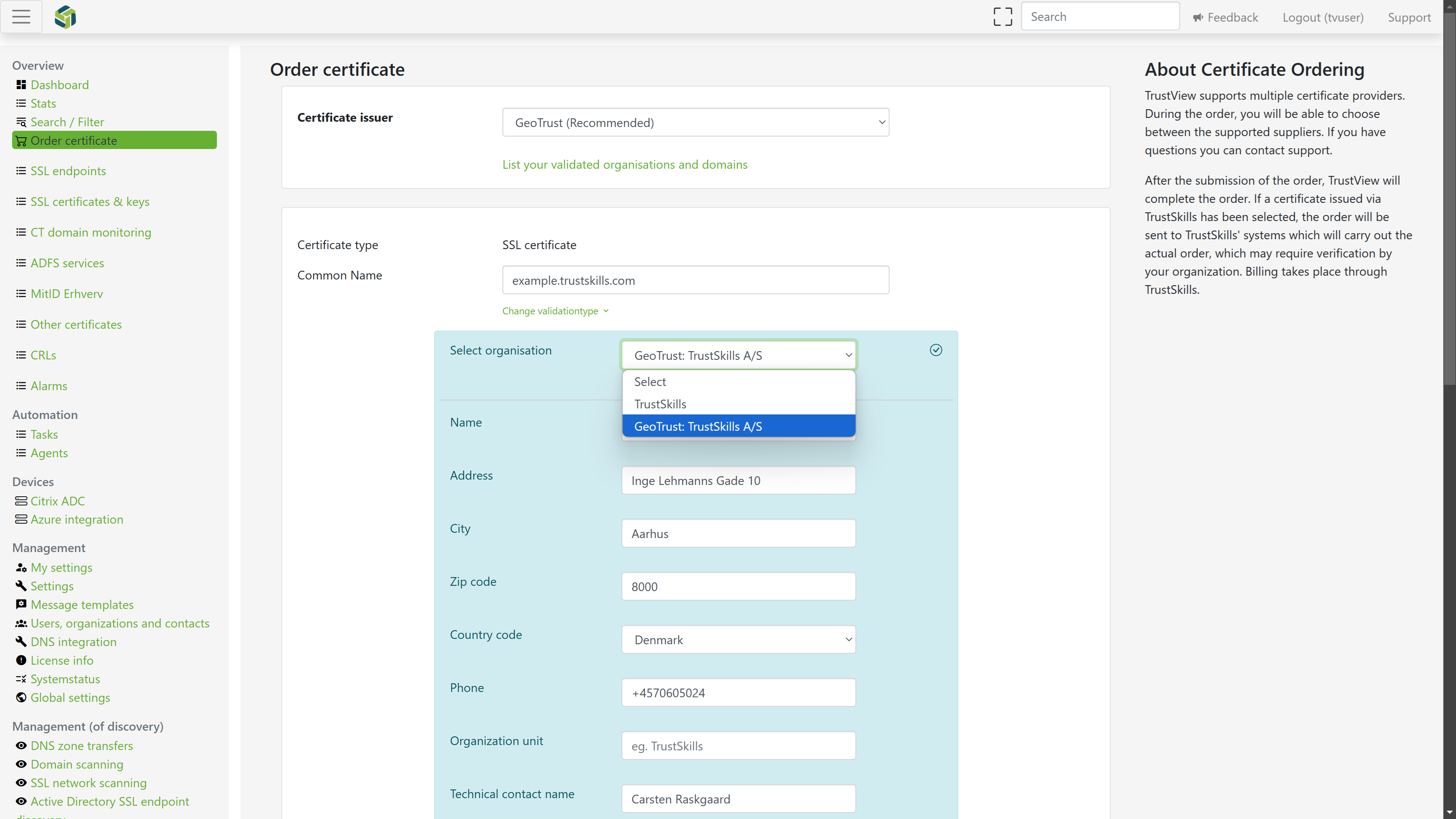
The grey field, below the common name field, specifies all the information of the organization that the certificate should belong to. This information will also be part of the certificate details, once it has been issued.
In the grey field, it is also possible to select your own prefilled organization templates.
Note
The organization details will automatically be retrieved from our backend, if the organization has been validated for Certum, DigiCert or GeoTrust. Should any of the information be wrong, they can be adjusted manually, by clicking the edit icon in the top right corner of the grey field.
The way to differentiate between a template retrieved from our backend and one you created yourself, is by checking the prefix.
If a prefix Certum:, GeoTrust: or DigiCert: is present in front of the template name,
it is retrieved from our backend and not a custom template that was created by a user.
3.2. Cloudflare Origin CA
Cloudflare Origin CA is another possible certificate issuer, but it will not be available by default in TrustView; it must be enabled by adding the following
to the trustview.groovy configuration file:
1certificate_issuer = [
2    [
3        name: 'Cloudflare Origin CA',
4        internal_value: 'CloudflareOriginCA',
5        requested_validity: 5475,
6        bearer_token: 'Replace with bearer_token'
7    ]
8]
Or
 1certificate_issuer = [
 2    [
 3        name: 'Cloudflare Origin CA',
 4        internal_value: 'CloudflareOriginCA',
 5        requested_validity: 5475,
 6        api_key: "Replace with api_key",
 7        api_mail: "Replace with mail connected to the api_key"
 8
 9    ]
10]
Note
The optional requested_validity property can have the following values: 7, 30, 90, 365, 730, 1095, and 5475 (default)
for the number of days the issued certificate will be valid.
To get it working, the following permissions are required from the Cloudflare Origin API token:
Zone-SSL and Certificates-EditZone-SSL and Certificates-Read
Important
Once the Cloudflare Origin CA issuer has been configured and becomes available as a certificate issuer, it will be available for both manual certificate orders, as well as automation agents and all other places where you are able to select a certificate issuer.
3.3. Advanced SANs
When selecting either the Manual or ADCS certificate provider options, it’s possible to expand the SANs options by
clicking Advanced SANs located under the SANs field. This will enable the option to add IP SANs and URI SANs if needed for the certificate.
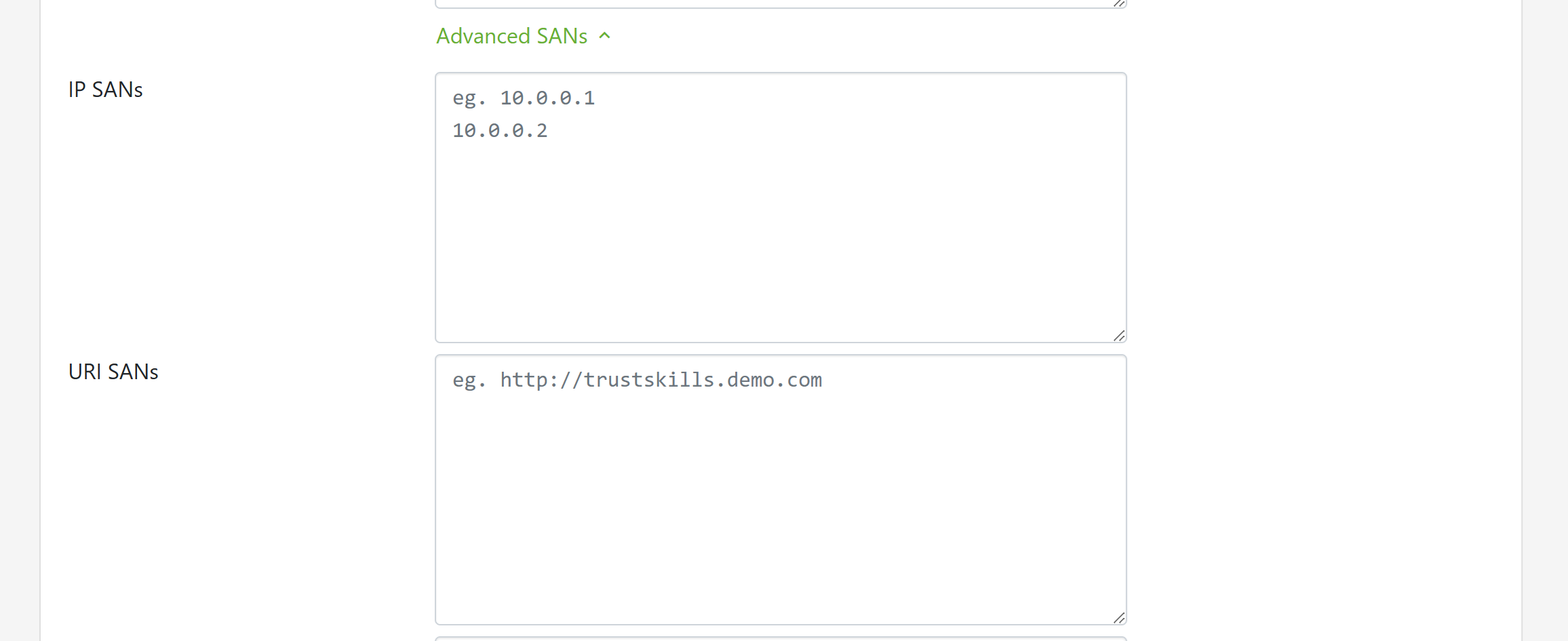
The IP SANs field should be formatted with line breaks:
127.0.0.1127.0.0.2127.0.0.3
The URI SANs field should also be formatted with line breaks:
3.4. Set up organisation templates
To set up your own prefilled organization templates to use when ordering certificates, go to Users, organizations and contacts
in the left menu and then to Organizations at the bottom.
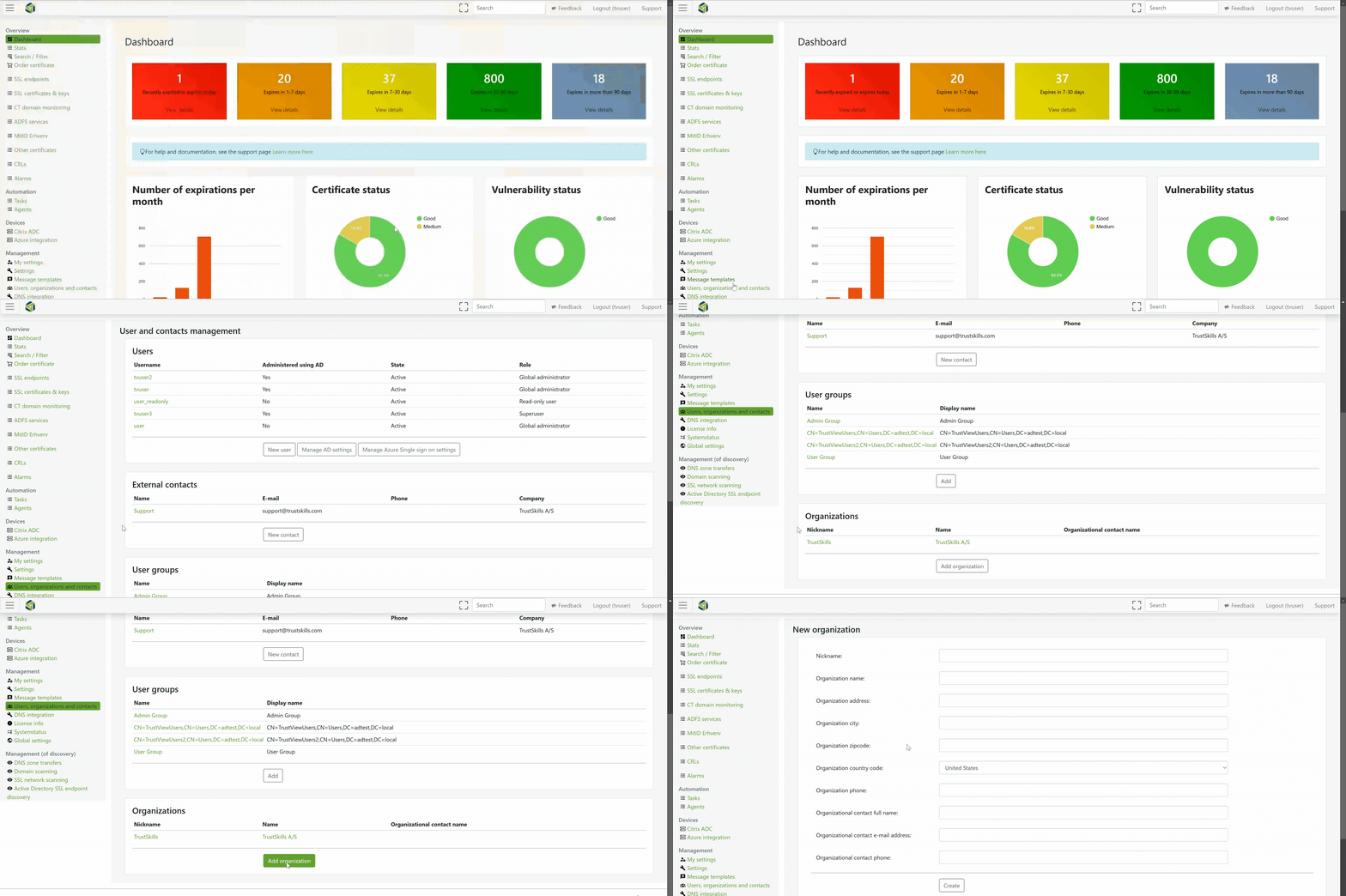
Create all the organizations you need and fill out the name field, as a minimum.
Once a template has been created, it can be selected in the selection menu, in the grey field of the Order certificate page.
3.5. Providing your own CSR for the certificate order
On the certificate order page, a link is available for adding your own CSR Use existing CSR (Certificate Signing Request) in ordering the certificate.
Important
If you provide your own CSR for the certificate order, TrustView will not generate a private key, and in the case you need it, you would have to provide your own, which can be done by importing the private key into TrustView, after the order has been placed and issued. The private key can be generated from the CSR you provided for the order.
3.6. Bulk purchasing (depositing funds)
Important
It requires a billing account to use this feature in TrustView or TrustView Lite. Contact Support or Sales to get an account set up.
This is optional for purchasing certificates through TrustView and TrustView Lite. Certificates can still be purchased on an individual basis.
This can be done by clicking SSL certificates & Keys in the side menu and then Account details.
Once the account has been set up, you will get an overview of the current funds and an overview of all the transactions you have performed through TrustView.
Purchasing certificates with the account for bulk purchasing is done the same way you would do it without an account, by clicking Order certificate. The
price and remaining funds in the account will automatically be calculated, and shown at the end of the order page.
3.7. Certificate types
3.7.1. Domain validation (DV)
DV (Domain Validated) certificates are the cheapest and least-identity-validated SSL certificates and can be obtained quickly and easily - even by a malicious bot. These certificates are low-cost certificates that only require validation that a company or person can demonstrate control over a web domain for which they want to secure a certificate.
DV certificates are typically used by websites that do not conduct business, credit card transactions or gather personal information.
Important
SSL certificates of the type DV (Domain Validation) can’t be prevalidated like the SSL certificate types OV and EV can. These types of SSL certificates must be validated on an individual basis, for each domain. This is also the only type of validation that the provider - Let’s Encrypt offers.
3.7.2. DNS validation method (Let’s Encrypt)
For a DV certificate that validates over DNS - today, only Let’s Encrypt - the order’s edit page shows a DNS
validation setting, as long as the order has not yet been issued. It offers three choices:
Follow group default- uses whatever is configured under DNS validation (DNS-PERSIST-01) in Settings.
Ordinary DNS validation- the existing, one-time DNS challenge (dns-01): a new DNS TXT record (_acme-challenge.<domain>) is published for each issuance and removed again afterward.
Persistent DNS validation- a newer method (dns-persist-01) that publishes a standing DNS TXT record once. That record authorizes your ACME account for the domain and is then reused for every future renewal, so no further DNS changes are needed.
Note
This setting is only shown for orders that are actually validated over DNS - it does not appear for ADCS or other issuers that do not use a DNS challenge.
Important
A persistent authorization record is permanent and must not be deleted - doing so breaks future renewals. Once an order using persistent DNS validation is placed, the pending authorization record is shown on the certificate’s detail page, in the same place as the ordinary challenge instructions, marked as permanent.
3.7.3. Organization validation (OV)
OV (Organization Validated) SSL certificates are authenticated with nine validation checks and are considered a mid-level business certificate. With OV certificates, CAs authenticate domain ownership similar to DV certificates.
What distinguishes OV from DV are the steps taken by CAs to authenticate that the business organization (i.e. Inc., Corp, LLC, Ltd, Pty Ltd, etc.) affiliated with the certificate is valid and remains in good standing.
3.7.4. Extended validation (EV)
EV (Extended Validation) certificates are authenticated with 18 validation checks, requiring the highest level of vetting by CAs. EV certificates protect a brand’s identity because of this rigorous process required in order to get them.
On top of all the authentication steps CAs take for DV and OV certificates, EV certificates require vetting of the business organization’s operational existence, physical address and a telephone call to verify the employment status of the requester.
3.8. Prevalidation
Prevalidation, also known as prevetting, is an optional feature, allowing validation of organizations and domains before ordering certificates. This allows near real-time issuance of certificates, as orders are placed.
Important
Prevetting is free and no cost is associated with it, but takes time depending on the type of validation and the CA chosen. Extended Validation (EV) takes the longest and can take up to several days, depending on response time of the CA (Certificate Authority).
Completed validations are not required before placing certificate orders, but are an optional optimization for customers placing several orders.
Validations are valid for a certain period, at least 13 months per validation, and thus need to be renewed regularly.
Tip
You can see an overview of all your validated domains and organizations inside TrustView - under the Order certificate page,
by clicking on the link List your validated organisations and domains.
We can mark both organizations and domains for automatic renewal of validations. In this case, we will contact you when your organization or domain is nearing validation expiry and start the renewal process in collaboration with you.
Contact our Support to have additional domains or organisations validated, or for any other changes to your registered organizations and domains.
3.9. Validation of domains from TrustView
You can now get a complete overview of validations and instructions, on the selected Domain Control Validation (DCV) method for each domain, to get the ordered certificate issued:
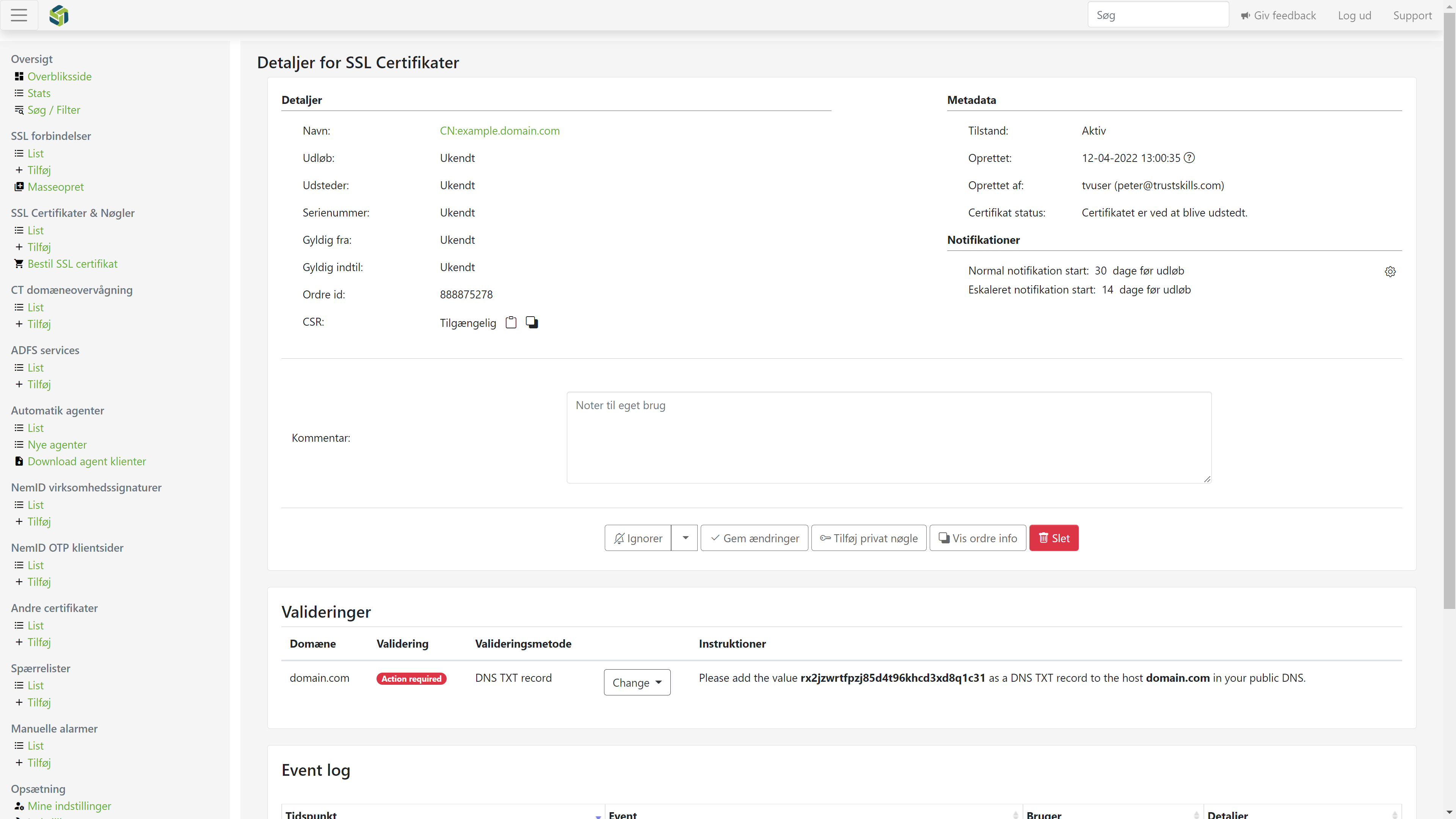
It is also possible to change the validation method from the dropdown menu, next to the listed domain(s). This can be done for each domain, if additional SANs were added when the certificate was ordered:
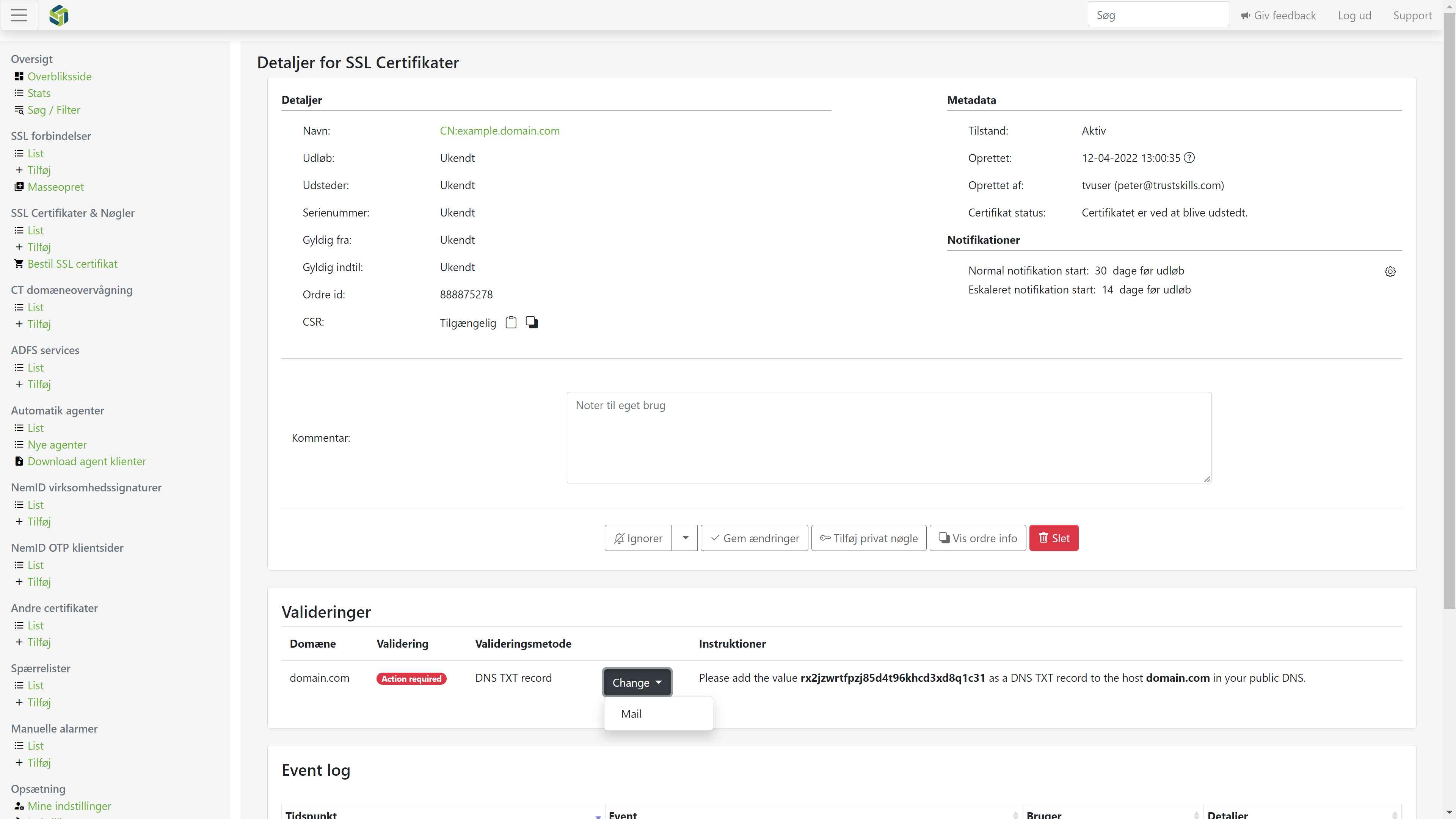
Once the validation has been completed, the Action required will change to Completed.
Note
A fourth DCV method, DNS CNAME, can also appear here for domains validated through DigiCert. Unlike the other methods, which
need to be resubmitted for every validation and renewal, the CNAME record is created once and then persists across future
validations and renewals, so it does not need to be touched again. This method is assigned automatically by DigiCert for eligible
domains and cannot be selected manually - if a domain is showing this method, contact our Support
for the exact DNS record values to create, as these are not yet shown in this view.
3.10. Reissue previously issued SSL certificates
Note
When reissuing an SSL certificate, the expiry date will not be extended, as a reissue can be considered a copy of the original SSL certificate. Only by placing a new order for an SSL certificate will the expiry date be extended.
SSL certificates can be reissued by opening the detail page of the certificate you want to reissue
and pressing Reissue. This will take you to the order page, which will be prefilled with the information of the SSL certificate
you are attempting to reissue.
A renewal can also be started directly from a discovered SSL Endpoint (rather than from an existing certificate),
using the Renew link available on the SSL Endpoint list - this prefills the order from the certificate
currently installed on that endpoint.
Note
By default, the certificate being renewed or reissued keeps running and keeps generating its own expiry
notifications after the replacement has been issued. To have it automatically set to Ignored (so only the
new certificate remains active) instead, a Global administrator or Superuser can enable
Ignore existing SSL certificate under Settings.
Important
Only SSL certificates issued from Certum, DigiCert or GeoTrust can be reissued. It’s not possible to do so with certificates issued from ADCS (internal PKI certificates) or Let’s Encrypt.
You now have the possibility to remove or add additional hostnames in the SANs field on the order page. Adding hostnames will automatically calculate the new cost, at the bottom of the order page.
Important
If you are attempting to place an order (reissue or not) and get this message: Price not available. Contact our support for more info., you can still place the order, and we will contact you if necessary.
3.11. Validation dashboard
To get to the validation dashboard, go to either Order certificate Validation dashboard or Monitored SSL certificates & keys Order Validation dashboard.
Important
Validating organizations requires a special process and therefore requires you to contact our Support to start the process.
Here you will get a complete overview of all the organizations and domains that are already validated or have been previously. New domains can be submitted for validation and existing domains can be resubmitted for validation, if necessary.
You can revalidate domains on your own, by selecting one or more domains from the list and clicking the dropdown menu Submit for validation followed by choosing the preferred DCV method: Email, HTTP or DNS TXT TOKEN.
After that, you can follow the DCV instructions in the domain validation table, to get the domains revalidated.
Note
This dropdown does not include the DNS CNAME method - see the note above for how that method is assigned.
Important
When selecting the e-mail DCV method for the issuer DigiCert, no matter what e-mail is selected,
the validation e-mail will be sent out for all 5 of the standard e-mails. That is up to the issuer in the end and not something Cryptomathic controls.
Note
If you need any organizations or domains removed from the validation dashboard, simply reach out to our Support with a list or name of what you want removed.
3.11.1. Assisted renewal of domains
On the validation dashboard, you can either enable or disable the assisted renewal of domains, which means that Cryptomathic will reach out, typically in the form of one e-mail per domain, before any domain validation (that has the assistance enabled) expires.
If the assisted domain renewal has been disabled, you will have to resubmit them manually.