
 TrustView Documentation
7. Installation Prerequisites
This guide is for installing TrustView on-prem. If you are looking for a cloud solution, we have TrustView Lite, but that is not as feature-complete as our on-prem solution. Contact our Support for more details if needed.
There will be a technical contact attached to perform the installation for you.
The following technical prerequisites are required to get TrustView installed:
Logical network access (typically VPN or Citrix)
Access to a server, where we can install TrustView
Access to a database
Note
The installation can also be performed through TeamViewer, a Microsoft Teams session, or something similar, if you prefer to avoid giving server access or have not set up VPN access.
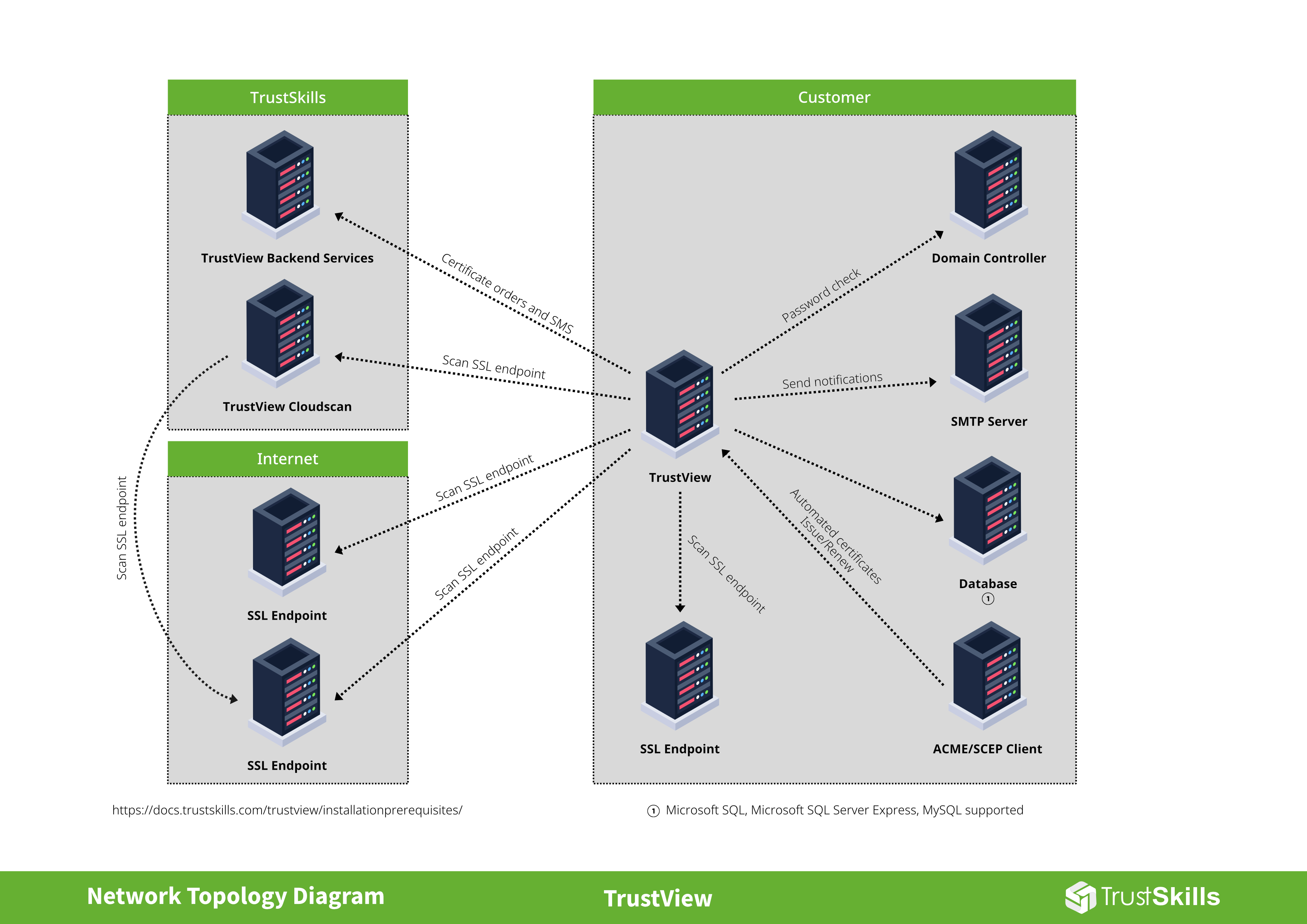
7.1. Server specifications
The following specs are recommended for TrustView:
Operating system: Windows Server 2022 or later (Linux is supported, but requires a different setup, compared to a Windows server)
Memory: 12GB minimum, 16GB or more is recommended
Application storage: 25GB or more
7.2. Database specifications
Supported database types: Microsoft SQL Server (minimum version 2016), Microsoft SQL Express (minimum version 2016) or MySQL (minimum version 5.7 LTS)
Database storage: Initially 1GB. Growth/yearly: 10MB per endpoint
Database user: User with the role
db_owneron the TrustView database
Note
The database can be installed on a separate server or the same server as TrustView. Once TrustView runs the first time, all required tables will
automatically be generated and added to the database, so only a database (named trustviewdb etc.) and a user to access the database are required. It is also possible
to just add the required TrustView database, to an already existing SQL or MySQL instance for example.
7.3. Basic configuration
Additionally, for the basic configuration of TrustView, we require:
Access to an SMTP gateway address and a shared mailbox (which is used as sender when e-mail notifications are sent from TrustView)
Note
An example of an SMTP gateway address could be smtp.company.com, but it’s also possible to use an Office 365 SMTP server or specify a port and user credentials if necessary.
SSL certificate issued to TrustView itself (used to access the TrustView web interface using https)
Note
This is optional, but if you want to use HTTPS with TrustView, the SSL certificate needs to cover the hostname and domain of the server. It’s not necessary to provide an SSL certificate if you have the ADCS module, as that can perform all the needed actions through TrustView.
One or more AD security group(s) (allows access to TrustView using domain login for users that are members of a group)
Note
This is optional, as you can log into TrustView with local users (set up directly in TrustView), but if you want to be able to log into TrustView with Active Directory users, then at least one group (inside your Active Directory) must be created for that purpose. The group can be named after the user roles, like TrustViewAdmins or TrustViewReadOnly etc. (but the final naming convention is up to you). See User Roles.
AD user to synchronize with the Active Directory (only needed if you want login access to TrustView with AD users)
Note
It is recommended to use an AD user which does not expire, as TrustView synchronizes with your AD on an hourly basis.
7.4. Firewall rules and access
There may be cases where your network is closed off and you only want to open for the necessary inbound and outbound connections related to the TrustView instance.
Important
TrustView initiates almost all of its own connections, so most of the required firewall access is outbound. The exception is the Automation module, which also requires an inbound HTTPS connection on port 443, from the servers running your ACME/SCEP clients - see Hostnames and IPs used during automation for the full breakdown.
Always required (outbound from TrustView):
Outbound HTTPS connection -
port 443Connect outbound to
api.trustskills.com-port 443Connect outbound to
view.trustskills.com-port 443Connect outbound to
www.trustskills.com-port 443
Automation module, if licensed (mainly inbound to TrustView):
From the servers running your ACME or SCEP clients -
port 443. See Hostnames and IPs used during automation for the full set of outbound hosts these features may also need, depending on which you use, and ACME challenge checking for an optional, off-by-default setting that adds an outbound connection back toward the domain being validated.
Optional integrations, only if used (outbound from TrustView):
Let’s Encrypt - if used as an issuer, TrustView’s own ACME endpoint -
port 443DNS-01 validation - if configured, your DNS provider’s API (hostname depends on the provider) -
port 443Citrix NetScaler - the NITRO management API -
port 443, and SSH/SFTP for certificate upload -port 22Azure -
management.azure.com, your Key Vault’s*.vault.azure.nethostname,login.microsoftonline.comandgraph.microsoft.com-port 443MitID Erhverv - the issuance/renewal endpoint at Nets -
services.nemlog-in.dk(Prod) orservices.devtest4-nemlog-in.dk(Test) -port 443
Discovery features, if configured (outbound from TrustView, to hosts you specify - not fixed Cryptomathic hostnames):
Network scan - the IP range(s) and port range(s) you configure
DNS zone transfers - your DNS server, typically
port 53Active Directory SSL endpoint discovery and AD login sync - your domain controller, typically
port 389(LDAP) orport 636(LDAPS)
Scan Agents, if used:
An external Scan Agent always connects outbound to TrustView to poll for scan tasks - TrustView never connects to the agent, so only the agent’s own network needs outbound access.
7.5. Integration of ADCS module
Important
This step is only needed if you need to have the ADCS module (MS PKI) set up and have the license to that module.
A service account with the following permissions assigned to your ADCS (Issuing CA) is needed:
Read(set under Properties Security)Issue and Manage Certificates(set under Properties Security). Only required if you want to be able to revoke certificates from TrustViewLog on as a serviceon the TrustView server
On the template used to issue from (usually Web Server unless you have specific preferences), the following permissions are needed:
Read and Enroll
Tip
If you have any questions related to the on-prem TrustView installation, contact the technical contact you have been provided or contact our Support.
7.6. Quick checklist
The following tasks should be completed by you, before the installation of TrustView by a Cryptomathic technician takes place: