
 TrustView Documentation
3. Azure Integration
In order for TrustView to gain access to Microsoft Azure, some requirements must be met. Follow the steps below to set up the integration.
Important
The secrets, keys and certificates stored inside a key vault, and an application’s client secret or certificate credentials, must have an expiry date set in Azure to be shown in TrustView, once the integration has been successfully configured. The key vault or the app registration itself does not need an expiry date - only its individual secrets, keys, certificates or credentials do. So if you experience that elements are missing or not listed, check that an expiry date has been set on each individual secret, key, certificate or credential.
3.1. Prerequisites
This integration requires the Automation permission on your TrustView role - read to view a configured Azure integration, write to add, edit or delete one. The built-in roles already have the right access (see the “View/Manage the Automation module” rows under Overview of roles) and can’t be changed - this choice only needs to be made explicitly when defining a custom role.
3.2. Create app registration
Create an app registration that should be used for TrustView, to access Azure APIs:
Before creating an
App registration, go to the Azure portal where you create your Azure Key Vaults, and make sure to set an expiration date for the secret, associated with the key vault that you want to see and get an overview of in TrustView.Important
Enable the checkbox
Set expiration dateand then choose an expiration date for theSecret. Enabling this, when creating a new secret for a designated key vault, will allow you to then be able to not only see the key vault in TrustView, but also see the content of the key vault. If you do not set an expiration date, you will not be able to see the content of the key vault.Go to Microsoft Entra and select
App registrationNew registration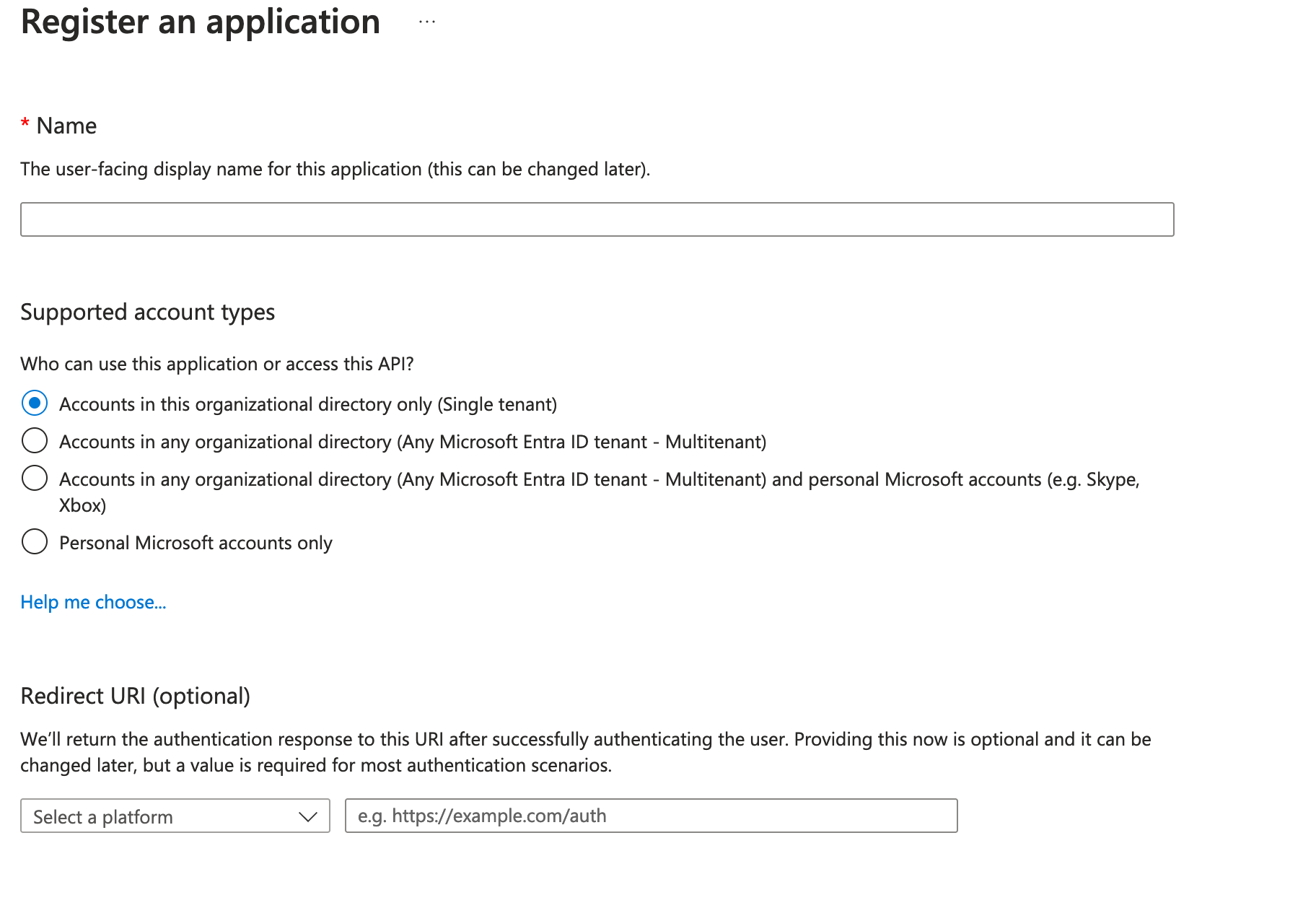
Select a name and select
Accounts in this organizational directory only (Single tenant)Leave
Redirect URIas blank, because it is not usedAfter creating the app, store the values of:
Application (client) ID - (client id)andDirectory (tenant) ID - (tenant id)You then need to create a client secret. This can be done by choosing
Add a certificate or secretand then choosingNew client secretStore the
secretvalue.The last thing needed is the
subscription id, which can be seen by choosingSubscriptionsunderAzure services.Store the
subscription id.We now have
client id,client secret,tenant idand thesubscription idavailable and saved.In TrustView, choose
Azure integrationand type in the values and select a name and clickAddto finish the setup.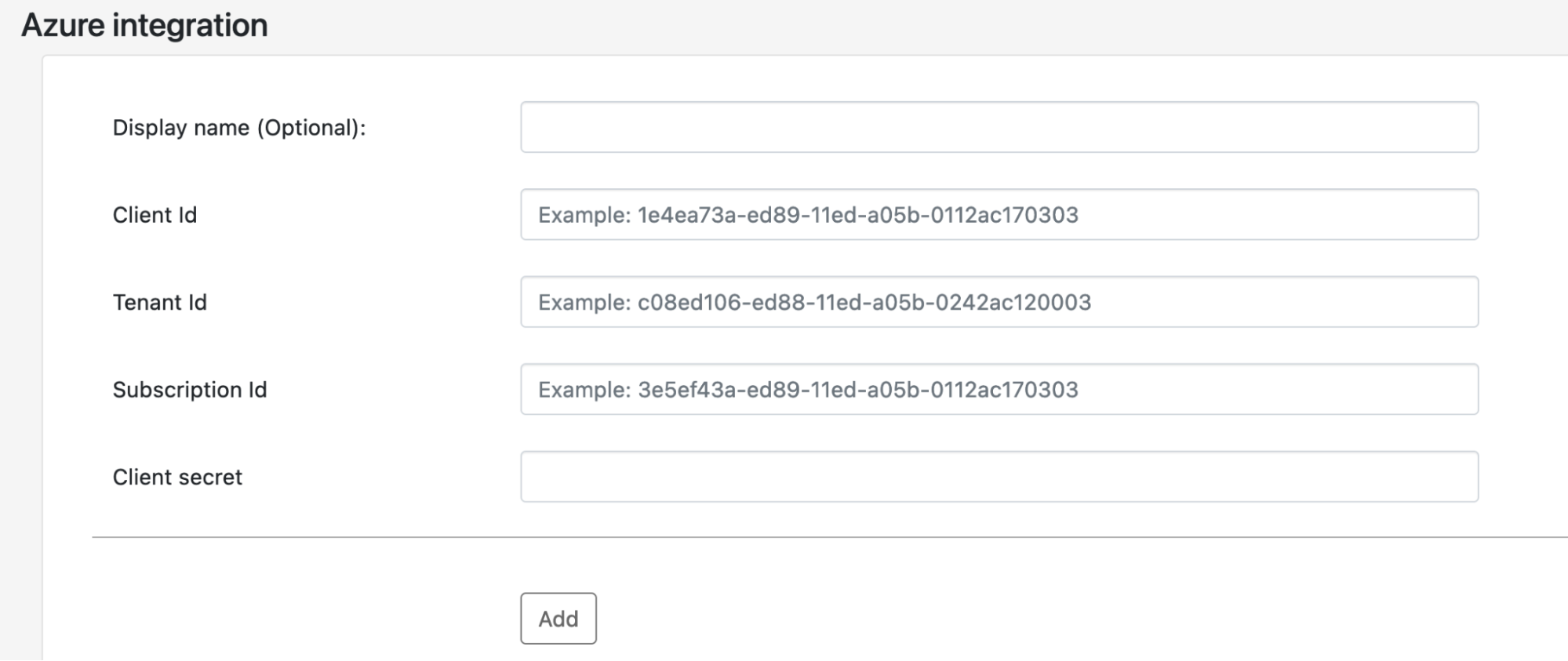
The Azure integration is now configured in TrustView; however, the client needs some permissions in order to be allowed to list apps and key vaults:
Under the client overview page in Azure, go to
App registrationsthen selectAPI permissionsand clickAdd a permissionSelect
Microsoft Graphapplication permissionsApplication.Read.All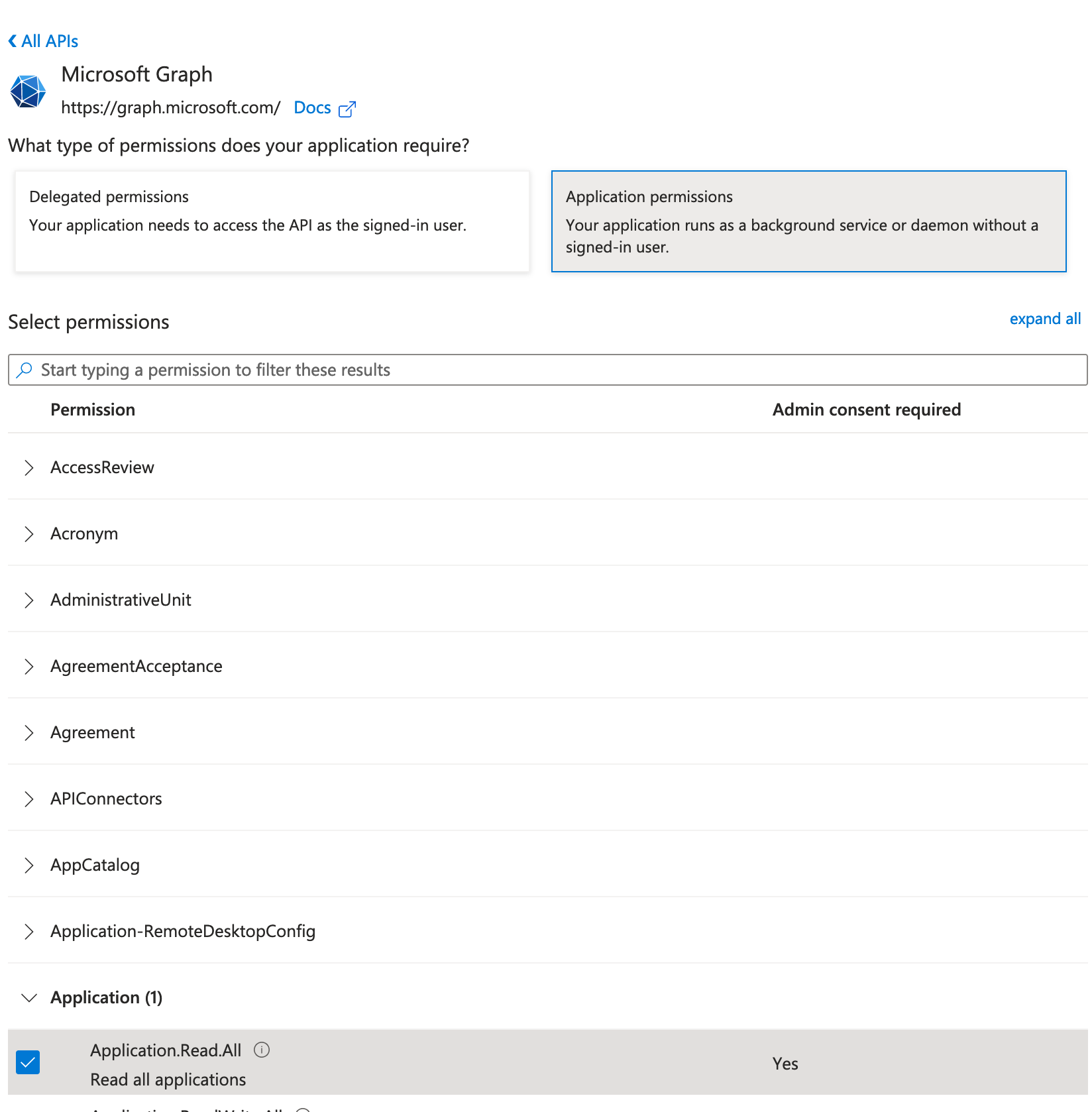
Select the next permission under
Azure KeyVaultuser_impersonation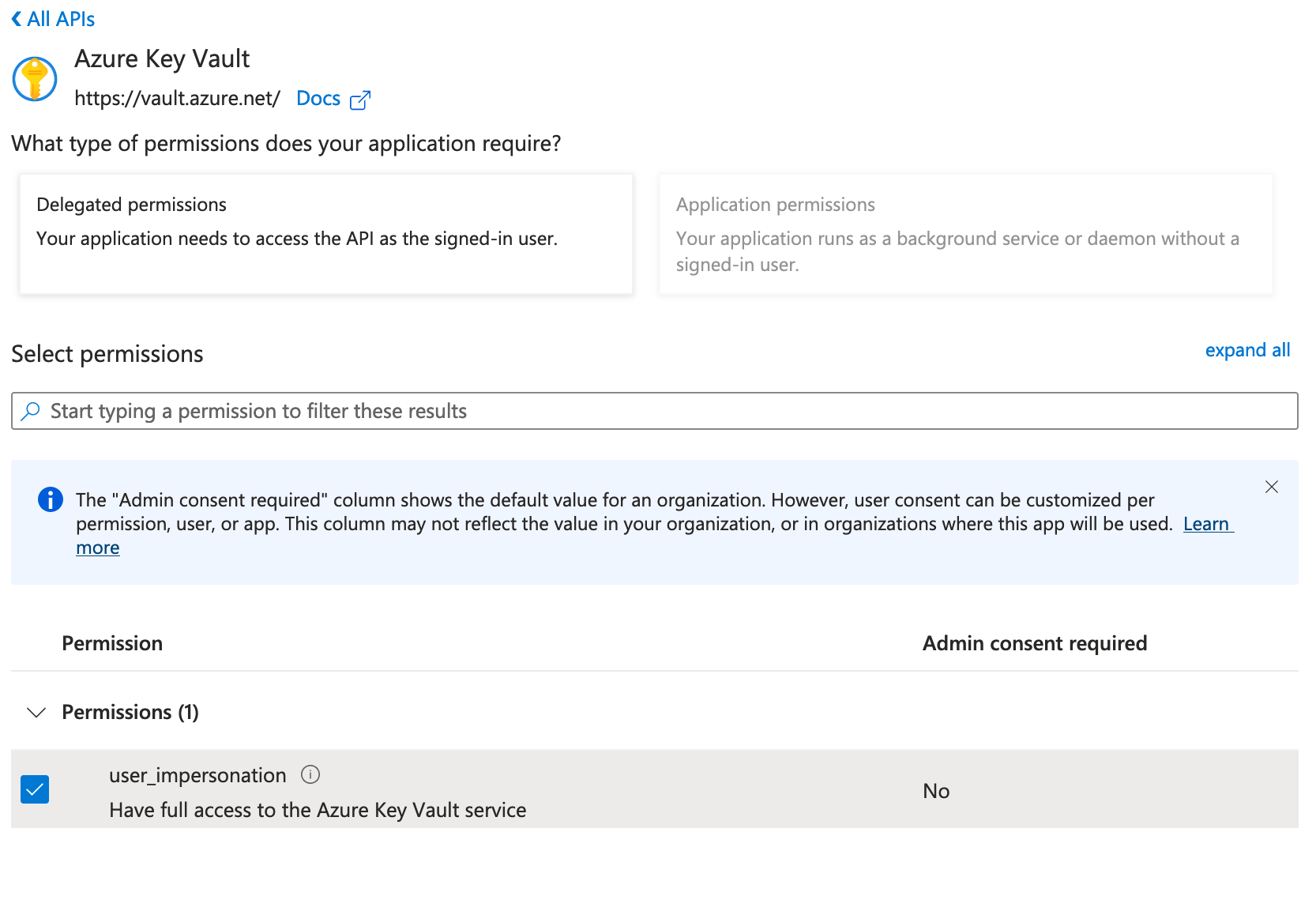
Select
Grant admin consent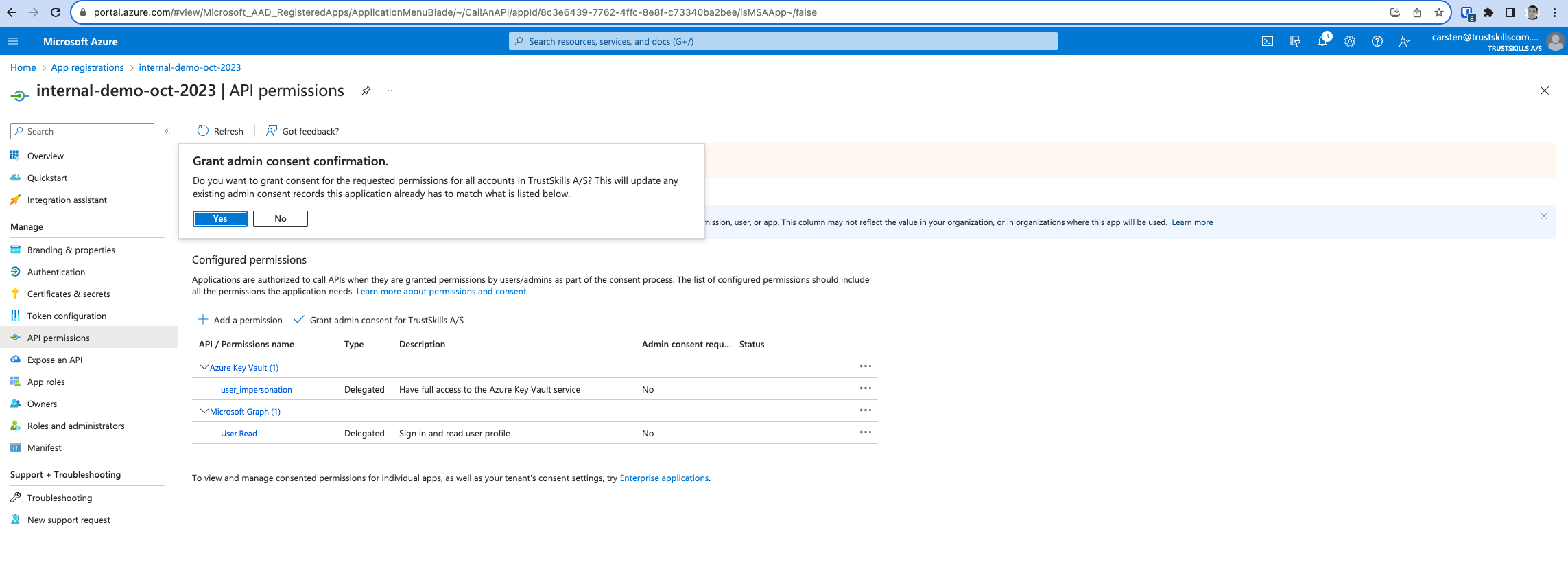
The client should now be able to list all apps located under the Azure subscription. The App also needs some permissions so that key vaults can be listed. The operation below should be performed for all the key vaults that the app needs to access:
In Azure portal, select the key vault, click on
Access control (IAM)and selectRole assignments.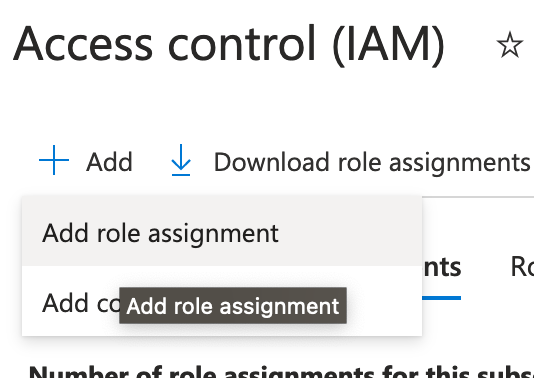
In the job function roles type:
Select
Key Vault Contributorand click next.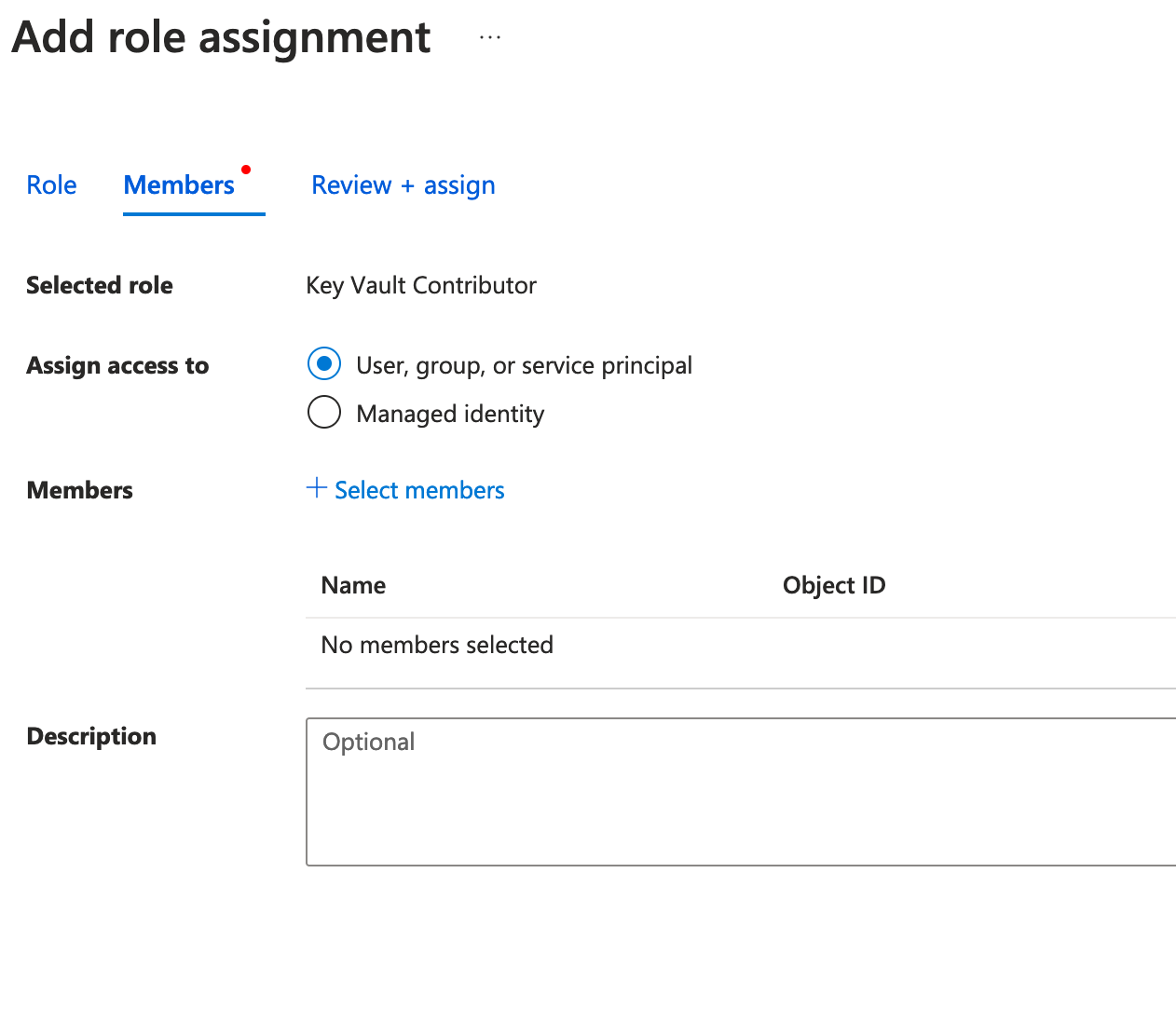
Click
Membersand search for the App registration created above, then click select and next. Lastly, clickReview + assign. The app registration should now be added with the roleKey Vault Contributor.The last thing needed is to add some access policies. Click
Access policiesand clickCreateand then select the permissions as listed below: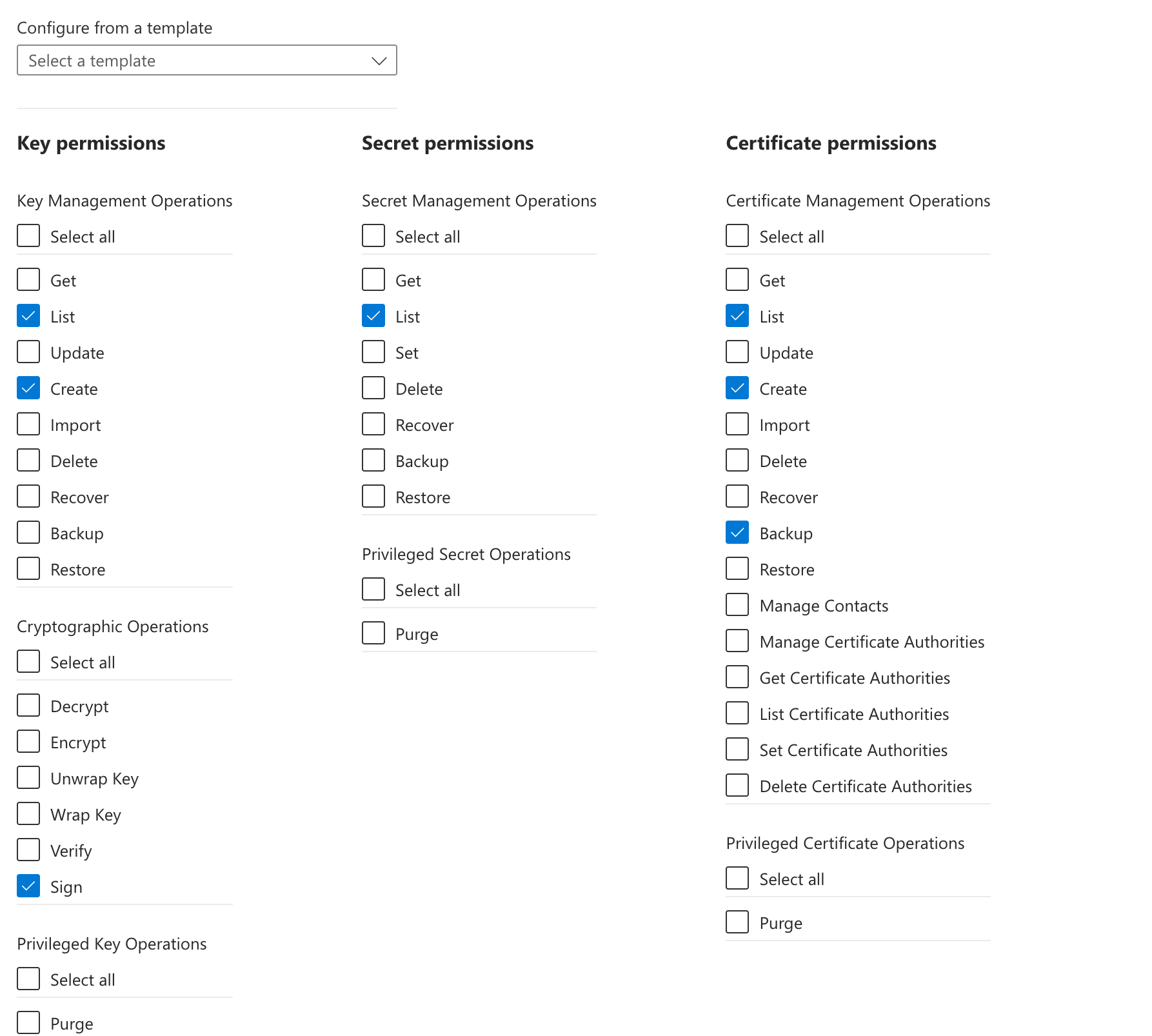
Click next, then search for the App registration, and then select and click
Nextand then finallyCreate. Your App registration should now be able to list, in TrustView, all keys, secrets and certificates created under that specific key vault.Tip
Some key vaults are configured to use only Azure RBAC for data access, in which case there is no
Access policiestab at all. If that’s the case for a vault, grant the equivalent data-plane roles instead - for exampleKey Vault Certificates OfficerandKey Vault Secrets Officer- underAccess control (IAM), rather than looking for the missingAccess policiestab.In the permissions above, also select (Key Management Operations)
Create, (Secret Management Operations)Get, (Cryptographic Operations)Signand (Certificate Management Operations)CreateandBackup. These permissions are needed if you want to create an automation task in TrustView, to create and upload certificates to Azure - theGetpermission on Secret Management Operations specifically is needed for TrustView to retrieve the certificate’s private key material. For listing only, they can be left out. But for listing theListpermission is required for all Management Operations.Repeat the above steps for all key vaults that TrustView should be able to read.
3.3. Deploying certificates to a Key Vault via an Automation task
Once the Azure integration above is configured with the required permissions, it can be used as the deployment target of an Automation task (see Automation). This is TrustView’s native route to a Key Vault: unlike the simple-acme ACME client walkthrough covered in Automation (which runs an external agent on a separate Windows server to issue the certificate and push it into the vault), this path needs no external host or client - TrustView deploys the certificate itself, directly through the Azure integration, on the Automation task’s own schedule.
When creating or editing the Automation task, choose this deployment type and fill in:
Azure instance - the configured Azure integration to deploy through.
Keyvaults - the key vault (among those listed for that integration’s subscription) to deploy the certificate to.
Certificates in keyvault - an existing certificate entry in that vault to update on renewal. Click
Create newinstead to deploy under a new name, and type it into the New certificate in keyvault field that appears (Select certificateswitches back to picking an existing one).
The issued certificate is then deployed to that key vault entry automatically on the task’s schedule, alongside the other producer/key-container/deployment combinations Automation tasks support.
3.4. Quick overview of permissions and access rights
Here is a quick overview of what is needed. For a more detailed explanation, look at the guide above.
API Permissions
Microsoft Graph application permissions Application.Read.All
Azure KeyVault user_impersonation
Grant admin consent
Access control (IAM)
Key Vault Contributor
Access rights
Key Management Operations Create
Secret Management Operations Get
Cryptographic Operations Sign
Certificate Management Operations Create and Backup
All Management Operations List
3.5. Troubleshooting
If you don’t see any Azure key vaults listed on the detail page for the Azure integration (having multiple integration setups is possible), check the TrustView log files. If you are unsure how to find them, check here.
1WARN --- [-nio-443-exec-2] c.m.tool.AzureIntegrationService         : No Azure oAuth2 token
2WARN --- [-nio-443-exec-2] c.management.tool.AzureProviderService   : Login failed with http status code 401. Response [trace_id:0ae00000-000f-000d-0f0b-000f00000000, error_description:AADSTS7000215: Invalid client secret provided. Ensure the secret being sent in the request is the client secret value, not the client secret ID, for a secret added to app 'app-id'
This could also be caused by having one or more leading and/or trailing whitespaces in your Client secret input field, so ensure that your Client secret does not contain any whitespaces.