Using TrustView for automation requires a license for the TrustView Automation module.
Contact Support or Sales for more information.
TrustView allows you to automate deployment of SSL/TLS and other certificates on
servers and other devices, such as load balancers and firewalls. Automation is
supported using several different approaches:
ACME (Automatic Certificate Management Environment) is a protocol for automated certificate management.
This includes issuance, renewal and deployment of certificates. TrustView offers an ACME server and,
therefore, allows any ACME client to issue and renew certificates using TrustView.
SCEP (Simple Certificate Enrollment Protocol) is described by the informational RFC 8894. Older versions of this protocol
became a de facto industrial standard for pragmatic provisioning of digital certificates, mostly for network equipment.
The protocol has been designed to make the request and issuing of digital certificates as simple as possible
for any standard network user. These processes have usually required intensive input from network administrators,
and so have not been suited to large-scale deployments.
Besides using an external ACME or SCEP client, or the native Citrix NetScaler/Azure integrations described
below, TrustView has its own native automation mechanism for issuing, renewing and deploying certificates on a
recurring schedule, without an external client. An Automation task combines three independently chosen parts:
A certificate producer - where the certificate comes from: ADCS, Let’s Encrypt, a certificate ordered
through the Cryptomathic backend (Certum, DigiCert, GeoTrust), or a local issuer.
A key container - where the private key is generated or supplied: generated by TrustView itself, an
Azure Key Vault, a Citrix NetScaler key pair, or an externally supplied CSR.
A deployment - what happens with the resulting certificate: deployed to an Azure Key Vault, deployed to
a Citrix NetScaler, installed on TrustView’s own Tomcat, or delivered by e-mail or a self-service webpage
link (see self-service pages in Certificate Checkout for how that link
behaves).
To create one, go to Automationtasks and click Add, then choose the producer, key container and
deployment for the task. Once created, an Automation task runs on its own schedule and can be started
immediately with Startnow, in addition to Activate, Disable and Ignore.
A background job checks every 5 minutes for any active task whose Nextrun date has passed. That
Nextrun field - a date, shown both on the task’s page and in the task list - can be set to any future
date to control exactly when the task first starts. Once a cycle finishes successfully, the task reschedules
itself automatically: Nextrun is set to 35 days before the newly issued certificate’s expiry, a fixed
interval that is not user-configurable. While a cycle is in progress, its next step is checked every 60
seconds; a failed step retries with a growing delay, and after 4 failures the task moves to an error state
that needs to be reset before it will run again.
An Automation task can also be created as a one-time Certificate order instead of a recurring task. A
one-time order is not issued automatically - it first appears in its own pending list and must be approved by
a user with certificate-order-approval permission (in addition to automation-write permission) before TrustView
proceeds with it.
Tip
A custom ACME issuer registered under Settings (in addition to the built-in ADCS,
Let’s Encrypt and backend-issued options) can also be selected wherever an issuer is chosen, including in
activation templates further down this page.
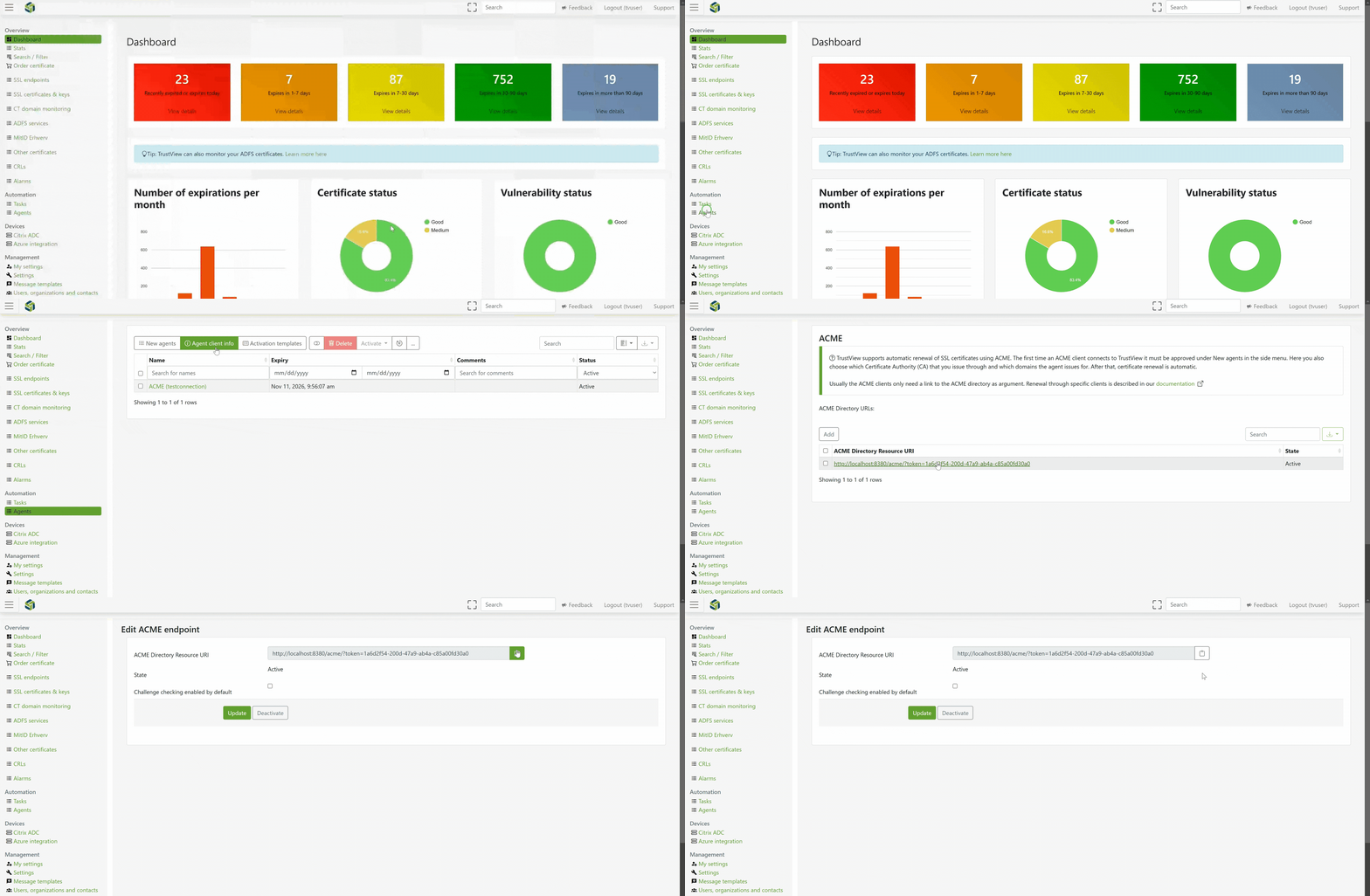
Initial execution of the ACME client with TrustView configured as the ACME server
Approval of the ACME client as an automation agent in TrustView
Configuring the ACME client to run at regular intervals (only necessary in certain cases)
Important
Note that to issue Let’s Encrypt certificates, you need to configure the DNS integration
from TrustView for full automation. See DNS integration for details.
To issue Certum, DigiCert or GeoTrust certificates (external certificates) the domain(s) must be prevalidated for the OV and/or EV type (depending on your needs).
For DV, the DNS integration must be configured since it needs to be validated on a per-domain basis.
In the following guide and examples, we show, step by step, the required tasks for setting up a certificate
for automated renewal and deployment with the following ACME clients:
simple-acme is a backwards-compatible, drop-in replacement for win-acme. See the project history here.
Both ACME clients can be used, but consider that simple-acme is newer and actively maintained.
Important
If you have already purchased a certificate through TrustView and wish to reuse it for an automation agent,
you must ensure that the common name (CN) and SANs for the automation agent match the already issued certificate exactly, for TrustView to be able to reissue it.
If it does not match, it will count as a new certificate that the automation agent will attempt to issue.
There may be cases where your network is closed, and you only want to open for
the necessary inbound and outbound connections. The following is needed to perform
automation with TrustView:
Inbound to TrustView:
From the servers running your ACME and/or SCEP clients - port443. TrustView acts as the ACME/SCEP
server, so these clients initiate the connection - with one exception, see
ACME challenge checking below.
Outbound from TrustView:
Connect outbound to api.trustskills.com - port443 - used for backend-brokered certificate
orders (this is how Certum, DigiCert and GeoTrust certificates are actually issued - TrustView places
the order through this backend rather than contacting those CAs directly)
Connect outbound to view.trustskills.com - port443 - used for a cloud-reachability check
Let’s Encrypt’s own ACME endpoint - port443 - only needed if the
Let’s Encrypt issuer is used
Your configured DNS provider’s API - port443 - only needed if DNS-01 validation is configured for
automation (the hostname depends on the provider, for example api.cloudflare.com,
api.dnsimple.com or rest-api.eurodns.com)
Outbound port 80 to the domain being validated, and/or outbound DNS access - only needed if
ACME challenge checking is enabled (it is disabled by default)
For automation with Azure, TrustView also needs outbound access to
management.azure.com, your Key Vault’s *.vault.azure.net hostname, login.microsoftonline.com and
graph.microsoft.com - all on port443.
By default, when TrustView’s ACME server issues a certificate to a connected client, it relies on how that
client was approved as an automation agent (matching IP subnets/hostname patterns, or manual activation) and
does not independently re-verify that the client actually controls the requested domain(s).
Challengechecking is an optional setting that turns this independent verification on. When enabled,
TrustView performs the ACME challenge validation itself, before considering an order valid:
For a HTTP-01 challenge, TrustView makes an outbound HTTP request to
http://<requesteddomain>/.well-known/acme-challenge/<token> (port80) and compares the
response to the expected value.
For a DNS-01 challenge, TrustView looks up the _acme-challenge.<requesteddomain> DNS TXT record.
Important
Challenge checking is disabled by default. With it left off, TrustView makes no such connection and
the ACME/SCEP automation flow is inbound-to-TrustView only, as described above. Enabling it adds the
outbound connection listed under Hostnames and IPs used during automation.
Challenge checking can be configured in two places:
As the default for new automation agents: go to AgentsAgentclientinfo, click the relevant ACME Directory Resource URI, and check or uncheck Challengecheckingenabledbydefault.
Per automation agent, overriding the default: on the automation agent’s own detail page (see
Automation agent activation), check or uncheck Challengechecking.
Note
Challenge checking behaves identically regardless of certificate issuer, including for an ADCS
certificate - there’s no special case for ADCS in this check. This is separate from the CA-imposed
domain-validation requirements described earlier on this page for the external issuers (prevalidation
for Certum/DigiCert/GeoTrust, DNS integration for Let’s Encrypt) - since an ADCS certificate comes from
a CA under your own organization’s control, there’s no external domain-ownership requirement to
satisfy in the first place, so leaving Challenge checking off (the default) for an ADCS agent means no
domain validation happens at all, by design.
The ACME protocol itself still requires a challenge/response step for every order regardless of
issuer, so an ACME client will still request and complete an HTTP-01 or DNS-01 challenge even when the
certificate being issued is an ADCS one. Whether TrustView actually checks that response depends
solely on the Challenge checking setting above, never on which issuer is selected.
SCEP has no equivalent challenge/validation step at all - agent approval (IP subnet/hostname matching,
or manual activation) is the only check performed there.
It is possible to customize the directory path for the ACME URL, when using TrustView as an ACME server.
This can be done by adding the following line to the TrustView.groovy configuration file.
After the line has been added or adjusted as needed, save the file and restart the TrustView service or reload the configuration from the Settings menu, for it to take effect.
TrustView’s ACME server has a few properties of its own that can be adjusted in the TrustView.groovy
configuration file, separately from anything an individual ACME client controls:
acmeClientsOrderRateLimit - the maximum number of orders a single ACME client can have in flight at
once. Defaults to 10.
acmeIssuingTimeout - how long (in seconds) an order is allowed to sit pending before TrustView
considers it stuck and times it out. Defaults to 300 (5 minutes).
acmeDefaultRenewalDaysBeforeExpiry - the server-side default renewal window, in days before expiry.
Defaults to 30. Most ACME clients (such as simple-acme, see “Change the renewal interval for
simple-acme” below) set their own renewal window independently of this.
letsEncryptAutomatedOrderProcessingEnabled - whether TrustView’s background job automatically
completes pending Let’s Encrypt orders (validation and finalization) as part of its regular processing.
Defaults to true. Setting it to false leaves pending Let’s Encrypt orders unprocessed - only
disable it temporarily, for troubleshooting.
After adding or adjusting any of these, save the file and restart the TrustView service or reload the
configuration from the Settings menu, for it to take effect.
1. Set up automation with simple-acme and IIS website
Install and configure simple-acme
Start by downloading simple-acme and unpack it in a directory, on the Windows server you
want to automate certificate renewal on. As long as the simple-acme folder is not zipped or archived, the location is not important.
Tip
Even though simple-acme can be run from anywhere on the server, it is still recommended to place the simple-acme directory in a location that does not get deleted or removed (for example, not in a temp folder).
e.g."C:\Program Files\simple-acme"
Next, one additional step is required to allow simple-acme to use TrustView as an ACME server.
Update the RetryCount line in the settings.json file with the following:
"RetryCount":150
The default value is 15, but changing this value will allow the simple-acme agent to retry
and begin the automation after the agent has been activated in TrustView.
This means you can get the automation to run, by executing one single PowerShell command.
Important
This method will not work with wildcard SSL certificates. If using a wildcard certificate such as *.example.org
then you must change the PreValidateDns from True to False, in the Settings.json file from simple-acme, because
external CAs such as Certum and DigiCert will no longer allow wildcard SSL certificates to be validated through an HTTP-01challenge.
Configure DNS validation method (Wildcard certificates)
If using a wildcard certificate when automating, you need to use the DNS validation method, as it’s not possible to use the HTTP validation method.
Note
If you are not using a wildcard certificate, this step is not necessary, and you can continue using the HTTP validation method (–validationmode http-01) in the simple-acme command.
Start by creating a PowerShell script containing the following:
exit0
Name it dnsvalidationscript.ps1 (or something else) and place it in a temp folder on the C: drive of the server where simple-acme is placed,
or in any other directory, as long as you remember to adjust the script path in the command.
Initial run of simple-acme without wildcard certificate
Execute simple-acme for the first time without using a wildcard certificate. You must replace {{acme-directory-url}} to match your configuration. You can find the {{acme-directory-url}} here;
it can also be found inside TrustView, under the Automation Task menu section.
simple-acme command to run if you are not using a wildcard certificate
In some cases, you may want to use --siteid{{iis-site-id}} instead of --host{{hostname}}. The –webroot destination may be set to any directory on the server.
Note
If you want to include additional hostnames (SANs) in the SSL certificate you are trying to get issued,
then add --host{{hostname}} per SAN in the SSL certificate.
If you want to specify in the IIS where to place the certificate once it is issued, then you can specify it in this format:
--certificatestoreMy\Trusted by replacing this part --storecertificatestore in the simple-acme command above.
Initial run of simple-acme with wildcard certificate
Execute simple-acme for the first time using a wildcard certificate. You must replace {{acme-directory-url}} to match your configuration. You can find the {{acme-directory-url}} here;
it can also be found inside TrustView under the Automation menu section.
simple-acme command to run if you are using a wildcard certificate
For reference regarding targeting specific or all bindings for IIS sites, you can find more information here: simple-acme IIS reference.
Activate the agent in TrustView
Follow the steps described here to activate the Automation agent.
Once that is done, the automation cycle will run and automatically renew the certificate when nearing expiry.
If the command has timed out (and you did not activate it inside TrustView in time), from whatever terminal it has been run from e.g. PowerShell or Bash, it may need to be executed again.
Configure simple-acme to run periodically
simple-acme automatically creates a scheduled task that periodically runs simple-acme and
renews certificates, so there is no manual configuration required.
simple-acme defaults to starting renewal 55 days before expiry, but that can be adjusted in the settings.json file.
Look for this section in the file and adjust as needed:
You can also adjust the scheduled task for the simple-acme client on the Windows server.
2. Specify certificate name manually on the IIS
In some cases, you may want to specify the certificate name manually and bind it to the hostname, instead of
automatically using the hostname of the IIS as the certificate name.
This can currently only be done by running the simple-acme wacs.exe and not by using PowerShell and parameters.
Follow the instructions on screen:
Type MCreatecertificate(fulloptions)
Type MManualinput
Type the desired hostname (the name of the certificate)
Press Enter to accept the hostname as the friendly name (unless you wish to change it)
Type 1[http-01]Saveverificationfileson(network)path
Type the network path, e.g. C:\temp
Type n as it’s not necessary to Copydefaultweb.configbeforevalidation
Type 2RSAkey
Type 5WindowsCertificateStore
Type 1 or 3 for WebHosting
Type 6No(additional)storesteps
Type 1CreateorupdatebindingsinIIS
Type 1default
Type 3No(additional)installationsteps
The simple-acme client should now run, issue the certificate and update the IIS binding
3. Issue wildcard certificate and update bindings in IIS using simple-acme without the IIS plugin
When using simple-acme and the integrated IIS-plugin, simple-acme insists on creating bindings in IIS.
In some cases this is not desirable. In this example we utilize simple-acme with a custom script instead of the IIS-plugin for updating certificates in IIS.
Remember to adjust the {{acme-url}}, {{hostnames}} and {{email}} to fit your needs.
Activate the agent connection in TrustView (if necessary).
Update all relevant bindings in IIS to use the new certificate.
Now, during certificate renewal, simple-acme will automatically detect all bindings in IIS that use
the old certificate and replace the certificate with the renewed certificate.
4. Use simple-acme to automatically renew certificates on multiple bindings and sites of an IIS
If you want to automate the deployment of certificates on an IIS and have multiple sites
and/or bindings, you need to utilize this command parameter:
--installationsiteid{{id}}
As stated here the command will
use the name of all the bindings (if more than one) from the chosen siteid, so you have to make preparations for that before running
the automation command with simple-acme, by making sure all the bindings you wish to hit have the exact same name.
Example:
An IIS setup has 3 sites (id 10, 11 and 12), and each site has 3 bindings. These bindings have a wildcard certificate (*.) attached that contains the exact same name.
Site 10 in this example has been chosen, but because the remaining 2 sites have bindings that contain a wildcard certificate with the same name,
they will also automatically be renewed in the process, and therefore they do not need to be specified with the --installationsiteid command.
If you wish, bindings can be excluded with this command parameter:
5. Deploy certificate from the Certificate Store to the IIS
If you wish to deploy one or more certificates from your Microsoft Certificate Store
to your IIS, you can do so by running a script at the end of the simple-acme renewal process.
Below is a script you can use and configure for your needs, as a starting point:
The following files will be created when --storepemfiles is used:
{CommonName}-crt.pem (certificate)
{CommonName}-key.pem (private key)
{CommonName}-chain.pem (certificate plus chain)
{CommonName}-chain-only.pem (chain without certificate)
Optionally {CommonName}-key.pem can be password protected by adding --pempassword{{password}} at the end.
If you need a .pfx file, use --storepfxfile and --pfxfilepath{{Cert-Path}} instead.
Tip
Remember to change {{acme-directory-url}}, {{Hostname}} and {{Cert-path}} (where you want your certificates to be stored) to match your configuration.
7. Use simple-acme to automatically issue and renew a certificate on Apache Tomcat
Note
The minimum required version of simple-acme is v2.1.19.1142.
First, make sure to update the following line in the settings.json file:
"RetryCount":150
Initial run of simple-acme
You will need a .pfx file for this to work, so use --storepfxfile to save the certificate as a PFX file.
--pfxpassword{{password}} will define the password for the certificate so it does not change. --pfxfilename{{CertName}} will define the name and make sure the PFX certificate
will have the same name after renewal and --pfxfilepath{{Cert-Path}} to define where it should save the PFX file, as shown in the PowerShell command below.
Use the PowerShell command, with the following parameters:
Always make sure you have a backup of the trustview.groovy file before modifying it.
Now update the following attributes of the Connector element to match the path, filename and password defined in
simple-acme, then restart the Embedded TrustView service for the change to take effect:
keystoreFile
keystorePass
Important
If you are still using the Standalone version of TrustView, there is no trustview.groovy file - locate the Tomcat installation
directory instead, typically:
Directory path of the Tomcat installation (Standalone version)
The SSL certificate is specified there in the Tomcat Apache server.xml configuration file, Tomcat-install-dir\conf\server.xml, using
the same Connector element attributes shown above. Update it the same way, then restart the Apache Tomcat service instead.
Tip
If you are unable to locate the Apache Tomcat directory, contact our Support for assistance.
Run a script to restart Apache Tomcat service
Follow the steps described here to run a script after a renewal of a
certificate and run the following script:
Batch script:
netstop"myservice"netstart"myservice"
PowerShell script:
Restart-Service-displayname"Service name"
Tip
In this case, the service name would most likely be TrustView,
but check the properties of the Windows service, if in doubt.
Important
If you are using the Embedded version of TrustView, the service name will be different - it is whatever name was given
when the service was installed (see the Embedded installation steps in Maintenance), so check the properties of
the Windows service to confirm it, rather than assuming TrustView.
8. Automation of certificate renewal on an Apache HTTP server using Certbot
In this example the Apache HTTP server is running on a Linux Ubuntu server, and
we will be using the Certbot ACME client.
You can also follow the installation instructions provided by the Certbot website.
Initial run of Certbot
Execute Certbot for the first time. How you find your {{acme-directory-url}} is described here; it can also be found inside TrustView under the Automation menu section.
Follow the steps described here to activate the Automation agent.
Once that is done, the automation cycle will run and automatically renew the certificate when nearing expiry.
Configure Certbot to run periodically
You can set up a cron job or scheduled task to make Certbot run periodically. When using the renew command inside a cron job, it defaults to attempting renewal of a certificate 30 days before expiry.
Cron job example:
00***certbotrenew--quiet
This will make the cron job run every day at midnight.
Important
Note that some OS distributions come with preconfigured scheduled renewal
of certificates configured with Certbot using e.g. systemd or cron (depending
on the method you used for installing Certbot).
9. Use simple-acme to automatically issue and renew certificates for Azure Key Vault
Install and configure simple-acme
Note
This plugin requires you to use the pluggable release of the main executable,
which you can find here.
Start by downloading simple-acme and unpack it in a directory on the Windows server that you want to automate certificate renewal on.
To use Azure with simple-acme we need to download and install a plugin.
This plugin is offered as a separate download, and it has to be moved to the simple-acme directory and unpacked.
After unpacking, you may have to unblock all new .dll files before .NET will trust them.
You can do that from the Windows File Explorer by going into Properties of the files and then checking the Unblock box in the General tab.
Azure configuration
Azure Key Vault is a cloud service that provides a secure store for keys, secrets, and certificates.
To get Let’s Encrypt certificates issued, they need to be validated with a DNS challenge, which happens through the DNS integration.
See DNS integration for details.
Use simple-acme with Azure Key Vault
When running simple-acme it will need the following to authenticate with Azure:
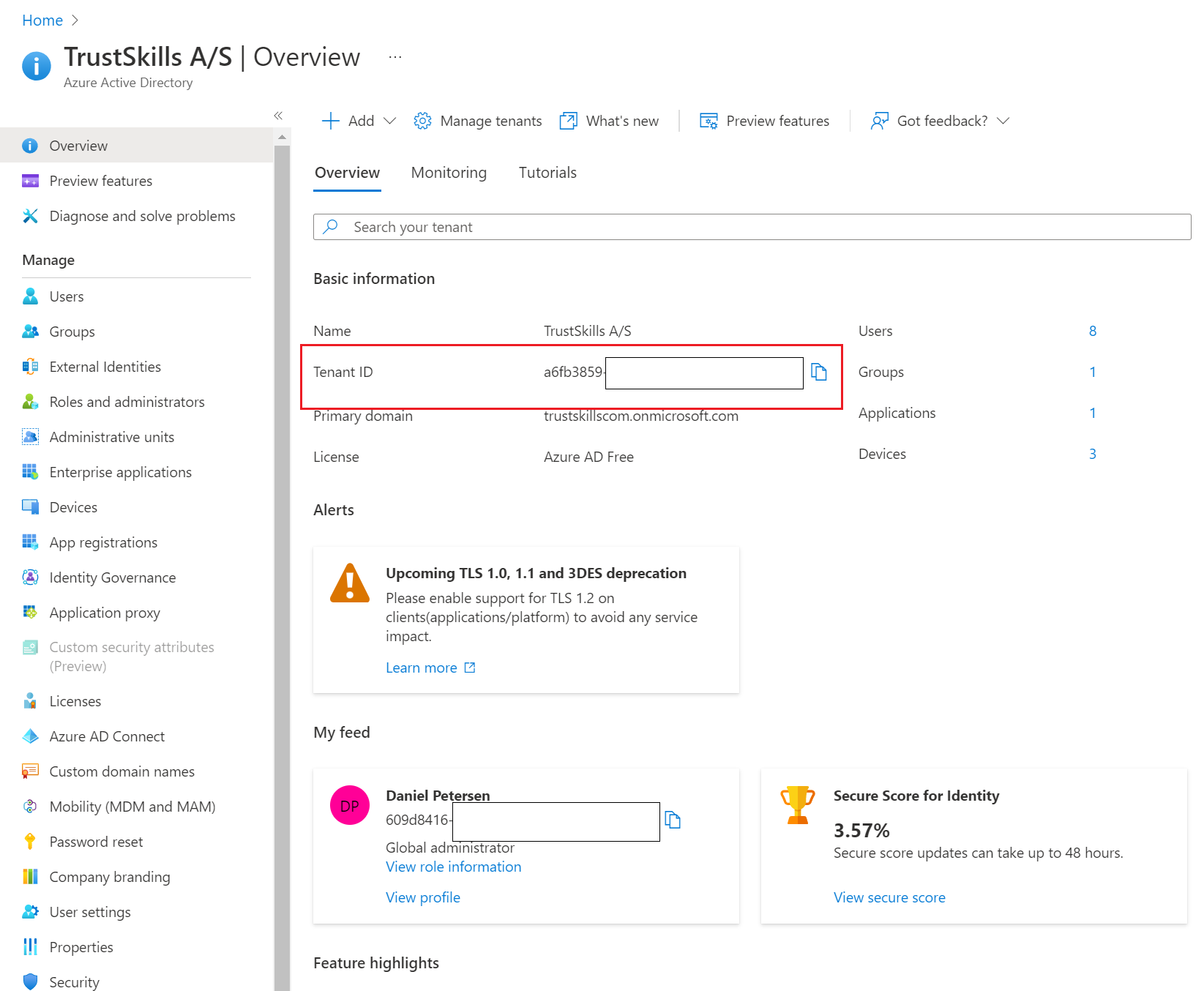
Directory/TenantID
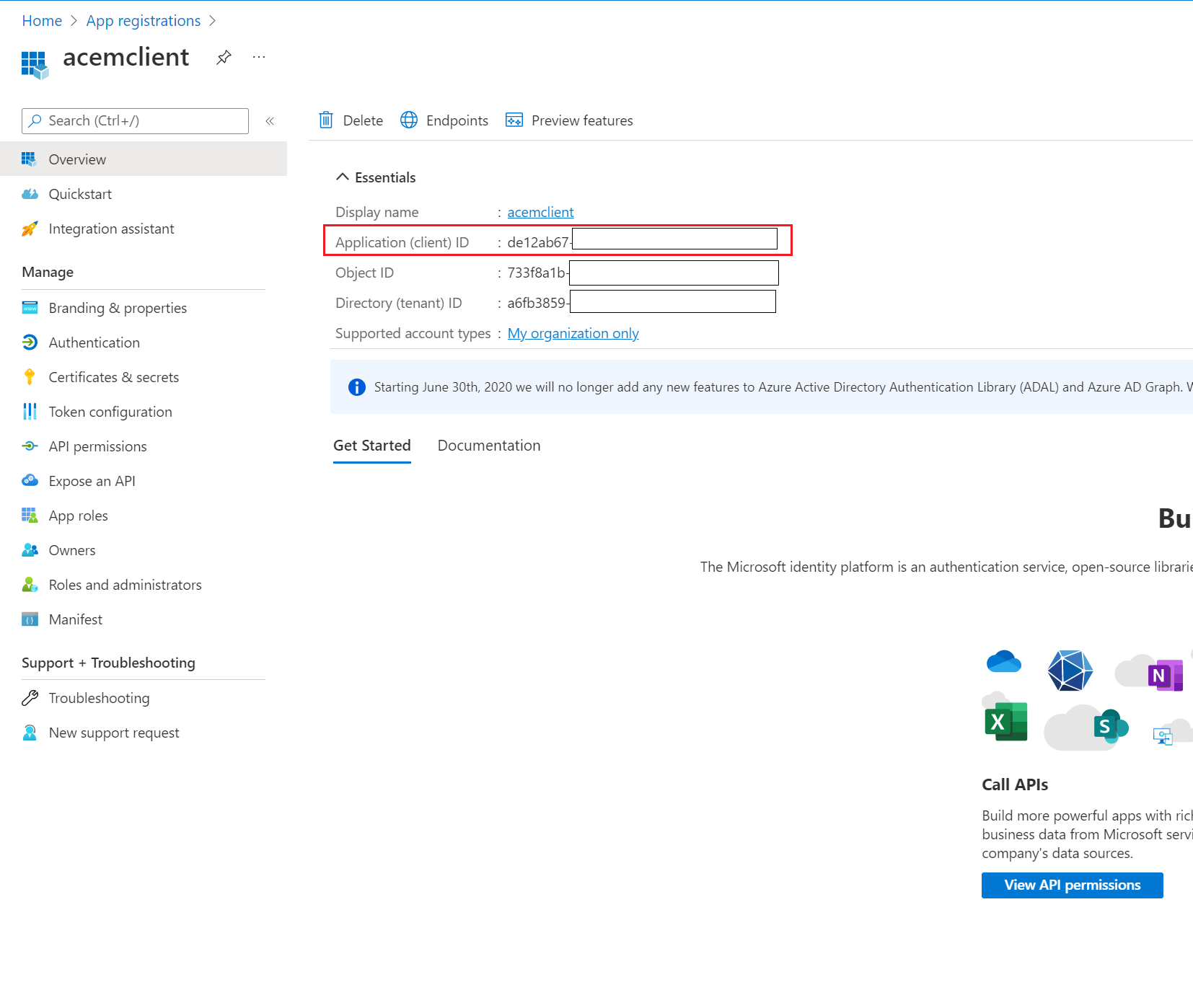
ApplicationclientID
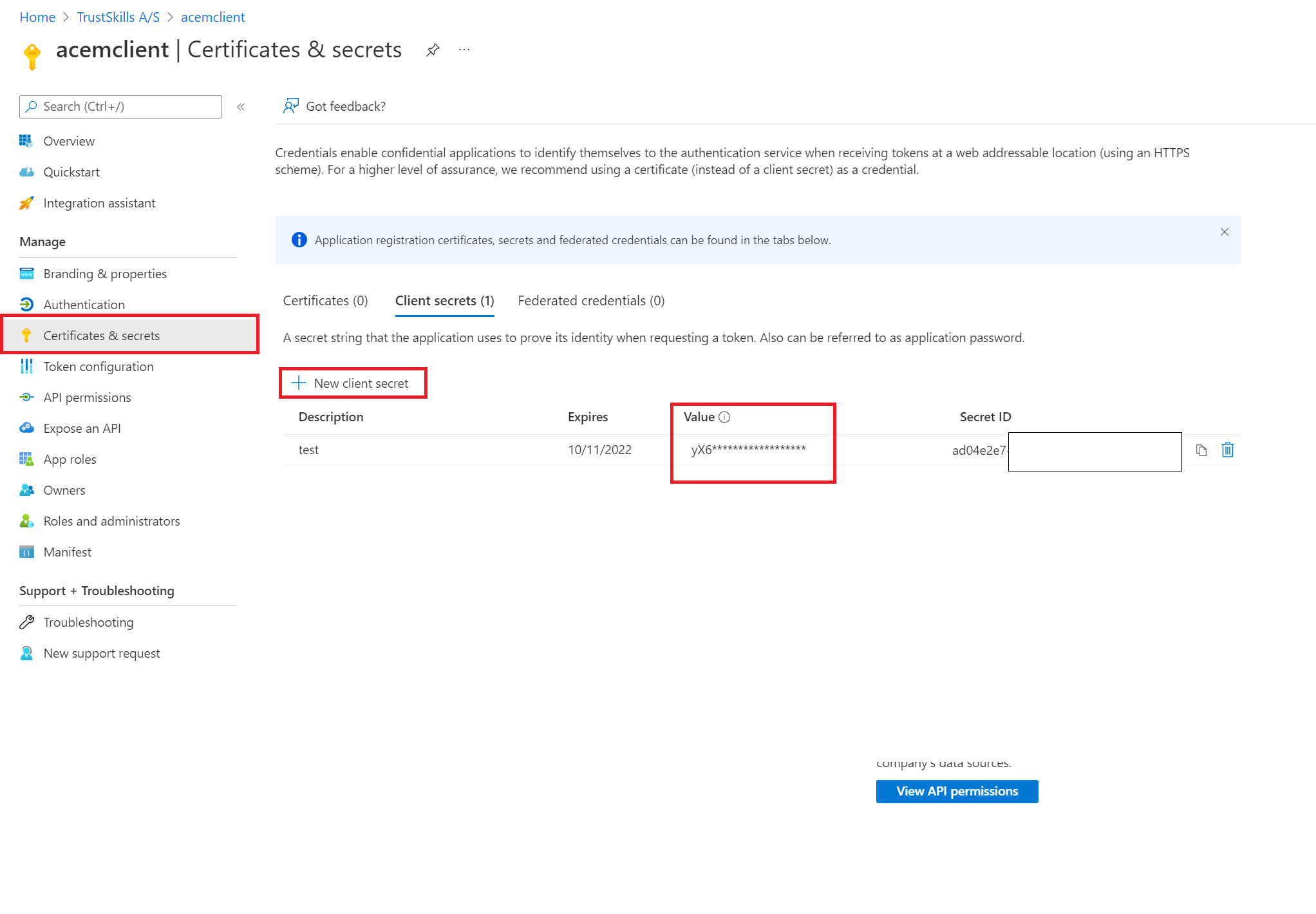
Applicationclientsecret
The Directory/TenantID can be found under Azure Active Directory:
The ApplicationclientID can be found under your App registration:
The Applicationclientsecret can also be found under your App registration:
Note
You have to create a client secret first, and the value will only be shown once, so remember to save it.
Execute simple-acme for the first time.
Note
You must replace {{acme-directory-url}}, {{Key-vault-name}}, {{Name-of-cert-in-azure}}, {{Hostname}},
{{Directory/tenantid}}, {{Applicationclientid}} and {{Applicationclientsecret}} to match your configuration.
The --Certificatename parameter must be a name without spaces or extensions such as .dk and .com etc.
An example for a valid name would be certificateName or exampleCom.
Activate the agent in TrustView
Follow the steps described here to activate the Automation agent.
Now the activated certificate should be in the Azure Key Vault under Certificates.
The source of the certbot-bigip plugin used below is also available to download directly from this documentation, in case you want to review or customize it,
instead of installing the published version from PyPI:
Follow the steps on the Linux-based container or Virtual Machine (VM) if you are using the certbot-bigip plugin, but if
you are using the other certbot-f5bigip plugin, follow the instructions at the link above.
The Certbot environment can be placed anywhere on your server; it does not have to be at /home/user/certbotenv.
But you would be required to change the path in any command that references the Certbot environment, if you choose another path at this step.
Remember to adjust the {{variables}} to match your setup, such as the acme-directory-url for example.
Activate the agent in TrustView
To activate an automation agent, follow the steps described here.
Select the certificate issuer you wish to issue SSL certificates from, under the relevant Automationagent, using the Certificateissuer dropdown menu.
Important
After an issuer has been selected, remember to save or activate the agent, if that has not already been done. If this is a new automation agent that has never been activated
you can simply click Activate to both save and activate the automation agent. If it already has been activated,
just click Update to save any changes you made, such as selecting a new certificate issuer.
Set up DNS integration
To get DV (Domain Validated) certificates issued, such as those from Let’s Encrypt, they need to be validated with a DNS challenge (the recommended method, since it supports wildcard certificates and automating the process), which happens through the DNS integration in TrustView.
See DNS integration for details.
Once DNS integration is configured, you can also choose between the ordinary, one-time DNS challenge and the
newer persistent DNS validation method, either per order or as a group default - see
DNS validation method under Ordering SSL Certificates.
Issue first certificate
To issue the first certificate, the automation agent must be activated inside TrustView. If that has been completed,
check the terminal to see if it has progressed or run the exact same command again (from the first run in step 4), to restart the process and get it to issue and deploy the certificate.
The certificate hostname designated with the -d parameter in the Certbot command must match the one used during the first run.
So don’t change it, or it will be counted as a new automation agent and a new SSL certificate.
Set up crontab
To set up the automation for certificate retrieval, you can use a crontab to schedule when to run the renewal and deployment process:
sudocrontab-e
Inside the crontab, use the Certbot command and adjust as needed, as in how often it should run:
This example renews a single certificate and deploys it to the F5 BIG-IP.
The crontab above is set to run twice a day (every 12 hours). So every day it checks if a certificate needs to be renewed and 30 days before expiry, the renewal process
will begin automatically.
To configure when the crontab is set to run, you can adjust the crontab config manually or use this crontab generator.
Important
It is recommended to run each line in the crontab outside the crontab in the terminal once, both to test the renewal process for errors and
to issue the first certificate and to be able to activate the automation agent. You can use the --dry-run parameter to test if the command would be successful without
actually renewing the certificate. Also change the -q parameter to -n when running the command outside the crontab. -nnon-interactive will show logging in the terminal
and -qquiet will log and show nothing, which is recommended when run inside a crontab.
Set password in environment variable
This will ensure that passwords are not displayed in cleartext within the crontab or when used as part of a command.
Tip
This can also be used for usernames and other variables that you do not want to be displayed as cleartext.
Open the .bash_profile file:
nano.bash_profile
Note
You can use whatever text editor you prefer, in this example nano is used.
Set the environment variables inside the .bash_profile file:
exportPASSWORD="my_password"
Save the file and restart the terminal, or log out of the user account and log in again,
to use the new changes made to the environment variables.
PASSWORD (or whatever you defined it as) can now be used in the Certbot command instead of using the cleartext version of the password.
Important
Check your OS; in some cases ~/.profile is used as default for environment variables, but can be overridden if you create a .bash_profile file.
11. Use simple-acme to automatically issue and renew the certificate on ADFS
To see the token-signing and token-decryption certificate expiry on the ADFS, run these commands and look for the [NotAfter] timestamp.
The certificate for which the IsPrimary value is set to True is the certificate that ADFS is currently using.
Initial run of simple-acme
You can use certificates from ADCS, Certum, DigiCert, GeoTrust and Let’s Encrypt by selecting the corresponding certificateissuer
under the automation agent.
Remember to activate the Automation agent in TrustView after you run simple-acme the first time.
Tip
Remember to change {{acme-directory-url}}, {{Hostname}} and {{Cert-path}} (where you want your certificates to be stored) to match your configuration.
To locate the acme-directory-url, see.
Configure script
If you are using a certificate from one of the certificate issuers instead of a self-signed certificate,
you can use the script.
Download and use this PowerShell script, as a starting point for your configuration adfs.ps1
12. Automation of certificate renewal on Palo Alto firewall using Certbot
Setup and installation
Requirements:
Linux-based container or virtual machine with reachability to the Palo Alto firewall management interface
The example is shown with DigiCert certificates, but can be used with Certum, GeoTrust and Let’s Encrypt certificates or certificates from the ADCS module.
Just select the type you want to use under the relevant automation agent - Certificateissuer dropdown menu. With DigiCert, GeoTrust and Certum certificates,
we need to enable automation on our side; in that case, contact our Support to let us know.
Let’s Encrypt certificates require a DNS integration to be set up in TrustView
ADCS certificates require the installation of the ADCS module and a specific CRL flag to be set on the CA
Certum, GeoTrust and DigiCert require prevalidation for the OV and EV certificates and to have automation enabled in our backend
If you want to use ADCS certificates, this CRL flag must be set on the CA:
This will allow the subject field to be filled out on ADCS certificates, when retrieving the certificate through the automation agent.
If this step is skipped, an error will occur during the deployment step.
Set up deploy script
Write your own deploy script or use this pre-made script paloalto.bash.
The script handles a single certificate and SSL/TLS service profile. To accommodate more certificates and SSL/TLS service profiles,
you either need to use separate scripts or configure the pre-made script to handle additional ones.
Important
There must be no spaces in the name of the SSL/TLS service profiles. Replace them with underscores, dashes or other characters.
Set up crontab
To set up the automation for certificate retrieval and deploy script, you can use a crontab to schedule when to run the renewal and deployment process.
If you have a single deploy script for a single certificate and SSL/TLS service profile, then you should use the example above and add
additional lines if you have more than one single certificate and SSL/TLS service profile.
The crontab above is set to run twice a day (every 12 hours). So every day it checks if a certificate needs to be renewed and 30 days before expiry, the renewal process
will begin automatically.
Important
It is recommended to run each line in the crontab outside the crontab in the terminal once, both to test the renewal process for errors and
to issue the first certificate and to be able to activate the automation agent. Use the --dry-run parameter to test if the command would be successful without
actually renewing the certificate. Also change the -q parameter to -n when running the command outside the crontab. -nnon-interactive will show logging
in the terminal and -qquiet will show nothing, which is recommended when run inside a crontab.
13. Use simple-acme to automatically issue and renew the certificate in Java KeyStore
If you want to renew certificates on a Java KeyStore, it can be done with the ACME client - simple-acme and a script that is run after
the certificate retrieval in TrustView.
Download simple-acme and run this command to set up the automation agent inside TrustView:
The script also contains variables that need to be adjusted for your needs.
15. Run a script after issuing or renewing certificate with simple-acme
Add the following parameters at the end of the simple-acme command, and remember to change {{Script-path}} to match your configuration.
--installationscript--script{{script-path}}
Script Parameters
The following variables can be specified at the end of the simple-acme command as command-line arguments,
which the script can use after retrieving the certificate.
Remember to change {{Script-path}} and {{parametersx}} to match your configuration.
16. Use simple-acme to automatically issue and renew the certificate on an on-premises Exchange Server
This applies to on-premises Exchange Server 2016, 2019 and Subscription Edition (SE). It does not
apply to Exchange Online, and the script below does not support Exchange 2010 or earlier, which
load the Exchange Management Shell differently.
Important
simple-acme (and the script below) must run directly on the Exchange server itself - importing
a certificate and enabling it for Exchange services both require the Exchange Management Shell
cmdlets and the server’s local certificate store.
Note
The Scripts folder bundled with simple-acme also contains older ImportExchange.ps1
scripts, left over from before TrustView switched its recommended ACME client from win-acme to
simple-acme. Those scripts predate Exchange 2013 and are not maintained - use the script below
instead.
Remember to change {{acme-directory-url}}, {{Hostname}} and {{Cert-path}} to
match your configuration, and adjust the -ExchangeServices list to the services you
want the certificate bound to - see Step 3 below.
Important
Keep the quoting exactly as shown: double quotes around the whole --scriptparameters
value, and single quotes around each value inside it. simple-acme hands this string to
PowerShell to parse, so the quotes make sure that:
'IIS,SMTP,IMAP,POP' reaches the script as the intended list of services.
'{OldCertThumbprint}' is still a valid (empty) argument on the first issuance, when
there is no previous certificate. Unquoted, the command line would end in
-OldCertThumbprint with no value, and PowerShell would fail before the script starts.
Paths and passwords containing spaces or special characters reach the script intact.
Note
--storepfxfile--pfxfilepath{{Cert-Path}} tells simple-acme to just cache the
issued certificate as a .pfx file at that path, rather than installing it into the
Windows certificate store itself. The script does the actual import, via Exchange’s own
Import-ExchangeCertificate cmdlet, using the cached file and password simple-acme
passes it as {CacheFile}/{CachePassword}.
If the certificate ends up in the server’s Personal (My) certificate store some
other way - for example by switching to --storecertificatestore--certificatestoreMy instead - the script detects that automatically and skips the import step, going
straight to Enable-ExchangeCertificate. Either option works with this script.
Follow the steps described here to activate the
Automation agent in TrustView after running simple-acme the first time.
Copy it to C:\scripts on the Exchange server, or adjust the --script path in Step 1
to wherever you place it.
Choosing Exchange services
-ExchangeServices takes a comma-separated list in single quotes, for example
-ExchangeServices'IIS,SMTP,IMAP,POP'. Valid values, per Microsoft’s current
Enable-ExchangeCertificate documentation, are:
Federation
IIS
IMAP
POP
SMTP
UM (Unified Messaging)
UMCallRouter
Note
Services are additive on a given certificate - once a service is enabled on a
certificate it cannot be removed from it again; enable a different certificate for that
service instead.
Important
List every service the previous certificate was enabled for. The script removes the
previous certificate (-OldCertThumbprint) after enabling the new one, so a service
missing from the list - for example IMAP or POP - is left pointing at a certificate
that is being removed, or the removal fails and the old certificate stays behind.
Check the result
After the first issuance and after each renewal, check which services the new certificate
is enabled for:
If a service is missing, enable it by hand with the new thumbprint, then correct the
-ExchangeServices list in the renewal so the next renewal gets it right:
-Force stops Exchange from prompting before it replaces the default SMTP certificate,
which would otherwise stall an unattended run. The script always passes it.
Note
Every renewal produces a certificate with a new thumbprint - the thumbprint is a hash of
the whole certificate, including its serial number and validity dates, so it cannot be
kept the same. The script enables the new thumbprint for you on each renewal. Anything
else that references the certificate by thumbprint has to be updated as well; send and
receive connectors that use TlsCertificateName match on issuer and subject instead,
so they keep working as long as those don’t change.
17. Use FortiGate’s native ACME client to automatically issue and renew the certificate on a FortiGate
Unlike the other examples on this page, this doesn’t need simple-acme, Certbot or any external host -
FortiGate (FortiOS 7.0.2 and later) has its own built-in ACME client that can be pointed directly at
TrustView’s ACME server.
Important
FortiGate’s ACME client only supports the HTTP-01 challenge - there is no DNS-01 option. This
means the interface assigned below needs port 80 (and briefly port 443) reachable from the internet
while a certificate is being issued or renewed, and the domain must resolve to that interface’s
public address. It’s also scoped to the FortiGate’s own interfaces (the admin GUI, SSL-VPN portal
and similar) - it cannot deploy a certificate to a server sitting behind the FortiGate.
Note
The native client can’t request wildcard or multi-SAN/multi-domain certificates either - one
hostname per certificate object. For either of those, use one of the external ACME-client examples
on this page instead, run from a host that can reach the FortiGate’s certificate store.
Note
Before starting: the account running these commands needs an access profile with
SystemConfiguration and VPN set to Read-Write (sysgrp and vpngrp in
configsystemaccprofile) - this covers configsystemacme, configsystemglobal
and configvpncertificatelocal/configvpnsslsettings below. super_admin is not
required.
The FortiGate also needs to trust TrustView’s ACME server certificate when it connects out to
it over HTTPS in Step 2. If that certificate chains to a publicly-trusted CA this works without
extra setup; if TrustView’s ACME endpoint instead uses an internally-issued certificate, import
the issuing CA’s root certificate into the FortiGate first (configvpncertificateca), or
enrollment will fail with a TLS trust error.
To check which CA TrustView’s ACME endpoint actually presents, use the same keytool-printcert
approach described under Diagnosing certificate trust errors -
point it at the ACME endpoint’s own host and port instead of the AD/DNS-provider examples given there.
Check the FortiOS version and assign the ACME interface
getsystemstatus
Confirm the version is 7.0.2 or later (7.6.3 or later if you also plan to use EAB - see Step
4). Then tell FortiGate which interface should listen for the HTTP-01 challenge:
configsystemacmesetinterface"wan1"end
Tip
Replace wan1 with whichever interface is actually internet-facing and matches the
domain’s public DNS record.
FortiOS displays the ACME CA’s terms of service at this point and prompts for confirmation
before continuing - enter next on its own, answer y to the prompt, then finish with
end on a new line, rather than pasting the whole block in one go.
end
Saving the object immediately attempts enrollment against TrustView.
Activate the agent in TrustView
Follow the steps described here to activate the Automation
agent. The first enrollment attempt from Step 2 will not complete until this is done, so if it
times out, retrigger it afterwards instead of re-creating the certificate object:
If ACMEexternalaccountbinding(EAB) (see the “ACME External Account Binding (EAB)”
section above) is enabled on the relevant ACME Directory Resource URI in TrustView, FortiOS
7.6.3 and later accepts the EAB key inside the same certificate object from Step 2, added
before next:
18. Use an external ACME client (Certbot) to issue a certificate and push it to a FortiGate
Where FortiGate’s native ACME client (see the previous example) doesn’t fit - a wildcard or
multi-SAN/multi-domain certificate is needed, DNS-01 validation is preferred so the FortiGate
itself never has to expose port 80, or the same certificate needs to be pushed to several
FortiGates from a single renewal - request the certificate with an external ACME client instead
and push it into the FortiGate’s certificate store over SSH.
Note
This uses FortiGate’s plain certificate import mechanism, not its ACME client - the two
are independent and this example doesn’t touch configsystemacme at all. See the
previous example instead if the simpler, single-domain, HTTP-01-only native client already
covers your case.
Install Certbot and request the certificate
Install Certbot on a host that can reach TrustView’s ACME server - this doesn’t need to
be the FortiGate itself, and that host doesn’t need to be reachable from any of the
FortiGate’s own interfaces. Request the certificate using whichever validation method
TrustView’s integration supports for your domain - see DNS Integration for
DNS-01, or the Apache/Certbot example above for HTTP-01 against TrustView’s own
challenge verification.
Tip
A wildcard or multi-SAN certificate requires DNS-01 validation; HTTP-01 only covers a
single hostname per certificate, the same restriction the native client has.
Requires Python 3 and the OpenSSH client (ssh) on the Certbot host - no extra Python
packages need to be installed.
Important
This script has been code-reviewed and logic-tested, including a mocked SSH session
covering both the success and failure paths, but it has not been run against a
live FortiGate. Test it in a non-production environment before relying on it for
certificate renewals.
Set up SSH access on the FortiGate
Create a dedicated FortiGate administrator account for this purpose, and give it an SSH
public key for key-based login (configsystemadmin / setssh-public-key1) -
this keeps a password out of a scheduled job’s environment entirely. Password
authentication is also supported via --ssh-password, but it requires sshpass to
be installed on the Certbot host and is not recommended.
Tip
Give the account an access profile with SystemConfiguration and VPN set to
Read-Write (sysgrp/vpngrp in configsystemaccprofile) - that’s enough
to run configvpncertificatelocal and bind the certificate; super_admin is
not required.
Important
The deployment script accepts the FortiGate’s SSH host key on first connection
(StrictHostKeyChecking=accept-new) rather than verifying it. Before running it for
the first time, connect to the FortiGate over a trusted path (console or the admin
GUI) and run getsysteminfoadminssh to record its host key fingerprint, then
confirm it matches the key presented on that first SSH connection - check the entry
the script adds to the Certbot host’s ~/.ssh/known_hosts file.
Certbot runs the deploy hook after every successful issuance and renewal, setting
$RENEWED_LINEAGE so the script picks up the new certificate and key automatically -
--cert-file/--key-file are only needed when running the script by hand, outside
a deploy hook. Add --bind-ssl-vpn as well (or instead of --bind-admin-gui) to
also bind the certificate to the SSL-VPN portal.
Tip
Run the same certbotrenew command once by hand first, to confirm both the
certificate request and the deploy hook succeed, before leaving it to the scheduler.
Go to the settings.json file and look for the following settings:
RenewalDays [Default: 55] - The number of days after which a certificate is renewed.
StartBoundary [Default: “09:00:00”] - Configures the start time for the scheduled task.
RandomDelay [Default: “04:00:00”] - Configures a random delay before starting the scheduled task. This spreads the load on the servers and thus prevents users from getting TooManyRequests errors.
1.10. Automate activation of agent connections (Activation templates)
Instead of manually activating agent connections from ACME clients, it is possible to automate the activation process using activation templates.
If a new ACME client matches an active activation template, the ACME client will automatically be activated using the information defined for the activation template.
The list of activation templates created is available on the Activationtemplates page.
Adding a new activation template
Click Agents
Click Activationtemplates
Click Add
Fill out the fields
Name the template
Choose to enable the template (can be disabled after creation, if needed)
Select the ACMEendpoint the template applies to - matching requires an exact match on this, so the template only matches ACME clients connecting through that same endpoint; a newly created template defaults to the first active endpoint if left unchanged
List the subnets that matching ACME clients are allowed from, e.g. 192.168.0.0/24,10.0.0.0/8 (comma-separated for multiple IPs)
Enter a regular expression (Regex) that must match all the DNS hostnames requested by the ACME client, e.g. .*\.cryptomathic.com
Select the issuer and additional information, related to the selected issuer if required (such as the certificate type and organizational information).
A custom ACME issuer registered under Settings can be selected here too.
Click Create
Tip
Here are some simple regular expressions that match the listed hostnames:
Activation templates support the same 10 custom fields available on other monitored objects, and they can be filled in on the template’s create/edit form.
When an ACME client auto-activates against a matching template, the template’s custom field values are copied onto the resulting automation agent connection.
Important
These custom field values currently do not carry any further than the automation agent connection - the certificate that agent connection later issues is left with its custom fields unset, regardless of what was set on the template or the agent connection. Keep this in mind if you’re relying on custom fields for reporting or automation further down the certificate lifecycle.
1.13. Automation agent related tasks in TrustView
The ACME directory URL
All ACME clients require an ACME Directory URL as a parameter, to allow the client to use
the ACME Server endpoint exposed by TrustView. The ACME Directory URL is unique for
each TrustView instance. In TrustView, click on the menu item Agentclientinfo
under the AutomationAgents in the left menu. The ACME Directory URL is listed on this page:
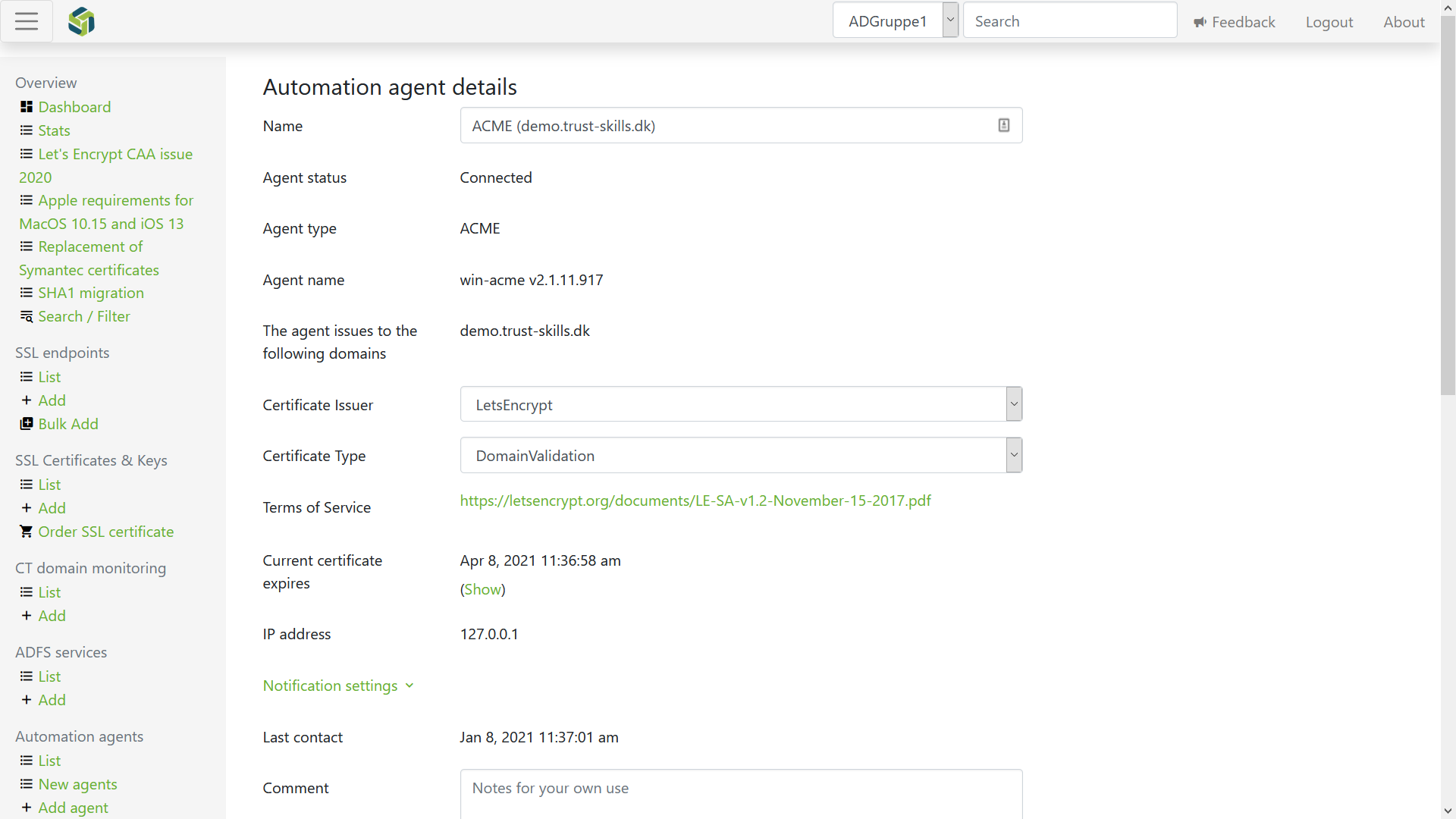
Automation agent activation
After the initial execution of the ACME client, TrustView has registered that a
new Automation agent has connected. To allow the Automation agent to issue certificates,
you need to activate the Automation agent. This requires a few simple steps:
Click Newagents in the Agents section in the left menu, to list all automation agents pending activation
Click on the automation agent that you want to activate, to view the details of the automation agent
Select the certificate issuer, type and additional details, depending on the certificate type on the details page.
A custom ACME issuer registered under Settings also appears in this Certificateissuer dropdown.
Click Activate to activate the automation agent and get it to run its automation cycle
To automate with SCEP, a client that supports the SCEP protocol is required. This means that simple-acme and Certbot cannot be used, since they are
clients used with the ACME protocol.
Before SCEP automation agents can be used, you need to add the following 4 lines (or configure them, if they already exist) to your TrustView.groovy configuration file:
After the lines have been added and configured, save the configuration file and restart the TrustView Tomcat service for the changes to take effect.
Important
Since the client is expected to perform signature verification and optionally encryption using the CA certificate,
the keyUsage extension in the CA certificate MUST indicate that it is valid for digitalSignature and keyEncipherment.
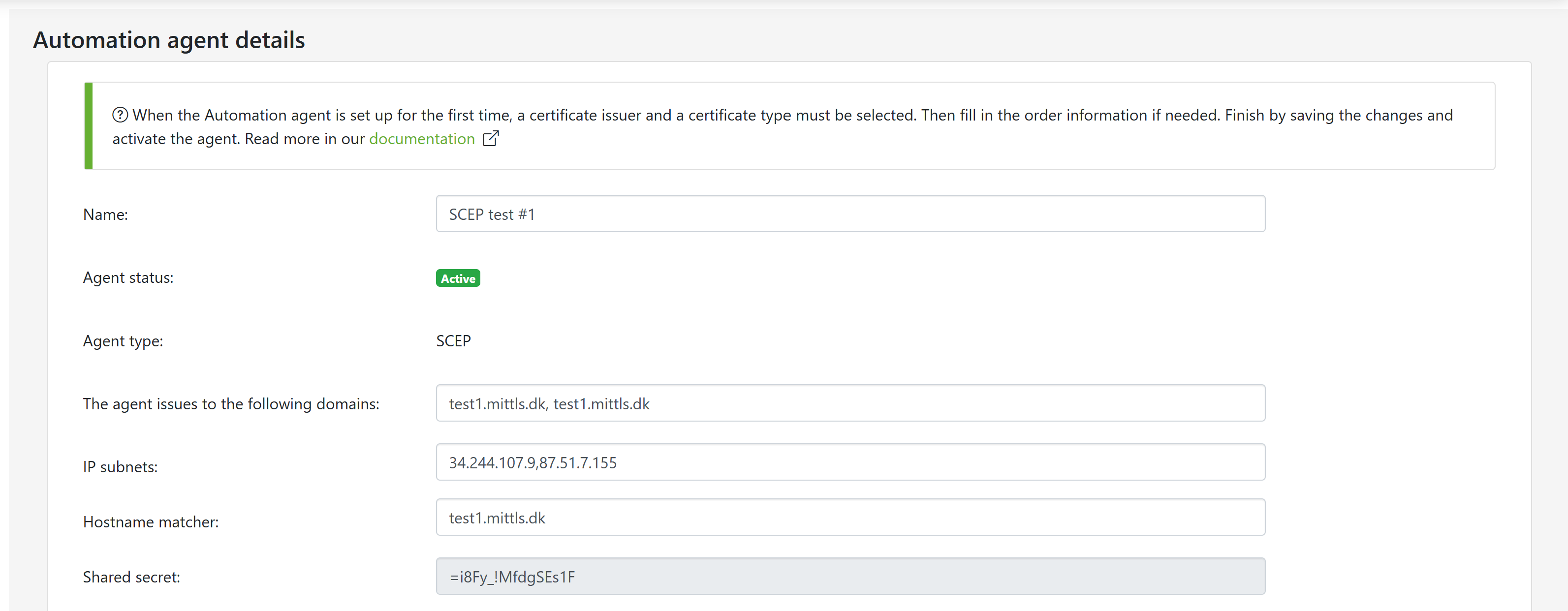
In TrustView, go to Agents in the left menu and click AddSCEP in the toolbar, to create a SCEP automation agent.
Once the agent has been created, a Sharedsecret will automatically be generated and be available for you to use
in a command for your SCEP client of your choice.
Enter a name for the SCEP agent and fill out the IPsubnets and Hostnamematcher.
Lastly select a Certificateissuer and click Update to activate the agent.
Important
Save the Sharedsecret, as it is required for connecting to the SCEP server, which in this instance is TrustView.
Now that the SCEP agent is configured in TrustView, a command can be run to execute a certificate issuance.
The structure and parameters of the command depend completely on the SCEP client used. On a Windows server, the command can be run from PowerShell
or from a CLI on a Linux server.
Here is an example of what it could look like for a SCEP client used on Windows, using this SCEP client:
1PS C:\temp\scepclient-windows-amd64-v2.2.0>.\scepclient-windows-amd64.exe-debug-server-urlhttps://trustview-instance-url/scep-cn"domain.example.com"-challenge"=i8Fy_!MfdgSEs1F"-private-key"C:\temp\privatekey.key" 2level=infots=20XX-XX-31T13:27:00.0206502Zop=GetCACerterror=nulltook=179.674ms 3level=debugts=20XX-XX-31T13:27:00.0248159Zmsg=cacertlistcount=3 4level=debugts=20XX-XX-31T13:27:00.026347Zmsg=cacertlistnumber=0rdn="CN=EndEntity,O=Organization,L=City,ST=State,C=US"hash_type=SHA-256hash=e4505b4c6bc3070fd8a12d60e7b3ae250021d0632a551b8bb57c0a37a2d30bab 5level=debugts=20XX-XX-31T13:27:00.0264065Zmsg=cacertlistnumber=1rdn="CN=IntermediateCA,O=Organization,L=City,ST=State,C=US"hash_type=SHA-256hash=4fce3213e58c9c4b0c4f733358f16e5211e2ee2efa1ec9104ab324f7943d05a0 6level=debugts=20XX-XX-31T13:27:00.0264065Zmsg=cacertlistnumber=2rdn="CN=RootCA,O=Organization,L=City,ST=State,C=US"hash_type=SHA-256hash=a04ab5ffd3f0ff4efed89380f7a47fc6b2a960ea374569fec36e0a9739af74b4 7level=debugts=20XX-XX-31T13:27:00.0275331Zmsg="creating SCEP CSR request"transaction_id="HbP2v8UTin4wY0BfT7CmGMs33BM="signer_cn="SCEP SIGNER" 8level=infots=20XX-XX-31T13:27:00.0618626Zop=GetCACapserror=nulltook=32.6128ms 9level=infots=20XX-XX-31T13:27:00.3175644Zop=PKIOperationerror=nulltook=255.3966ms10level=debugts=20XX-XX-31T13:27:00.3180724Zmsg="parsed scep pkiMessage"scep_message_type="CertRep (3)"transaction_id="HbP2v8UTin4wY0BfT7CmGMs33BM="11level=infots=20XX-XX-31T13:27:00.3191155ZpkiStatus=PENDINGmsg="sleeping for 30 seconds, then trying again."12level=infots=20XX-XX-31T13:27:30.6087161Zop=PKIOperationerror=nulltook=289.2402ms13level=debugts=20XX-XX-31T13:27:30.6098253Zmsg="parsed scep pkiMessage"scep_message_type="CertRep (3)"transaction_id="HbP2v8UTin4wY0BfT7CmGMs33BM="14level=infots=20XX-XX-31T13:27:30.6098253ZpkiStatus=SUCCESSmsg="server returned a certificate."15level=debugts=20XX-XX-31T13:27:30.6123552Zmsg="decrypt pkiEnvelope"ca_certs=316PS C:\temp\scepclient-windows-amd64-v2.2.0>
Note
In the example above, the -challenge refers to the value of Sharedsecret from the detail page, for the SCEP automation agent in TrustView.
It is possible to use EAB with TrustView ACME endpoints, when using automation.
Note
EAB will only work for ACME clients that support it. See the ACME standard for more information.
It will work with the ACME clients simple-acme and Certbot.
Go to AgentsAgentclientinfo. Then click on the ACME Directory Resource URI link (there may be multiple) that you wish
to set up EAB for. If there are none, simply click Add to create one.
Important
EAB will only work for new accounts and will not work for existing ACME accounts.
On the detail page for the ACME Directory Resource URI, check UseACMEexternalaccountbinding(EAB) to enable it.
Before running an ACME client command, take note of the following:
ACME EAB key ID
ACME EAB key
Next, you need to run the command to register a new account. Here is an example for simple-acme:
Example of a PowerShell command to register a new account in simple-acme

 TrustView Documentation